
This outlines How To Clear An Item / Product using the Clear Item (#2) POS Key in Touch.
How To? ▲ ▼
In Touch, do as follows:
- Add items/products to the sales grid.
- Select an item/product in the sales grid.
- Select the Clear Item (#2) POS Key.
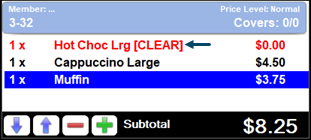
- When the Show Cleared Items option is selected, the cleared item/product will be displayed in red font and suffixed with the text [CLEAR] in the sales grid, and the sale price will be set to zero. For example:
- If the Enforce Reason Code option has been selected, then the Clerks/Staff member will be prompted to provide a reason for clearing the item/product.
- Clearing a main meal will also ensure the sides, sauces and cooking instructions will also be cleared. Otherwise, sides, sauces and cooking instructions can also be cleared separately by individually selecting them and clearing each as required.
End of article ▲