
Subjects ▲ ▼
About ▲ ▼
What Is Required? ▲ ▼
- Touch will need to be installed and operational.
- Ensure the KVS has been added as a peripheral to Touch. Refer HERE for more information.
What To Consider? ▲ ▼
- It is recommended that Venues with more than one Touch device, configure their KVSs in the Back Office HERE.
When Is It Used? ▲ ▼
Used to configure/manage/view KVSs for Touch
Screens ▲ ▼
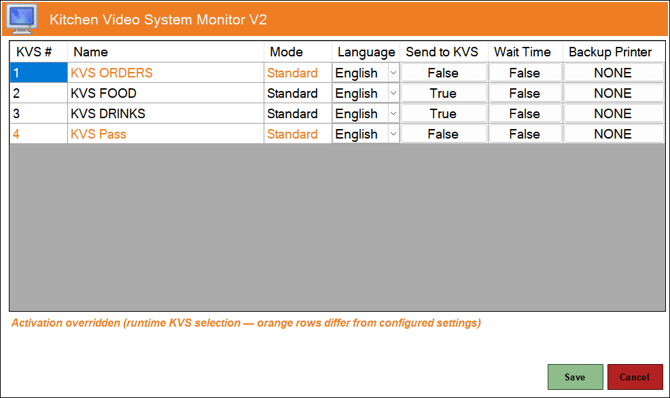
Kitchen Video System Monitor V2 Screen ▲ ▼
To access, select the Kitchen Video System option from the Peripheral Type drop-down list in the Add New Peripheral screen, and then enter an appropriate Description for the peripheral being added (For example, KVS Food) and select OK. The above screen will then be displayed. Used to configure/manage/view KVSs for Touch.
Grid Section
Notes ...
Rows displayed with the #, Name and Mode in orange indicates that the Send to KVS option has been overridden due to profiles being switched HERE.
- KVS # - Displays the number of each KVS. This is set HERE.
- Name - Displays the name of each KVS. This is set HERE.
- Mode - Displays the mode of each KVS. This is set HERE.
- Language - Select from the drop-down list of languages the preferred language in which the KVS will be displayed.
- Send To KVS - Toggle select to set to True/False. Items will only be sent to those KVSs that have this option set to True.
- Wait Time - Toggle select to set to True/False. This option can only be set to True for one KVS at a time. Once set to True, the Wait time set here will be displayed HERE.
End of article ▲