
This outlines How To Manage Raffles using the Raffle Draw (#91), Raffle Ticket (#90) and Reprint Raffle Ticket (#92) POS Keys in Touch.
How To? ▲ ▼
- Backup Raffles?
- Clear Old Raffles?
- Configure The Raffle Draw (#91) POS Key For The First Time?
- Create A Raffle And Sell Tickets?
- Draw A Raffle?
- Reprint A Raffle Ticket?
- Manage Raffle Tickets For Speed And Data Size?
Backup Raffles? ▲ ▼
- To backup old Raffles, use the backup of the Table Tracking database. Refer HERE for more information.
Clear Old Raffles? ▲ ▼
- Raffles will be automatically cleared after 7 days after they have been closed. This process is automatically initiated when the Swiftpos Touch terminal, that is the Table Tracking Master, is started up in the morning.
- To clear Raffles manually the close all the Raffles and restart the Swiftpos Touch terminal, that is the Table Tracking Master. This also does a reindex on the Table Tracking database to increase performance.
Configure The Raffle Draw (#91) POS Key For The First Time? ▲ ▼
The first time the Raffle Draw (#91) POS Key is selected in Touch, an SQL connection will need to be established with the Back Office and Table Tracking databases.
In Touch, do as follows:
- Select the Raffle Draw (#91) POS Key.
- The following Startup Wizard prompt will be displayed.
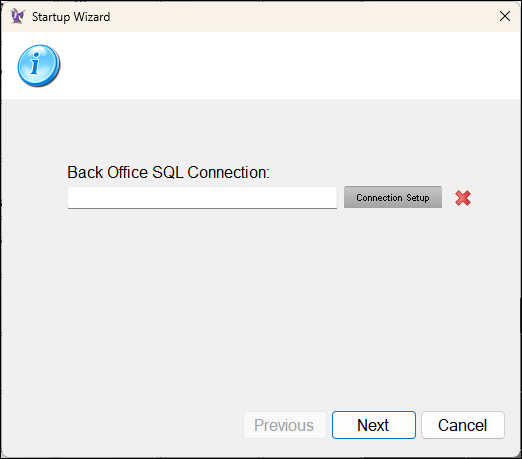
- Select the Connection Setup option to display the Back Office Connection setup screen.
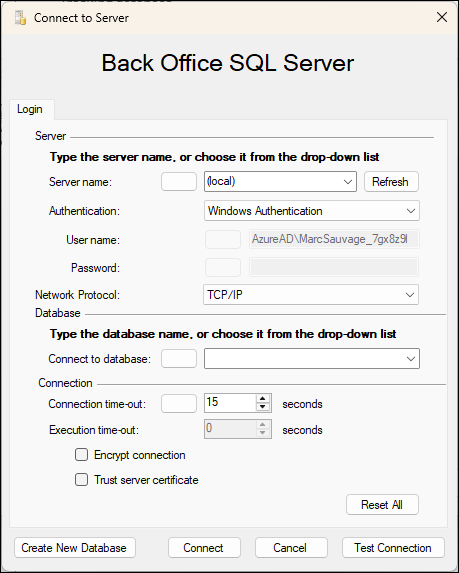
- Enter the connection details necessary to ensure a successful connection to the Back Office database.
- The following Startup Wizard prompt will be displayed.
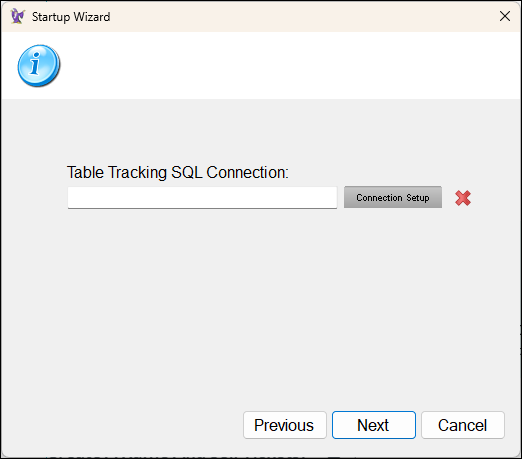
- Select the Connection Setup option to display the Table Tracking Connection setup screen.
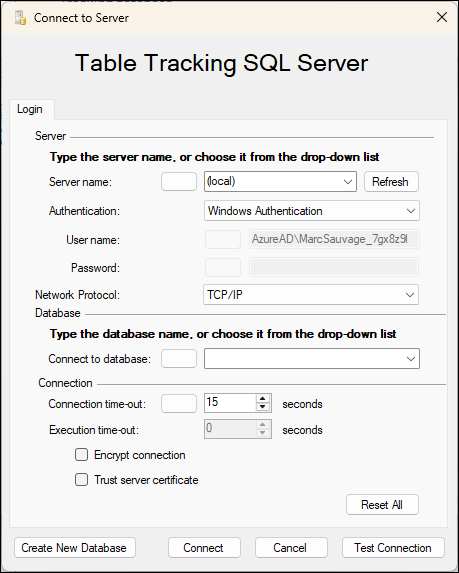
- Enter the connection details necessary to ensure a successful connection to the Table Tracking database.
- The following Startup Wizard prompt will be displayed.
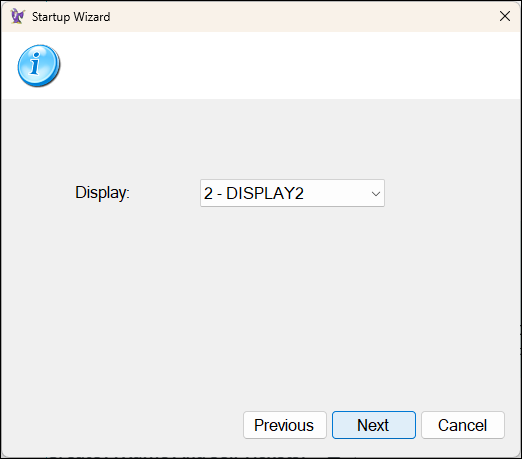
- Select the Display on which the Raffle Draws screen will be displayed.
- Select Next to display the Raffle Draws screen.
Notes ...
This above setup is only required the first time the Raffle Draw (#91) POS Key is selected. The next time it is selected the Raffle Draws screen will immediately be displayed.
Create A Raffle And Sell Tickets? ▲ ▼
In Back Office, do as follows:
-
Ensure Raffle Tickets are created and send a Full Update is to Touch. Refer HERE for more information.
In Touch, do as follows:
- Select the Raffle Draw (#91) POS Key.
- The Raffle Draws screen will be displayed.
- Select the New option.
- Select the Start Selling option.
- This will allow Raffle tickets to be sold in Touch by selecting the Raffle Ticket (#90) POS Key.
- Select Close to exit the screen.
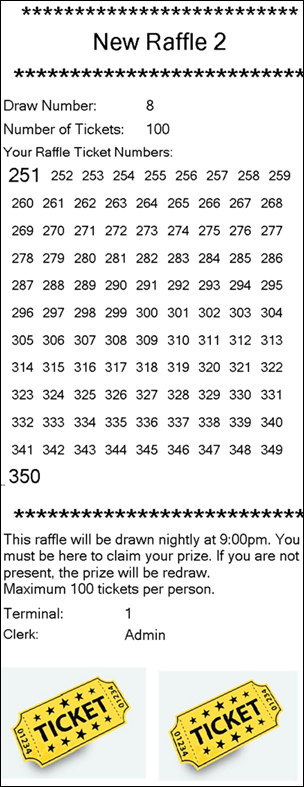
Example of a Raffle ticket sold.
Draw A Raffle? ▲ ▼
In Touch, do as follows:
- Select the Raffle Draw (#91) POS Key to display the Raffle Draws screen.
- Select the Raffle from those listed in grid for which a Draw is to be initiated.
- Select the Suspend option to ensure no more Raffle tickets can be sold in Touch.
- Select the Draw option to open the Random Draw Control Panel screen and execute a draw.
- Select either a Single or Multi Draw option.
- If required select to display the draw on a 2nd display.
- Select New option to initiate the draw and display the draw(s).
- For each draw displayed, select the Draw option to start the draw. While drawing, random numbers will appear until the winning ticket is drawn.
- After a couple of seconds, a countdown will start displaying the remaining time to for the winner to claim the winning ticket. This time interval is set HERE.
- If claimed, select Suspend to verify the claim. If verified, select Claim to display the ticket has been claimed. If not verified, select Resume to enable the possibility of doing a redraw.
- If not claimed, select Redraw to initiate a redraw.
- Select Close to exit the screen.
Reprint A Raffle Ticket? ▲ ▼
In Touch, do as follows:
- Select the Reprint Raffle Ticket (#92) POS Key.
- The last Raffle ticket will be printed.
Manage Raffle Tickets For Speed And Data Size? ▲ ▼
- Make sure that the Master Table Tracking terminal is restarted every night to ensure that a reindex and a clear of data older than 30 days gets completed automatically on startup.
- Do not exceed 400,000 raffle numbers in a single day of selling raffle tickets. Numbers above this range can become slow and will require a manual reindex of the Table Tracking database.
- Keep the master Table Tracking database on a local machine (recommended for all Table Tracking databases).
End of article ▲