
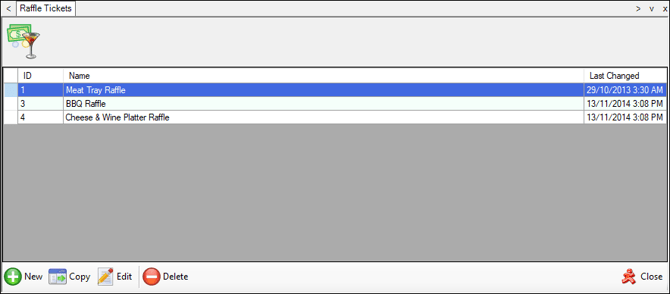
To access, select the Raffle Tickets menu option from the Vouchers/Discounts menu in Back Office.
Notes...
Refer HERE for an up-to-date overview of the availability of features in relation to Sales/Orders placed and/or Vouchers redeemed.
Subjects ▲ ▼
About ▲ ▼
What Is Not Supported? ▲ ▼
There is NO SUPPORT for raffles with Discounts, Mix n Match, Promotions or Surcharges.
What To Consider? ▲ ▼
-
Raffle ticket numbers are allocated as soon as a raffle item/product is added to an order/sale. If the raffle item/productis cleared from the order/sale, those allocated numbers are returned to the available number pool and may be resold in the next order/sale. In these scenarios, it is normal for raffle ticket numbering to appear to skip numbers.
When Is It Used? ▲ ▼
Used to quickly and easily configure Raffles to sell Raffle tickets in Touch to increase patron enjoyment. Any type of sale combination can be created for each different Raffle. For example:
- 5 tickets for $5
- 12 tickets for $10
- 30 tickets for $20
Raffle draws can be run in Touch terminal with up to 9 draws being run against the same Raffle.
FAQs ▲ ▼
- Raffle tickets are taking a long time to add to the sale?
- Raffle ticket does not show when I select "New" in Touch?
- Raffle tickets numbers are being skipped?
- Raffle ticket numbers are printing out in random order with some numbers in bold?
- Selling a Raffle ticket displays "Maximum number of tickets has been exceeded"?
Raffle tickets are taking a long time to add to the sale? ▲ ▼
- Is the Master Table Tracking terminal being restarted every night?
- Are you selling numbers in excess of 400,000 across the raffle tickets currently selling?
- Is your table tracking database local?
- Manually reindex the table tracking database. Refer HERE for more information.
Raffle ticket does not show when I select "New" in Touch? ▲ ▼
- Check the date/time range configured HERE are correct.
- Check that the item/product you assigned to the raffle ticket is active in the Location you are attempting to sell the raffles in.
Raffle tickets numbers are being skipped? ▲ ▼
-
This is expected behaviour when a raffle item/product is cleared from an order/sale. Any ticket numbers allocated to that item/product are returned to the available number pool and may be resold in the next sale. As a result, raffle ticket numbering may appear to skip numbers.
Raffle ticket numbers are printing out in random order with some numbers in bold? ▲ ▼
- Are you using any kind of Discount, Mix n Match, Promotions or Surcharge on the sale of the raffle tickets? These are not supported. Refer HERE for more information.
Selling a Raffle ticket displays "Maximum number of tickets has been exceeded"? ▲ ▼
- You are trying to sell more raffle tickets than have been configured HERE.
How To? ▲ ▼
Screens ▲ ▼
Edit Raffle Ticket Design Screen ▲ ▼
To access, select the edit option in the footer section of the Raffle Tickets screen. Used to add/edit a Raffle.
- Combo Item Name - Displays/Enter the Combo Item Name.
- Product Type - Select either a Single Product or Family of items/products. If a Family is selected and a default item/product is to be included each time the Combo is sold, then ensure the item/product in the Default in Family option is selected. If however, a prompt is required to select the required item/product each time the Combo is sold, then do NOT select a Default in Family.
- Qty of Selection - Displays/Enter the quantity that can be sold with the Combo.
Raffle Edit Screen ▲ ▼
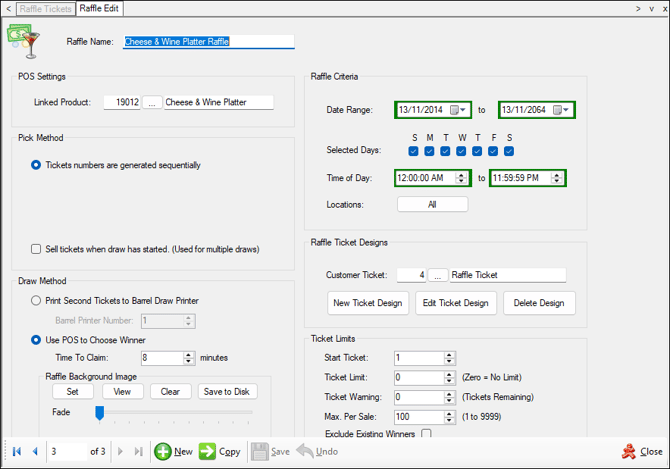
To access, select the edit option in the footer section of the Raffle Tickets screen. Used to add/edit a Raffle.
- Header
- POS Settings
- Raffle Criteria
- Pick Method
- Raffle Ticket Designs
- Draw Method
- Ticket Limits
- Footer

-
Raffle Name - Displays/Enter the name of the Raffle.
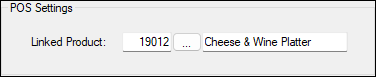
- Linked Product - Select to open the Search Products screen to select the item/product the Raffle is to be assigned to. The Raffle Ticket sources its price from the sell price of the selected item/product.
Notes...
Raffle Tickets Product cannot be in Mix n Match or Member Campaigns because it is not designed to work like this.
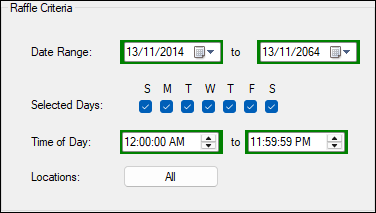
Configure the Date Range, Selected Days, Time of Day and Locations options to set the time and place for the selling of Raffle tickets.
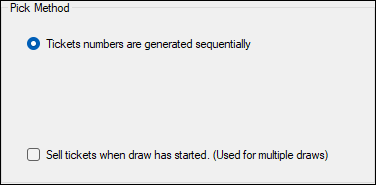
- Ticket numbers are generated sequentially - Select to generate sequentially numbered Raffle Tickets based on the Ticket Limits. This is selected by default.
- Sell Ticket when draw has started - Select to enable. Used for multiple draws.
Raffle Ticket Designs Section ▲ ▼
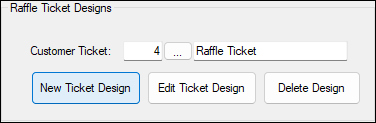
- Customer Ticket - Select to open the Search Raffle Ticket Design screen to select an existing ticket design.
- New Ticket Design - Select to open the Edit Raffle Ticket Design screen to create a new Raffle ticket.
- Edit Ticket Design - Select to open the Edit Raffle Ticket Design screen to edit the selected ticket.
- Delete Design - Select to delete the selected ticket.
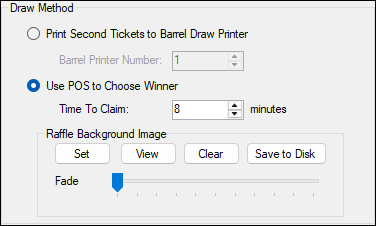
Select from one of the following Draw Methods:
- Print Second Tickets to Barrel Draw Printer - Select to print copies of Raffle tickets at the Barrel Promotion Printer to put into the barrel. The draw will take place manually using a Barrel.
- Barrel Printer Number - Displays/Enter the number identifying the printer to be used to print Raffle tickets. This number is set when configuring the Barrel Promotion Printer in Reception.
Notes...
A Barrel Draw printer will need to be setup in Touch/Reception that will print Raffle tickets.
- Use POS to Choose Winner - Select to draw the winner in Touch. This will ensure that when the Draw option is selected the Random Draw Control Panel screen will be displayed to initiate a draw. Raffle Tickets at the Receipt Printer to give to the customer, then the Raffle Draw (#91) POS Key is used to choose the winning number.
- Raffle Background Image - Use the Set/View/Clear/Save to Disk and Fade options to add/configure a background image to be displayed during a Raffle draw. The Images database is shared with the Products Table so if you cannot import the graphic then change the name to be something unique before importing again.
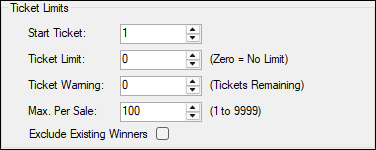
- Start Ticket - Displays/Set the number which the Raffle ticket numbers start at.
- Ticket Limit - Displays/Set the limit (maximum number) of the Raffle tickets. For example, to sell 500 Raffle tickets, set this number to 500. This will sell 500 Raffle tickets starting from the Start Ticket number
- Ticket Warning - Displays/Set the number of tickets left to sell to ensure a warning is sent to the Clerk/Staff Member selling the Raffle tickets notifying him/her when this number is reached.
- Max. Per Sale - Displays/Set the maximum number of Raffle tickets that can be sold in one sale.
- Exclude Existing Winners - Select to ensure that Customer/Members that have already claimed their tickets in a multiple draw are excluded from subsequent draws.

- New - Select to add a Raffle Ticket.
- Copy - Select a copy the selected row.
- Save - Select to save the changes.
- Undo - Select to undo the changes.
- Close - Select to exit.
Raffle Tickets Screen ▲ ▼
To access, select the Raffle Tickets menu option from the Vouchers/Discounts menu in Back Office. Used to manage Raffles.
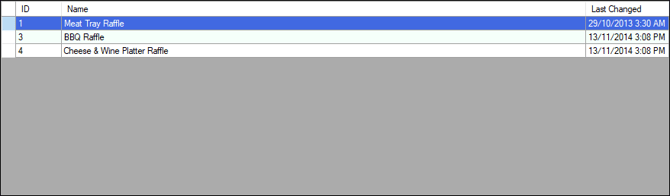
Lists the available Raffles along with their ID, Name and Last Changed date.

- New - Select to add a Raffle Ticket.
- Copy - Select a copy the selected row.
- Edit - Select to edit the selected row.
- Delete - Select to delete the selected row.
- Close - Select to exit.
End of article ▲