
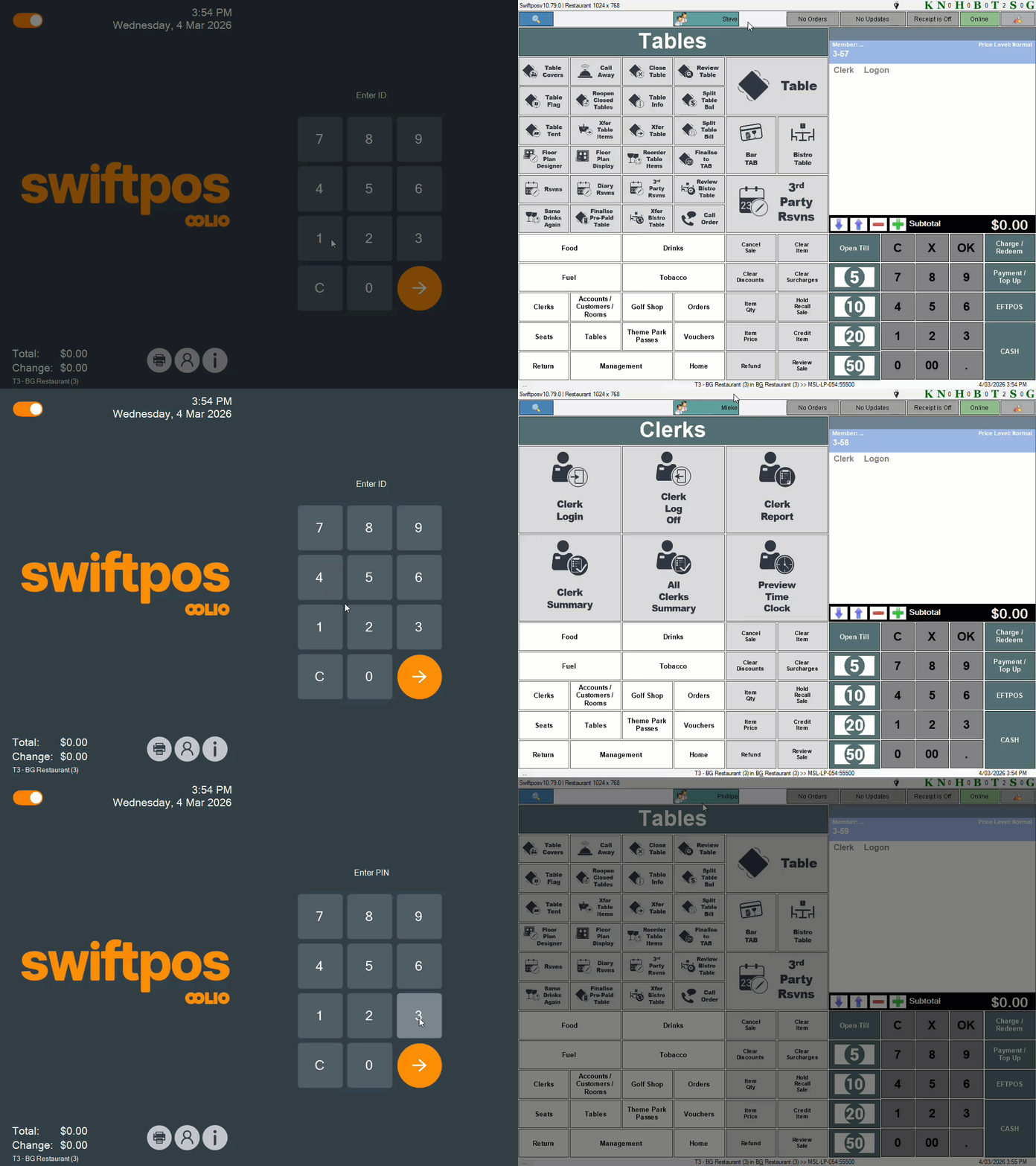
Example of Logging In / Out using the Login Using Manual Login / Log Out option
This outlines the How To Login Using Manual Login / Log Out in Touch.
Subjects ▲ ▼
About ▲ ▼
When Is It Used? ▲ ▼
Used to ensure Clerk/Staff are forced to login manually by selecting either the Clerk Menu option in the Toolbar or the Clerk Login (#101) POS Key.
How To? ▲ ▼
How To GET STARTED? ▲ ▼
- Add the Clerk Login (#101) POS Key to a Layout. Refer HERE for more information.
- Ensure the Manual Log In/Out option is selected in the in the Clerk screen.
- Ensure a Full Update is sent to all the Touch terminals that will be using the POS Key. Refer HERE for more information.
How To Login? ▲ ▼
In Touch:
- When the login prompt is displayed, Login.
- The Clerk's/Staff Member's name. will be displayed in the Clerk Menu option in the Toolbar

How To Log Off? ▲ ▼
In Touch:
- Select either the:
- Clerk Menu option in the Toolbar.
- Clerk Login (#101) POS Key.
- The login prompt will be displayed.
End of article ▲