
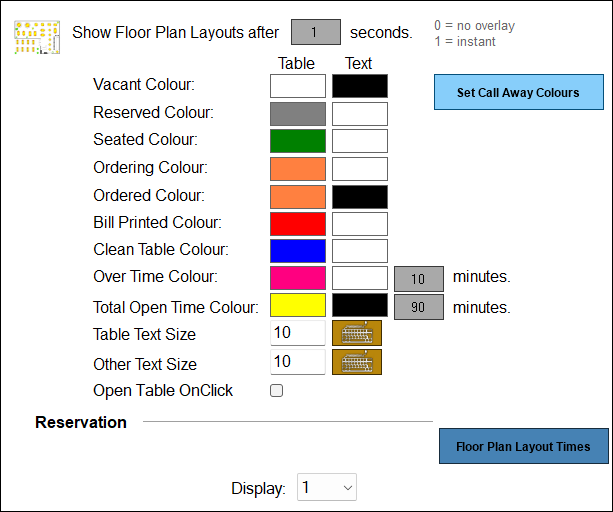
To access, select the Floor Plans menu option in Terminal Settings.
Subjects ▲ ▼
About ▲ ▼
What Is Required? ▲ ▼
- Swiftpos v10+
When Is It Used? ▲ ▼
Used mainly to configure the appearance of Floor Plans in Touch. It includes the ability to change Floor Plan colours and schedule the display of Floor Plan layouts.
Screens ▲ ▼
Call Away Colour Settings Screen ▲ ▼
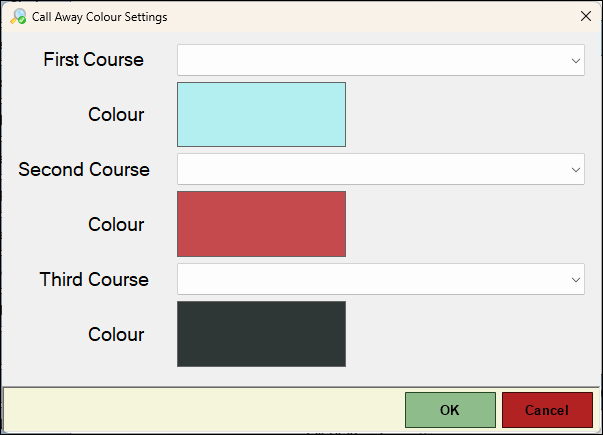
To access, select the Set Call Away Colours option. Used to configure the colours, Tables will be displayed in, on the Floor Plan Display when Call Aways are done for specific courses.
- First/Second/Third Course - Select from the drop down list of Print Groups the Print Group applicable to the course (entree/Mains/Dessert).
- Colour - Select to open a colour prompt to select the colour the Table will be displayed in when the course (entree/Mains/Dessert) is called.
Floor Plan Layout Display Times Screen ▲ ▼
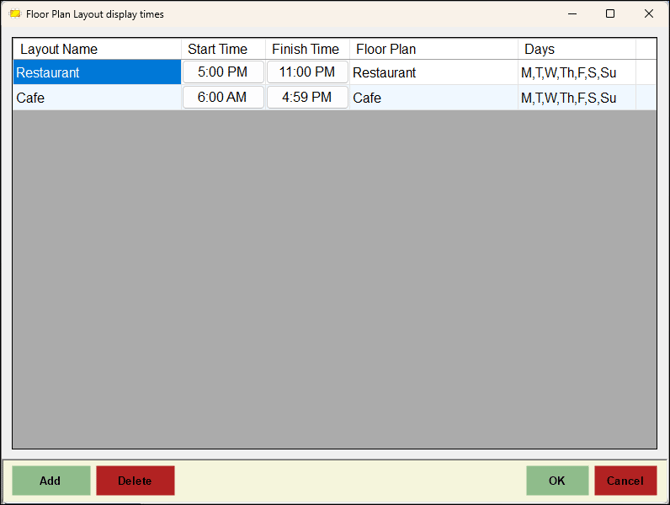
To access, select the Floor Plan Layout Times option. Used to schedule the days and times when each Floor Plan is displayed. Touch looks up the Floor Plan times and then determines which Floor Plan is displayed. This feature automates the display of different layouts at different times of the day or even on different days of the week.
- Start Time, End Time or Days - Select the appropriate column and set the applicable time/days.
- Add - Used to create a new Floor Plan layout time entry.
- Delete - Used to delete the selected Floor Plan layout time entry.
Floor Plans Screen ▲ ▼
- Show Floor Plan Layouts after x seconds - Select to set the number of seconds of non-activity that must pass before the Floor Plan layout is displayed. The following special settings are also available:
- {-1} - If set to a value of -1 then the Floor Plan displays immediately when using Manual Clerk Login.
- {0} - if set to a value of zero the Floor Plan must be manually invoked using the Floor Plan Display (#402) POS Key in Touch.
Notes ...
This applies only to the Manual Clerk Login, not Fast Clerks.
- Table/Text Colours - Select to open the Colour selection prompt to customise the Table/Text colours for each status. Ensure contrasting colours are chosen so that the Text is easily visible against the Table colour.
- Over Time Colour x minutes - Select to set the number of minutes before the Table will start flashing, which indicates the Table needs service. Opening the Table and saving it will reset the timer to start counting down again.
- Total Open Time Colour - Select to set the number of minutes before the Table will start flashing, which indicates the Table needs service. Opening the Table and saving it will reset the timer to start counting down again.
- Table Text Size - Select the keyboard icon button to the right to set the Table text font size.
- Other Text Size - Select the keyboard icon button to the right to set the text font size of non-Table items in the Floor Plan layout.io
- Set Call Away Colours - Select to open the Call Away Colour Settings screen to set the colours Tables will be displayed in when a Call Away is done for a Table.
- Open Table On Select - Select to ensure that when a Table is selected on the Floor Plan Display the same Table is opened in the sales grid. If this option is not selected, then the Table Status screen will be displayed instead by default.
Notes ...
This feature does not apply to Bistro Tables. To open a Bistro Table, close the FLoor Plan Display (by selecting Return) and select the Bistro Table (#30) POS Key.
- Floor Plan Layout Times - Select to open the Floor Plan Layout Display Times screen to configure the days and times when each Floor Plan is displayed.
- Display - Displays/Set the ID number of the monitor on which the reservation screen will be displayed.
End of article ▲