
This outlines How To Deactivate / Remove Surcharges in Swiftpos.
Subjects ▲ ▼
About ▲ ▼
When Is It Used? ▲ ▼
Used when a Venue wants to deactivate surcharges being applied when using Swiftpos POS Devices, like Touch POS, Touchmini, etc.
How To? ▲ ▼
How To Deactivate Surcharges? ▲ ▼
-
In Back Office
- Surcharges configured in Back Office will need to be deactivated. To deactivate Surcharges do as follows:
-
Navigate to the Surcharge Setup Edit screen.
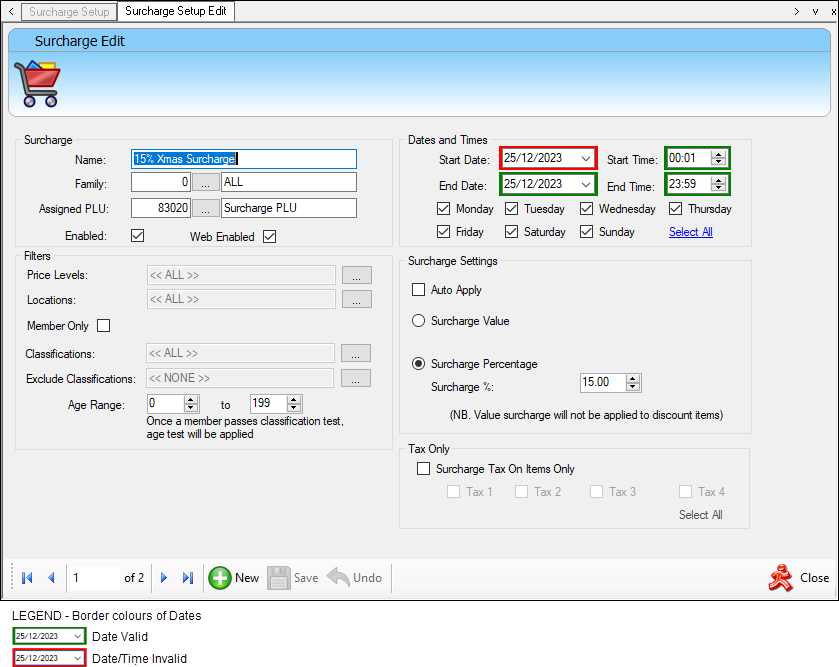
- Ensure the Enabled and Web Enabled options are NOT SELECTED.
OR -
Set End Date/Time in the past.
OR -
Ensure all days of the week are NOT SELECTED.
OR - Ensure the Auto Apply option is NOT SELECTED.
- Save the changes.
- Ensure a Full Update is sent to all the Touch POS devices. Refer HERE for more information.
-
-
If necessary, all Surcharge related POS Keys can be removed from Touch POS Keyboard Layouts. To do this, do as follows:
-
Navigate to the Keyboards menu option:
- Identify the Keyboards that have Surcharge (#80) POS Keys.
- For each Keyboard:
- Identify the Layouts that have Surcharge (#80) POS Keys.
- For each Layout:
- Remove any Surcharge (#80) POS Keys that have been added to Keyboard Layouts.
- Remove any Clear All Surcharges (#23) POS Keys that have been added to Keyboard Layouts.
-
- Surcharges configured in Back Office will need to be deactivated. To deactivate Surcharges do as follows:
- In Touch POS
- EFTPOS Peripherals maybe configured for Surcharges. These will need to be removed if Surcharges for these are to be deactivated. To do this, do as follows:
- Navigate to the EFTPOS option in Peripherals. For example:
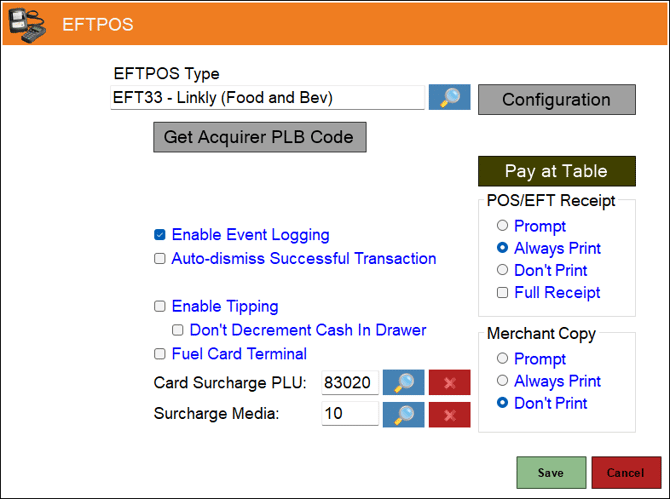
- Remove the value in the Card Surcharge PLU field.
- Remove the value in the Surcharge Media field.
- Save the changes
- Navigate to the EFTPOS option in Peripherals. For example:
- EFTPOS Peripherals maybe configured for Surcharges. These will need to be removed if Surcharges for these are to be deactivated. To do this, do as follows:
How To Remove Surcharges? ▲ ▼
-
In Back Office
- To remove Surcharges configured in Back Office do as follows:
- To remove Surcharges do as follows:
- Navigate to the Surcharge Setup screen.
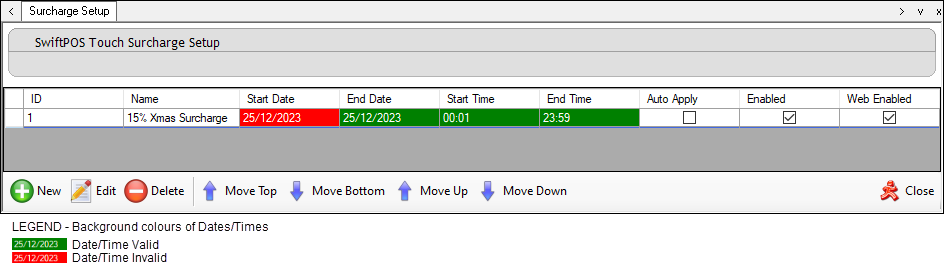
- For each Surcharge listed in the grid, select it and select the Delete option in the Footer section.
- Navigate to the Surcharge Setup screen.
Quick Checklist ▲ ▼
- Deactivate Surcharges in Back Office by:
- Disabling the Enabled option in the Surcharge Setup Edit screen.
- Disabling Web Enabled option in the Surcharge Setup Edit screen.
- Unselecting the Auto Apply option in the Surcharge Setup Edit screen.
- OR Remove Surcharges in Back Office by:
- Deleting each Surcharge listed in the Surcharge Setup screen.
- Remove Surcharge related POS Keys (Surcharge (#80) and Clear All Surcharges (#23)) from Keyboard Layouts in Back Office.
- Remove values in the Card Surcharge PLU and Surcharge Media fields in the setting options in EFTPOS Peripherals in Touch POS.
Useful Links ▲ ▼
- Add A Surcharge
- Add A Surcharge PLU
- Clear All Surcharges (#23) POS Key
- Configure And Use Card Payment Surcharges - Orderaway - How To
- Configure And Use Surcharges
- EFT12 - Verifone (Vault) - Touch POS - Peripherals
- EFT08 - Tyro Payments - Touch POS - Peripherals
- EFT33 - Linkly (Food and Bev) Touch POS - Peripherals
- EFT33 - Linkly (Food and Bev) - Reseller & Support Information - Touch POS - Peripherals
- EFT47 - Verifone Cloud - Touch POS - Peripherals
- How To - Oolio Pay - How To
- Order Of Application Of Discounts, Campaigns, Happy Hours, Mix n Matches, Specials / Promotions, Surcharges And Vouchers - Swiftpos - What To Consider
- Pay@Table - Touch POS - What To Consider
- Subtotal An Order / Sale - Touch POS - How To
- Surcharge Setup Screen
- Surcharge (#80) POS Key
End of article