
This outlines How To Add Notes To An Order in Touch.
How To? ▲ ▼
- Select the Pending Orders option to open the Phone / Web Orders screen.
- Locate and select the order to which notes need to be added.
- Select the Order Info (#27) POS Key to open the Order information screen.
- In the Order Notes field enter the notes to be associated with the order. For example, Ring buzzer on arrival.
- Select Save to save the changes.
- The notes entered will now display in the sales grid.
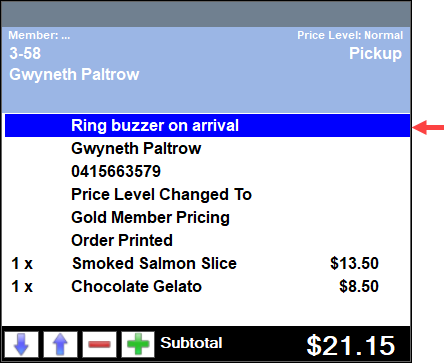
-
Save the order.
Notes ...
Notes can also be added to an order when a new order is created using the New Order (#25) POS Key.
End of article ▲