
IMPORTANT
Venues currently configured to use the SoftSDC V2 (Taxcore Fiji) integration, can continue using this version until it ceases on 31 December 2026.
Before the 31 December 2026, Venues MUST be upgraded and configured to use the SoftSDC V3 (Taxcore Fiji) integration. Refer HERE for more information.
Subjects ▲ ▼
About ▲ ▼
What Is Required? ▲ ▼
- Swiftpos 10.79.3+
- The Fiscal Devices for Taxes option must be selected as part of the Swiftpos Registration. This may require requesting a Registration to be submitted.
- Touch will need to be upgraded to the minimum required release of Swiftpos.
- Ensure the Fiscal Device PIN (#650) and the Fiscal Buyer TIN (#651) POS Keys are added to the appropriate Keyboard Layout using the Designer. Refer HERE for more information.
- SoftSDC has been installed and configured for the site.
- The required fiscal certificate / smart card has been configured as required.
- The required Fiji tax rates are available from SoftSDC.
- Swiftpos taxes have been configured.
- Swiftpos taxes have been linked to the correct SoftSDC tax labels in the Fiscal Device setup.
- Item/Product and barcode data has been configured as required, including GTIN / barcode details where applicable.
- Receipt printing has been configured and tested.
What Is Supported? ▲ ▼
The following is a list of Fiscal Device Peripheral types that are available:
- SoftSDC V2
- SoftSDC V3
What To Consider? ▲ ▼
- Venues currently configured for SoftSDC V2 (Taxcore Fiji) integration, can continue using this integration until it ceases on 31 December 2026.
- Only one Fiscal Device Peripheral Type can be configured for each Touch device.
- SoftSDC is the source of truth for the tax rates used on fiscal invoices. Swiftpos Touch receives and utilises the tax rates from SoftSDC for fiscal invoice processing.
When Is It Used? ▲ ▼
Used when a Venue requires POS devices to be integrated with tax authorities to handle tax compliance, secure audits, and data synchronization. Originally designed to support Fiji's TaxCore solution.
Examples? ▲ ▼
-
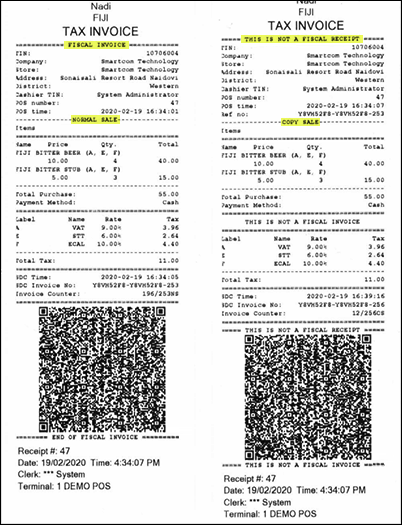
Example of a Fiscal receipt and a copy.
FAQs? ▲ ▼
- What Happens At Touch Startup?
When Touch starts, the configured Fiscal Device is checked as part of the normal startup process.
As part of this process, Touch and the Fiscal Device are authenticated before fiscal processing is used.
If the Fiscal Device cannot be contacted or authenticated, Touch will display the relevant warning or error message. -
Product Identification And GTIN / Barcode Entry?
Swiftpos supports product identification using configured item/product and barcode data.
Global Trade Item Numbers (GTINs) can be entered or scanned where they have been configured against items/products.
Depending on the Venue’s item/product setup, Touch can use GTIN / barcode data to identify items/products during an order/sale.
Item/Product and barcode configuration should be completed before fiscal processing is used in a live environment. - Processing Fiscal Sales?
Once SoftSDC V3 is configured, Touch will send applicable order/sales to the Fiscal Device during finalisation.
A successful fiscal order/sale will return fiscal information from SoftSDC and produce a fiscal invoice.
Touch supports standard POS sale workflows, including sales paid using a single payment type or split across multiple payment types.
The fiscal invoice is issued for the completed invoice total after the order/sale has been successfully finalised. -
Fiscal Invoice Output?
Touch produces a fiscal invoice after a successful response is received from the configured Fiscal Device.
The fiscal invoice may be issued in printed form, or electronically where the Venue’s configured workflow supports electronic output. The fiscal invoice may include:- Swiftpos sale details
- Fiscal invoice information
- Tax information
- Buyer TIN, if entered
- Buyer Cost Centre, if entered
- Fiscal QR code
- Refund, Copy And Linked Invoice Reference Numbers?
Certain fiscal invoice workflows require the invoice to reference another invoice.
When issuing Refund or Copy invoices, Touch prompts the operator to enter a Reference Number. This Reference Number is used to link the invoice to the original fiscal invoice.
When issuing a Normal Sale invoice connected to an Advance or Proforma invoice, Touch allows the operator to enter a Reference Number. This Reference Number is used to link the normal sale invoice to the related invoice where required.
The Reference Number prompt appears when these transaction types are used. -
Reviewing Issued Invoices / Electronic Journal?
Swiftpos provides access to issued invoices via the:-
Review Transactions (#10) POS Key in Touch.
-
-
Failed Fiscalisation Behaviour?
If fiscalisation fails, Touch will block the sale from finalising.
A warning or error prompt will appear with the relevant response details returned by SoftSDC. This may include an error or warning code from SoftSDC.The operator will be presented with options such as:
- Retry fiscalisation
- Cancel the fiscalisation attempt
The order/sale cannot be finalised as a fiscal sale until a successful response is received from SoftSDC.
How To? ▲ ▼
How To GET STARTED? ▲ ▼
In Touch:
- Add a new peripheral with the Fiscal Device option selected as the Peripheral Type. Refer HERE for more information.
- Navigate to the Terminal Settings menu and select the Peripheral List option.
- Select Peripheral List.
- Select Add New.
- Add a new peripheral with the type Fiscal Device.
- The Fiscal Device will appear in the Peripheral List.
- Select the Fiscal Device peripheral.
- Select Edit.
- The Fiscal Device screen will open.
- Select from the available options the required Fiscal Device Type.
- Enter the required Host value.
- Enter the appropriate Timeout value.
-
Select from the QR Barcode Size drop-down list the size of the QR code to be printed on the fiscal receipt. The default QR Barcode Size is Small. The size can be adjusted to suit the Venue’s receipt layout as required.
- Select the Tax Links option to open the Tax Linking screen. Then:
-
Select the Get Tax Rates option to retrieve the SoftSDC fiscal tax rates.
-
Map the SoftSDC fiscal tax rates to the relevant Swiftpos Tax IDs in the grid.
- Select OK to save the changes.
-
- Select the Test option to test the configuration.
- If the test was successful, select Save to save the configuration.Otherwise, make the required changes to the configuration and test it again.
- Restart Touch.
How To Upgrade? ▲ ▼
To upgrade to use the SoftSDC V3 (Taxcore Fiji) integration, ensure the upgrade includes the folowing steps:
- Confirm SoftSDC V3 is installed and configured for the Venue.
- Configure Touch to use the SoftSDC V3 the Fiscal Device Type, and ensure:
- Confirm the correct SoftSDC V3 Host value is entered.
- Confirm the Timeout value is entered.
- Confirm the appropriate QR Barcode Size is selected.
- Review and map Tax Links.
- Test the connection to the Fiscal Device.
- Process a fiscal order/sale in a test environment before going live.
Screens ▲ ▼
Fiscal Device Screen ▲ ▼
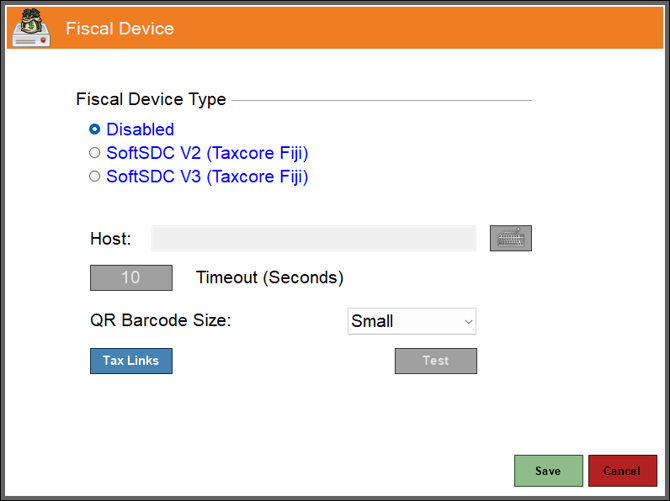
To access, select the Peripheral List option in the Terminal Settings menu. Used to manage/view Fiscal Device configurations in Touch.
- Fiscal Device Type - Select the appropriate Fiscal Device type from the following options:
- Disabled - Select to ensure fiscal integration is disabled and sales will not be sent to SoftSDC.
- SoftSDC V2 - Select to use the existing Fiji SoftSDC V2 integration.
- SoftSDC V3 - Select to use the existing Fiji SoftSDC V3 integration.
- Host - Displays/Enter the required value, depending on the Fiscal Device Type selected above:
- For SoftSDC V2 enter http://localhost:8080/
- For SoftSDC V3 enter http://localhost:8431/
Notes ...
If SoftSDC is installed on the same PC as Touch, the host will usually be a local address.
If SoftSDC is installed on another PC, enter the correct network address for that PC.
- Timeout - Displays/Enter the appropriate timeout value in seconds. The default timeout is 10 seconds. This controls how long Touch will wait for a response from the Fiscal Device before treating the request as failed. The timeout can be adjusted to suit the Venue’s specific requirements if required. If the Fiscal Device does not respond within the configured timeout, Touch will display an error or warning message.
- QR Barcode Size - Displays/Select from the drop-down list the size of the QR code to be printed on the fiscal receipt. The default QR Barcode Size is Small. The size can be adjusted to suit the Venue’s receipt layout as required.
- Tax Links - Select to open the Tax Linking screen.
- Test - Select to confirm whether Touch can connect to the configured Fiscal Device. If the connection is successful, a Success message will be displayed. If the connection fails, an Unable to connect to Fiscal Device message will be displayed. In which case confirm the following:
- Save - Select to save the changes and exit the screen.
- Cancel - Select to exit the screen without saving the changes
Tax Linking Screen ▲ ▼
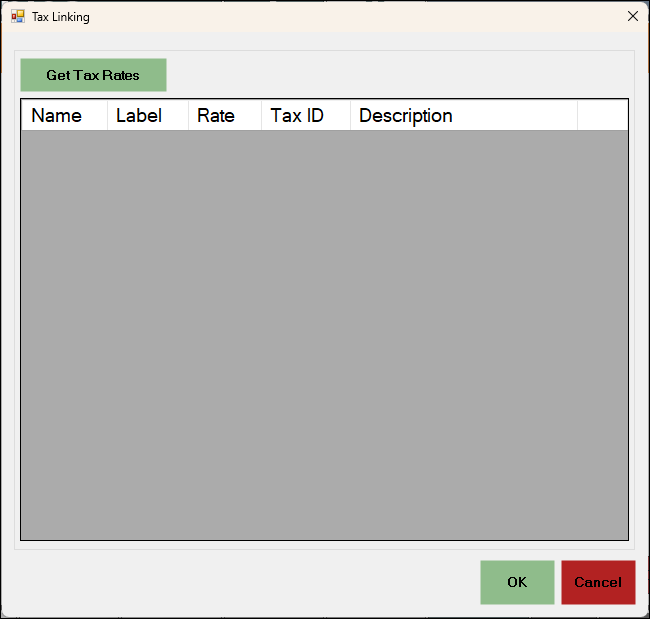
Used to map the SoftSDC fiscal tax rates to the relevant Swiftpos Taxes.
-
Get Tax Rates - Select to retrieve the SoftSDC fiscal tax rates.
Grid Section
Lists the SoftSDC fiscal tax rates along with their Name, Label, Rate, Tax ID and Description. It allows the SoftSDC fiscal tax rates to be mapped to the Swiftpos taxes.
Noteworthy
-
Tax ID - Enter the ID of the Swiftpos Tax code to which the SoftSDC fiscal tax rate is to map to.
Troubleshooting ▲ ▼
- Unable to connect to Fiscal Device - Indicates that Touch could not successfully connect to the configured Fiscal Device. Check the following:
- The Fiscal Device Type is correct.
- The Host value is correct.
- SoftSDC is installed and running.
- The configured port is correct.
- The timeout value is suitable.
- The PC or network is not blocking communication.
- The fiscal certificate / smart card is available if required.
End of article ▲