
This outlines the How To Configure And Apply A Member's Classification Discount in Touchmini.
IMPORTANT
This discount only applies when an order/sale is being paid for, by redeeming a Member's accrued loyalty points.
Subjects ▲ ▼
About ▲ ▼
What To Consider? ▲ ▼
- The total value of the order/sale has to be charged/redeemed to a Member's loyalty points.
- The discount will NOT be available if:
- The Member does NOT have enough loyalty points available for the non-discounted total to be charged/redeemed.
- There is another Media in the order/sale.
- The Discount Media is not configured correctly. That is, it is NOT active.
How To? ▲ ▼
How To Apply A Member's Classification Discount? ▲ ▼
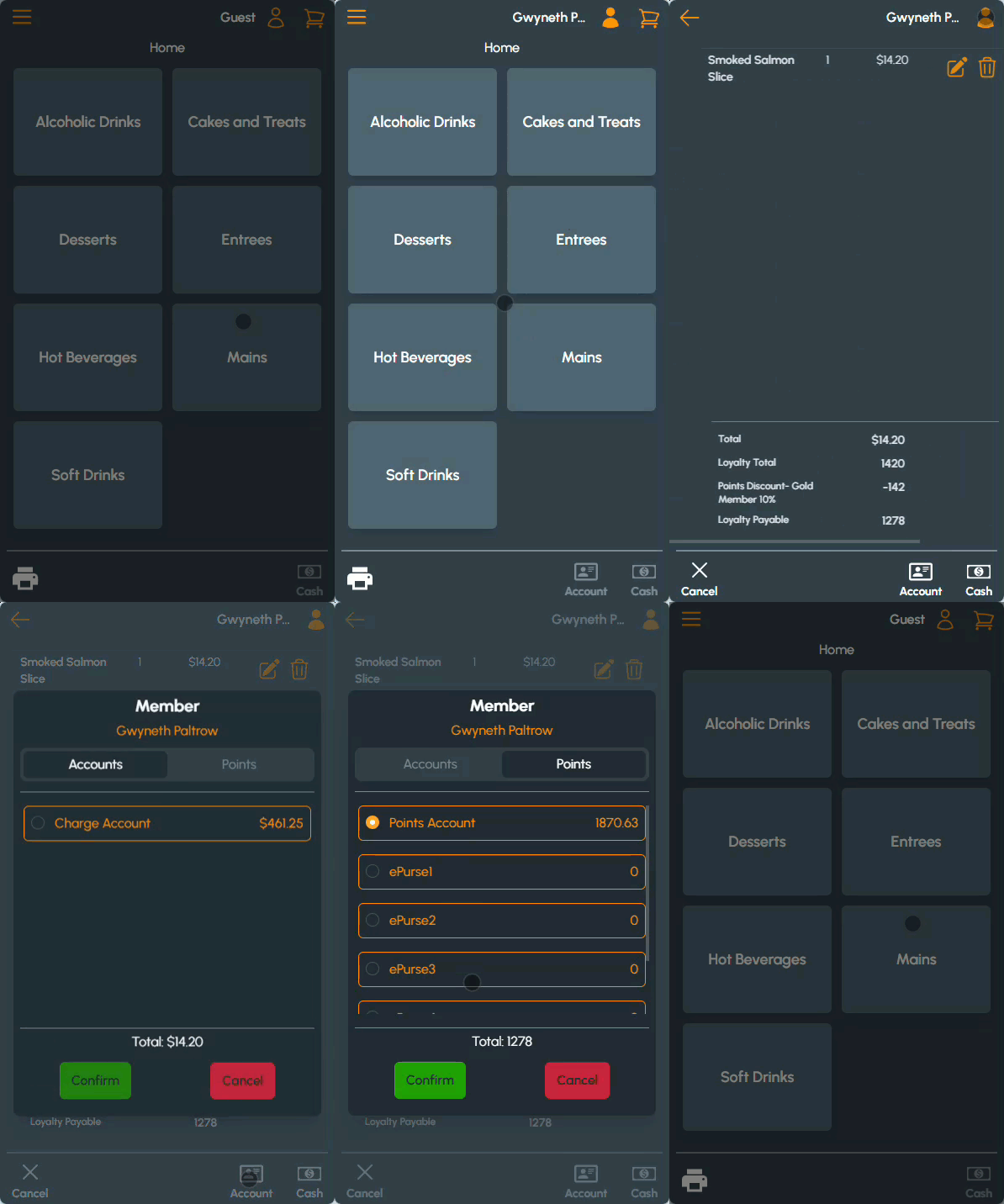
In Touchmini, do as follows:
- Add a Member to an order/sale.
- Add items/products to the order/sale.
- Select the Checkout option in the top right-hand corner of the screen.
- The Classification discount applied will be listed in points along with the points payable (Loyalty Payable)
- Select the Account option in the bottom right-hand corner of the screen.
- Select the Points tab in the Member's Account screen.
- Select the Points Account option.
- Select the Confirm option to complete the order/sale.
How To Configure A Member's Classification Discount? ▲ ▼
-
In Back Office:
- Configure the discount against the appropriate Member Classifications. To do this do as follows:
- Navigate to the Member Classification screen.
- Enter a discount as a percentage value in the Discount % column against the appropriate Classifications.
- Configure the discount against the appropriate Member Classifications. To do this do as follows:
-
-
- Select the cell in the Discount Media column opposite the appropriate Classification to open the Search Media screen and select the Media to be used when the Discount % is applied.
- Once configured, ensure a Full Update is sent to all the Touch POS devices. Refer HERE for more information.
-
-
In Venue Manager:
- Ensure the Member Classification Discount option is selected.
- If required the Exclude Family option is configured with the ID fo the Family of items/products that represents all the items/products that will be excluded from being discounted.
- Save the changes.
End of article ▲