
Subjects ▲ ▼
About ▲ ▼
What To Consider? ▲ ▼
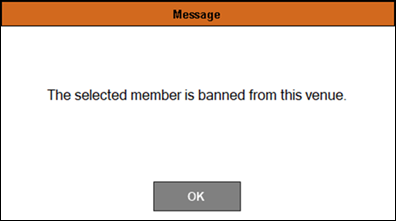
- Classification 99 is reserved for BANNED Customers/Members banned from a Venue. When a banned Member is entered/scanned and the Exclude Banned option is selected for the Venue, the following message will be displayed:
- If a Venue is not charging Member Fees then ensure the All Customers option is selected in the Send drop-down list in the Account/Loyalty Conditions section. This will ensure they can swipe their member card as soon as the Member has been created. Paid to Dates are only for fee paying Memberships.
When Is It Used? ▲ ▼
Used to define the different types of memberships available at a Venue. It is also used to set Loyalty Point ratios for awarding and redeeming points. There are 999 Classifications available for use and each Customer/Member can only be assigned to one Classification with unlimited linked Classifications that can also attract fees.
How To? ▲ ▼
Screens ▲ ▼
Member Classifications Screen ▲ ▼
To access, select the Member Classification option in the Members menu in Back Office.
Sections ▲ ▼
Grid Section ▲ ▼
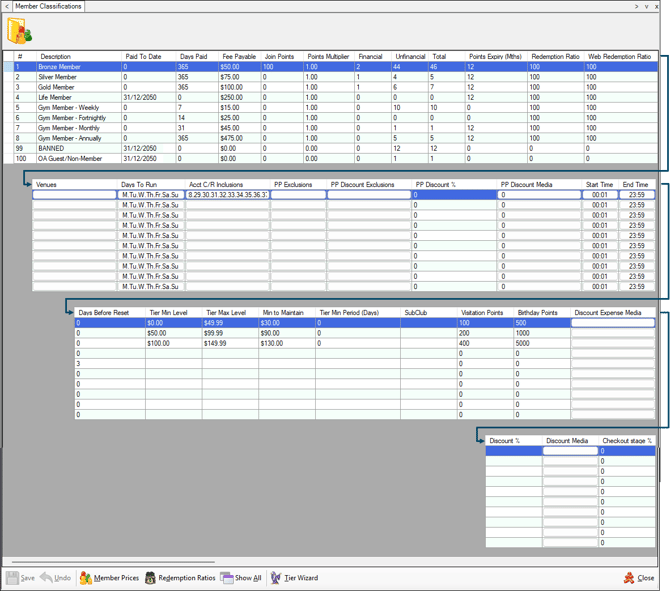
Lists the Classifications currently in use, along with the following:
- # - 1 to 999 Classifications can be defined.
Notes ...
Classification 99 is reserved for BANNED Customers/Members banned from a Venue. Refer HERE for more information.
- Description - Displays/Enter the Description.
- Paid to Date/Days Paid - Displays/Enter either one of the following:
- Paid to Date - Displays/Enter the expiry date of the Classification (Membership). This will apply to all Customer/Members assigned to the Classification. Newly created Customer/Members will have their Renewal Date default to 1/1/1970 until you receipt some type of fee payment for that Member that will make their "Paid-to-Date" equal the "Paid-to-Date" for their Classification. When a "Paid-to-Date" is specified, memberships will expire on that date, regardless of when the Customer/Member joined. If a Customer/Member joins halfway through the year after fees could first be receipted then they will only get the remainder of the membership left for the year, presuming that the Classification was setup on an annual basis. Sometimes sites will create a 6-month Membership Classification so that Members pay a lesser fee when they join halfway through the year. If they join in November/December is it likely that they will pay for a Membership that makes their Membership valid until the end of the following year.
- Days Paid - Displays/Enter the number of days the Fee Payable amount covers when a Customer/Member joins. When Days Paid is specified, Memberships will expire after the number of days specified have passed. This type of membership is especially suited to Venues that have Members joining all year round. In contrast to the paid to date option, it does not matter what date a Customer/Member joins as their membership will always last the same amount of time.
- Fee Payable - Displays/Enter the Fee Payable for Customer/Members joining/renewing.
- Join Points - Displays/Enter the number of loyalty points that will be awarded to Customer/Members on joining. This is designed to encourage Customer/Members to join/renew their memberships. Join Points are only awarded to the Customer/Member when the applicable membership fees have been paid.
- Points Multiplier - Displays/Enter the multiplier applied to points awarded to Customer/Members participating in Multiplier for Loyalty programs. This multiplier will multiply the points that have been set against Categories, Locations and Specials/Promotions.
- Financial/Un-financial/Total - Displays the number of Customer/Members that are considered Financial and Un-Financial and the total number of Customer/Members in the selected Classification.
- Points Expiry (Mths) - Displays/Enter the number of months after which unused points will expire. Points redeemed in a sale will always use points in the order of oldest to most recent. See also Expire Member Points and the Members Points to be expired by Classification report.
Notes ...
A value of ZERO means Points will NOT be Expired.
- Redemption Ratio - Displays/set the Redemption Ratio that is to be used throughout Swiftpos. The default is 100 points per dollar. However, it can be varied to suit different Classifications. For example:
| 0 for non-Members 25 for Bronze Members 50 for Silver Members 75 for Gold Members 100 for Platinum Members |
The value set here will be overridden if Location based Redemption Ratios are configured using the Redemption Ratios feature. |
- Web Redemption Ratio - Displays/set the Redemption Ratio used by the Swiftpos API for Web based applications. For example, Web Store, Orderaway, Touchmini, etc. The default is 100 points per dollar. However, it can be set to suit different Classifications. Refer HERE for more information.
- If set to zero, then the Redemption Ratio value set will be used instead. This means that Venues needing to make use of Location based Redemption Ratios for Orderaway, can now set the Web Redemption Ratio to zero and make use of the Classification's Redemption Ratios.
Notes ...
Web Redemption Ratios are NOT Venue based.
- Venues - Select to open the Venues screen to select the Venues to which access will be granted when Customers/Members, assigned to the selected Classification, transact in Touch and/or Reception. The same Customers/Members will NOT be granted access at those Venues that have not been selected. The default is all Venues. Classification Venue restrictions to the Web API/Store, is determined by the Location of the Terminal selected for the Web API/Store's Location. This setting is found in Back Office > Administration > Web Apps > Locations > Select a Location in the Locations grid > Edit > Web Location > General tab > Device field.
Notes ...
To ensure Bank Details and Statement Comments appear on Debtors Statements (ACC013) report, make sure the Member Classification assigned to the Customer/Member has the Venue selected in this column. If <<ALL> appears in this column then both the Bank Details and Statement Comments will NOT appear on Member statements.
- Days to Run - Select to open the Active Days screen to select the days in the week a Financial Check validation will be active at the Swiftpos Reception device.
- Acct C/R Inclusions (Account Charge/Redemption Inclusions) - Select to open the Allowed Families screen to include Families of Products to only be allowed to be charged/redeemed when using the Charge / Redemption (#151) POS Key. Once a selection has been made, items/products (only those in the selected Families) sold to a Customer/Member (assigned to selected Classification), will only be considered when charging accounts. Other items/products in the order/sale will need to be finalised using an alternative Media (for example, Cash or EFTPOS, etc).
Notes ...
If no selection is made, then all items/products will be included. This feature is only used in conjunction with the Charge/Redemption POS Key.
- PP Exclusions (Points Pay Exclusions) - Select to open the Excluded Families screen to exclude Families of items/products from being redeemed when using the Points Pay POS Key. Once a selection has been made, items/products (only those in the selected Families) sold to a Customer/Member (assigned to selected Classification), will not be able to be paid for using Points. These items/products will need to be finalised using an alternative Media (for example, Cash or EFTPOS, etc).
Notes ...
If no selection is made, then all items/products will be included. This feature is only used in conjunction with the Points Pay POS Key.
- PP Discount Exclusions (Points Pay Discount Exclusions) - Select to open the Excluded Families screen to exclude Families of Products from being discounted (Points discount) when using the Points Pay POS Key.
Notes ...
If no selection is made, then all Products will be discounted. This feature is only used in conjunction with the Points Pay POS Key.
- PP Discount % (Points Pay Discount Percent) - Displays/Enter the Points discount as a percentage, that will be applied to all Products that have not been excluded when using the Points Pay POS Key.
- PP Discount Media (Points Pay Discount Media) - Select to open the Search Media screen to allocate a Media to the PP Discount applied when using the Points Pay POS Key.
Notes ...
A Media is mandatory if a PP Discount % has been specified. Also, this feature is only used in conjunction with the Points Pay POS Key.
- Start/End Time - Displays/Enter the Start/End time a Financial Check validation will be active at the Reception device. These settings work in conjunction with the Days to Run setting.
- Days Before Reset - Displays/Enter the number of days a Customer/Member has to renew their expired membership before the membership lapses completely. This field is used in conjunction with the field Days Paid. If a Customer/Member renews their membership within the number of days displayed/entered here, then their membership will be renewed to the current Renewal Date + the number of days set in Days Paid. If however, a Customer/Member renews their membership outside the number of days displayed/entered here, then their membership will be renewed to the today's date + the number of days set in Days Paid.
- Tier Min/Max Level - Displays/Enter the minimum/maximum dollar tier value associated with the selected Member Classification.
Notes ...
The difference in dollar value between the Max Level of one Tier and the Min Level of the next Tier should not exceed $0.01. For example:
| Classification Description | Tier Min Level | Tier Max Level |
| Bronze Member | $0.00 | $49.99 |
| Silver Member | $50.00 | $99.99 |
| Gold Member | $100.00 | $9999.99 |
- Min to Maintain - Displays/Enter the minimum value required to be spent by a Customer/Member in the time period set in order to maintain the Member Classification's Tier Level. This will only take effect when the Member Tier Wizard is run.
- Tier Min Period (Days) - Displays/Enter the time period in days within which sales need to be made by a Customer/Member to determine whether a Customer/Member maintains their Classification. Used in conjunction with Min to Maintain and will only take effect when the Member Tier Wizard is run.
Notes ...
If Tier Min Period (Days) is set to zero the Member Tier Wizard will use the Tier Min Level setting rather than the Min to Maintain setting when determining Member Classifications. Also, it is recommended to set the Tier Min Period (Days) to zero the first time Classification Tier levels are configured and the Member Tier Wizard is run. If required after that, set these values to an appropriate number of days.
- SubClub - Scroll to the right to Display/Enter the initial to be assigned to the Classification. Once assigned, this can then be used to print on a Customer/Member's Card when wanting to see their Linked Classifications displayed on Member Cards. Refer HERE more information.
- Visitation Points - Displays/Enter the number of points to be issued to a Customer/Member when they swipe their Member Card on visiting a venue. Points are awarded only once per day. How points are awarded can be set in Global Preferences. Refer to the Record Entry Validation By setting.
- Birthday Points - Displays/Enter the number of points to be awarded to Customer/Members assigned to the selected Classification, when they swipe their Member Card at Reception, and when their Birthday falls into the period defined by the Validity option selected when configuring the Reception device.
- Discount Expense Media - Select to open the Search Media screen to select the Media to be applied to Discounts.
Notes ...
Currently No Media selected against a Classification is allowed and and will be ignored. That is, it is not applied to Discounts. The only GL Export that currently supports this feature is the MS Dynamics GP Export.
Footer Section ▲ ▼

- Save - Select to save changes.
- Undo - Select to undo changes made.
- Member Prices - Select to open the Member Price Levels screen to add/remove the Location based Price Levels associated with the selected Member Classification.
- Show All/Hide Not Used - Select to toggle between showing all Classifications and only those that are currently in use. A Member Classification is considered not used when no valid data is shown in the Paid to Date and Days Paid.
- Redemption Ratios - Select to open the Location Redemption Ratios screen to display/set Location specific Redemption ratios.
- Tier Wizard - Select to open the Member Tier Wizard.
- Close - Select to exit.
End of article ▲