

Subjects ▲ ▼
About ▲ ▼
- What Is It?
- What Is Not Supported?
- What Is Required?
- What Is Supported?
- What To Consider?
- When Is It Used?
What Is It? ▲ ▼
The Swiftpos SunSystems interface is used to export Swiftpos Sales related data to Infor's SunSystems Financial Management Software.
What Is Not Supported? ▲ ▼
- The SunSystems interface does NOT support multiple SunSystems Organisations with each having their own Charts of Accounts.
What Is Required? ▲ ▼
- Swiftpos v10.78+
- Venues will need to be registered for the Swiftpos SunSystems interface in order to gain access to this feature. Email registrations@Swiftpos.com.au to obtain the appropriate registration.
- Ensure that the Post Financial Data option is selected for those Locations for which sales data is to be exported.
What Is Supported? ▲ ▼
- The Swiftpos SunSystems export feature supports the export of sales data in the form of Journals generated for Swiftpos sales related transactions, For example, Discounts, Sales, Refunds, Account Charges/Payments, etc.
Notes ...
With regards to Account Charges/Payments, Journals will be posted in SunSystems to a single Debtors Account rather than to individual Debtor Accounts.
What To Consider? ▲ ▼
- It is recommended that prior to implementation, implementors familiarise themselves with Infor's SunSystems Financial Management Software.
- It is highly recommended that the setup and configuration of the Swiftpos SunSystems export interface is done in Test environments initially. That is, test environments for both Swiftpos and SunSystems. Refer HERE for more information.
- It is recommended that all rows, in each of the Account Assignment/Mapping Tabs (with the exception of the Discounts tab (this is optional)), be assigned/mapped to a SunSystem's Account or to the Exclude from Export Account.
Notes ...
Use the Exclude from Export Account (listed as the first entry in the Account drop-down lists in the Account Assignment/Mapping Tabs) to ensure specific entries are excluded from being exported.
Caution must be taken when using the Exclude from Export Account, as it can potentially result in unbalanced Journals being generated and these will NOT successfully import into SunSystems.
- Any errors encountered when exporting data into SunSystems, can be viewed in the Event Logs.
- Products in GST Categories will be exported with an OG value for the Tax Type.
- Products in Non-GST Categories will be exported with an OY value for the Tax Type.
- It may be necessary to enlist the assistance/expertise of an accountant to ensure that in SunSystems, all Account assignments/mappings are correct and that the Journals generated by the export are correct and can be posted into SunSystem's successfully.
When Is It Used? ▲ ▼
Venues that want the ability to export financial transactional data to Infor's SunSystems Financial Management Software.
File Format ▲ ▼
The file generated by the Swiftpos SunSystems interface will have the following attributes:
- Name - Location Name-YYYY_MM_DD_HH_MM_SS.csv
For example, SwiftPOS Bar & Grill-2025_11_18_13_13_01_762.csv - Extension - CSV
- Type - CSV formatted file
- Headings - Not applicable
- File Specification
- File Example
File Specification ▲ ▼
|
Field |
Description |
Example |
|
Account Code |
Uses the SunSystems Account as mapped in the assignment/mapping tabs. |
BG204 |
|
Date |
The Trading Date the sale was made in the format DDMMYYYY. If the Trading Period of a Venue ends at say 4:00 AM, then a sale made just after midnight, will have the Trading Date of the previous Trading Day. |
13112025 |
|
Period |
Uses the Reporting Period the Trading Date falls in. Refer HERE to configure the Reporting Periods. |
052026 |
|
Description |
Account Name; Location Name. |
Sales - Beverage; Food Supplies Warehouse |
|
Reference |
Same as Date above but in YYYY-MM-DD format. |
2025-11-13 |
|
Amount |
Total of the row. The sum of the amounts for a Trading Date/Location should balance to zero. Signed value (“credit” is negative). |
-25.1 |
|
T0 |
Refer HERE to configure the T0 values for Location Groups (Venues). |
175 |
|
T1 |
Refer HERE to configure the T1 values for Location Groups (Venues). |
9000 |
|
T2 |
Refer HERE to configure the T2 Location Values. |
9030 |
|
T3 |
Uses the T3 Cost Centres as mapped in the assignment/mapping tabs. Refer HERE to configure the T3 Cost Centres. |
71500 |
|
Tax Type |
Rows which include tax: OG
Rows without tax: OY
|
OG |
|
Event Reference |
Exports sales data related to Swiftpos Events tagged with either the Host ID or External ID of an Event or Event Session. The configuration of what gets tagged can be found HERE. |
2501151 |
File Example ▲ ▼
Examples of sales data exported for SunSystems
| BG201,13112025,052026,Sales - Beverage; B&G Restaurant,2025-11-13,-59.77,175,9000,9030,71500,OG, BG202,13112025,052026,Sales - Food; B&G Restaurant,2025-11-13,-27.28,175,9000,9030,99750,OG, BG203,13112025,052026,Sales - Other; B&G Restaurant,2025-11-13,0.02,175,9000,9030,99850,OG, BG204,13112025,052026,Sales - Beverage; Food Supplies Warehouse,2025-11-13,-25.1,175,9000,9030,71500,OG,2501151 BG204,13112025,052026,Sales - Food; Food Supplies Warehouse,2025-11-13,-48.65,175,9000,9030,99750,OG,2501151 BG204,13112025,052026,Sales - Other; Food Supplies Warehouse,2025-11-13,-0.02,175,9000,9030,99850,OG,2501151 BG552,13112025,052026,Discounts Food; B&G Restaurant,2025-11-13,1.36,175,9000,9030,99750,OG, BG553,13112025,052026,Discounts Drinks; B&G Restaurant,2025-11-13,1.89,175,9000,9030,71500,OG, BG553,13112025,052026,Discounts Drinks; B&G Restaurant,2025-11-13,2.52,175,9000,9030,71500,OG,2501151 BG909,13112025,052026,Clearing Account; Food Supplies Warehouse,2025-11-13,-7.15,175,9000,9030,,OG,2501151 BG909,13112025,052026,GST Collected/Paid; B&G Restaurant,2025-11-13,-8.37,175,9000,9030,99999,OG, BG909,13112025,052026,GST Collected/Paid; Food Supplies Warehouse,2025-11-13,-7.15,175,9000,9030,99999,OG,2501151 BG100,13112025,052026,Undeposited Funds; B&G Restaurant,2025-11-13,92.15,175,9000,9030,,OY, |
How To? ▲ ▼
- Assign/Map SunSystems Accounts?
- Configure The Accounts?
- Configure Discounts?
- Configure The End Of Day?
- Configure The General Settings?
- Export From Swiftpos?
- GET STARTED?
How To Assign/Map SunSystems Accounts? ▲ ▼
For each of the Account Assignment/Mapping tabs (located to the right of the Accounts tab), do as follows:
- Assign/Map a SunSystem Account to multiple rows, do as follows:
- Using the Quick Account setup options available in the Header section. To do this, do as follow:
- Select an Account from the Account drop-down list in the Header section.
- Select one of the Apply To options available and apply the selected Account to ensure it is assigned/mapped to the appropriate rows listed in the grid.
- If the Selected Rows option was selected, select the rows in the grid that are to be assigned/mapped to the selected Account.
- If no Apply To options are available then, then when the Apply option is selected, the selected Account will be assigned/mapped to all rows in the grid
- Select the Apply option to assign/map the XERO Account.
- Using the Quick Account setup options available in the Header section. To do this, do as follow:
- OR, to assign/map an Account to a single row, do as follows:
- Select the appropriate Account from the Account column drop-down list of an individual row.
- Select Save to save the changes.
How To Configure The Accounts? ▲ ▼
In the Accounts tab, do as follows:
- Confirm the Accounts imported from the Chart of Accounts CSV file are correct and complete. Refer HERE for more information.
- If not, use the Add Row and Delete Row options in the footer section, to add and remove Accounts as necessary. All SunSystem Accounts that will be required must be listed.
How To Configure Discounts? ▲ ▼
Initially the grid in the Discounts tab will display nothing. That is because by default, all Discounts will be automatically assigned/mapped to the Account specified for the Media Discount type in the Media Accounts tab. However, if a Venue wants to assign/map alternate Accounts to specific Discounts, then they will need to configure the Discounts tab. To do this, do as follows:
- Select the Add Discount option in the Footer section to locate and add a Discount.
Notes ...
Discounts will need to already be configured in Back Office for them to be able to be selected here. Refer HERE for more information.
- Assign/Map an Account to the added Discount by using the Quick Account setup options available in the Header section. Refer HERE for more information.
- Assign/Map a Cost Centre to the added Discount if required. Use the Quick Revenue setup options available in the Header section. Refer HERE for more information.
- Select Save to save the changes.
In Back Office, do as follows:
- Select the Location Group (Venue) for which the End of Day process is being configured and navigate to the Location Group Edit screen.
- Select the End of Day option to open the End of Day Options screen.
- In the grid, locate and select the Enabled option opposite the SunSystems entry in the Process Description column, to ensure the SunSystems interface is run as part of the End of Day.
- Confirm the Run Time is correctly configured.
- Ensure the End of Day service is running.
- Select OK to save the changes and exit the screen.
- Select Save in the Location Group Edit screen to save the changes to the Location Group (Venue).
- Repeat the above for each of the Location Groups (Venues) that needs the SunSystems interface to run as part of the End of Day.
Notes ...
The first time the SunSystems Export runs successfully as part of the End of Day process, all Transactions that are NOT flagged as Exported, will be exported and uploaded into SunSystems. This will mean that immediately after the EOD has processed, there should not be any Trading Dates available for export, when viewed in the Export screen, for each of the Location Groups (Venues) that have the SunSystems Export option selected in the End of Day Options screen.
How To Configure The General Settings? ▲ ▼
In the General Settings tab, do as follows:
- In the Reporting Periods section, do as follows:
- Select the Add Period option to commence adding the Reporting Periods based on the months in a calendar year, beginning with the month of January for the current year. Select the Add Period option repeatedly until all the months for the calendar year have been added. For example:
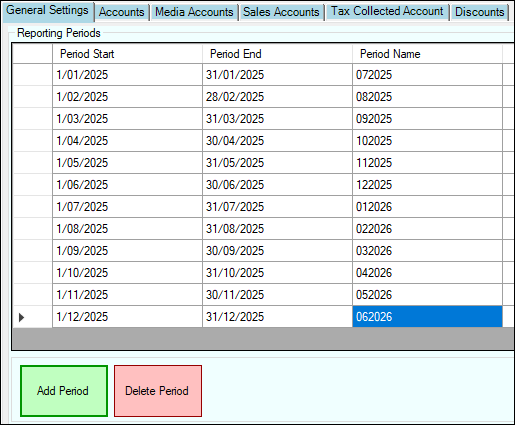
Example of Reporting Periods added for the calendar year 2025.
Notes ...
The sales data exported will NOT contain a value in the Period field Reporting Periods have not been configured for the Trading Date being exported.
- In the Event Mapping section, do as follows:
- Select either the Event or Event Session option.
- Select either the Host ID or External ID option.
- In the Venue Settings section, do as follows:
- Select the Add Venue option to add a row in the grid.
- In the new row added:
- In the Venue column select the Location Group (Venue) for which sales data is to be exported.
- In the Export Path column enter the path of the folder to which the generated export files will be written to.
- In the T0 column enter SunSystem's T0 value provided by the Venue.
- In the T1 column enter SunSystem's T0 value provided by the Venue.
- In the Event Location column select from the Location which will be exported as the Location in the Description field for all Event related sales data, instead of the actual Location the sale was transacted in.
- In the Footer section, do as follows:
- Select the Import Chart of Accounts option to locate and select the CSV file provided that contains the Venues SunSystem's Chart of Accounts.
- Select the T2 Location Values option to open the T2 Locations screen to configure the SunSystem's T2 Location values provided by the Venue.
- Select the T3 Cost Centres option to open the Revenue Categories screen to configure the SunSystem's T3 Cost Centre values provided by the Venue.
- Prior to exporting for the first time, it may be necessary to ensure that all transactions to date are flagged as exported. Previous years transactions may not need to be exported and therefore will need to be flagged as exported. This can be done by using the Mark ALL as Exported option in the Export screen.
-
- Once all transactions have been flagged as exported, then reset transactions for the specific Trading Dates that need to be exported to SunSystems. This can be done using the Reset option in the Export screen.
- The exporting of sales data in the form of General Journals can be done in either of the following ways:
To export data from Swiftpos manually, do as follows:
- Ensure the steps outlined in GET STARTED have been addressed.
- In the Export screen:
- In the General Journals section, select the:
- Location Group from the drop-down list for which data is to be exported.
- Trading Date from the drop-down list for which data is to be exported.
- Export option to commence the exporting of data.
- After each export check the Event Logs for any errors.
- In the General Journals section, select the:
To export data from Swiftpos automatically, do as follows:
- Ensure the steps outlined in GET STARTED have been addressed.
- Configure the End of Day. Refer HERE for more information.
- The first time the End of Day runs, check the Event Logs.
- Once the End of Day process has run, the text No dates available should appear in the Trading Date drop-down list. If this is not the case then this may point to a failure during the exporting of data. Check the Event Logs.
How To GET STARTED? ▲ ▼
Do as follows:
- Review About and ensure the steps outlined HERE are addressed.
- Configure The General Settings?
- Configure The Accounts?
- Assign/Map SunSystems Accounts?
- Configure Discounts?
- When Testing?
- When Going Live?
- Configure The End Of Day?
- Review About and ensure the steps outlined HERE are addressed.
- Obtain a depersonalised backup copy of the Venue's Swiftpos database.
- Restore it in a test environment.
- Ensure all the prior steps outlined HERE have been addressed and completed.
- Manually export Journals. Refer HERE for more information.
- Upload them into SunSystems.
- Automatically export Journals. Refer HERE for more information.
- Review About and ensure the steps outlined HERE are addressed.
- Ensure a backup is made of both the Swiftpos and SunSystems environments.
- Ensure all the prior steps outlined HERE have been addressed and completed.
- To ensure everything is configured correctly and good to go, it is recommended to initially manually export Journals for the first few days, rather than immediately relying on the End of Day process to do the exporting automatically. This way if there are any initial issues that may arise, these can be more easily identified and addressed. This should also include the uploading of the exported Journals into SunSystems. Refer HERE for more information.
- Once one is satisfied that all is well then these is the option available of exporting automatically. Refer HERE for more information.
Screens ▲ ▼
Export Screen ▲ ▼
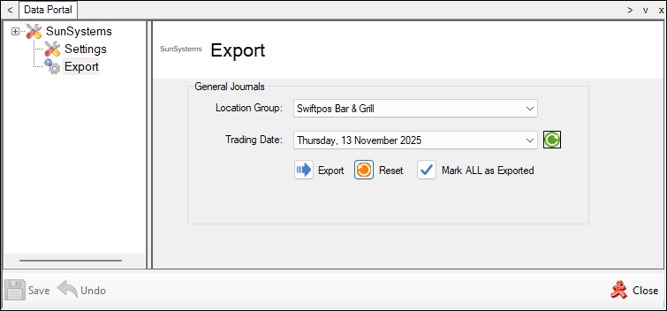
To access select the Export option in the SunSystems menu of the Data Portal. Used to manually export sales data in the form of General Journals for subsequent importing into SunSystems.
Used to export Sales transaction data to SunSystems
- Location Group - Select from the drop-down list the Location Group for which data will be exported.
- Trading Date - Select from the drop-down list of dates the date for which data will be exported.
Notes ...
Once exported, the data will be flagged as exported and the date will be removed from the Trading Date drop-down list. This will ensure that the same data is NOT exported multiple times. It is important to note that even though the export for a specific Trading Date may NOT be completely successful, the Trading Date will still be removed from the drop-down list. It is therefore VERY IMPORTANT to always review the Event Logs to ensure that any ERRORS are investigated and resolved in an appropriate manner.
- Export - Select to invoke the export. Once completed a prompt will be displayed confirming completion. All exported Journals can be viewed in the Event Logs.
Notes ...
If no prompt is displayed and the Export appears to have completed without the selected Trading Date being removed from the list of available dates, this may point to a failure while exporting. Check the Event Logs for any errors that may have been logged.
- Reset - Select a Trading Date to ensure that General Journal related transactions for that date are flagged as NOT Exported, so that they can be exported again. Select to display the following prompt:
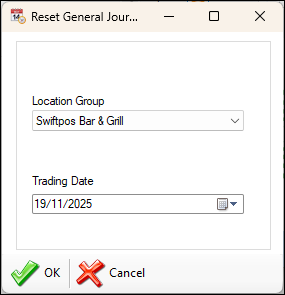
- Reset continued ...
- Location Group - Select from the drop-down list the Location Group for which data will be reset.
- Trading Date - Select from the drop-down list the Trading Date for which General Journal related transactions will be reset.
- OK - Select to Reset.
- Cancel - Select to exit without Resetting.
Notes ...
When resetting and exporting again, be sure that they DO NOT result in duplicates when imported into SunSystems.
- Mark ALL as Exported - Select to display the following prompt and thereby ensure ALL General Journal related data in the selected Location is flagged as exported.
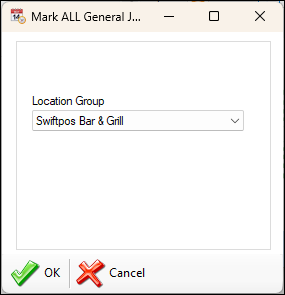
- Mark ALL as Exported continued ...
- Location Group - Select from the drop-down list the Location Group for which data will be flagged as exported.
- OK - Select to flagged as exported.
- Cancel - Select to exit without marking as exported.
Notes ...
This is usually recommended when initially configuring Swiftpos to export to SunSystems for the first time and also, when there is a requirement that all existing General Journal related transactions for a selected Location need to be flagged as exported.
Settings Screen ▲ ▼
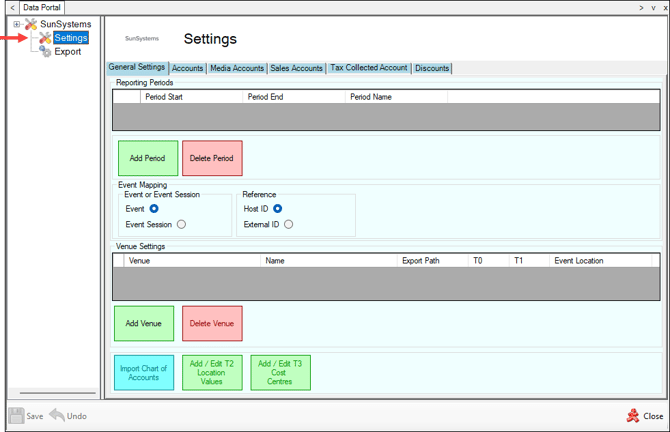
To access select the Settings option in the SunSystems menu of the Data Portal. Used to configure and manage the settings required for the Swiftpos SunSystems interface.
Account Assignment / Mapping Tabs ▲ ▼
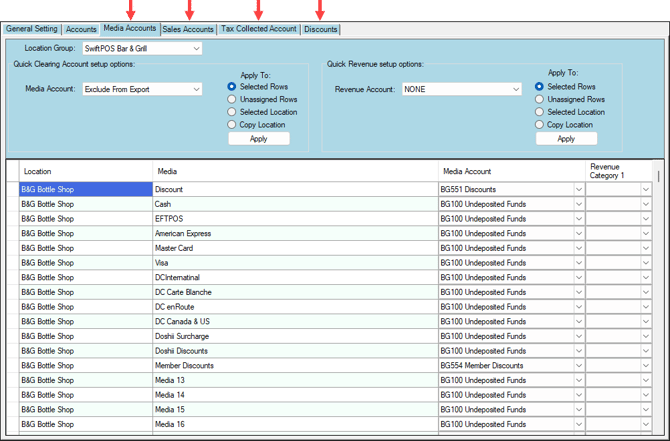
Notes ...
It is recommended that all rows, in each of the tabs, be assigned/mapped to an Account or to the Exclude from Export Account. Use the Exclude from Export Account (listed as the first entry in the Account drop-down lists in the assigning/mapping tabs) to ensure specific Location/Media, Location/Master Group and Location entries are excluded from being exported. Caution must be taken when using the Exclude from Export Account, as it can potentially result in unbalanced Journals being generated and these will NOT successfully import into SunSystems.
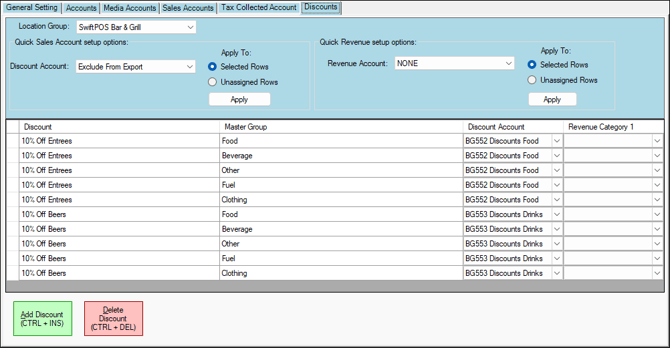
Example of Account assignments/mappings for Discounts
Used to assign/map SunSystems Accounts to Swiftpos Location/Media combinations.
Header Section
- Filters
- Discount Account - Select from the drop-down list the SunSystems Account that will be used to assign/map to the Swiftpos Location/Media combination.
- Apply To - Use to assign/map the selected SunSystems Account to the rows in the grid by using one of the following options:
- Selected Rows - Select to assign/map to all rows that are currently selected in the grid.
- Unassigned Rows - Select to assign/map to all rows that are currently DO NOT have an Account assigned/mapped in the grid.
- Selected Location - Select to assign/map to all rows in the grid that are associated with a selected Location.
- Copy Location - Select to copy the assignments/mappings of a selected Location to another.
Grid Section
Displays a list of Location/Media combinations that are required to be assigned/mapped to a SunSystems Account.
- Discount - Displays the Swiftpos Discount.
- Master Group - Displays the Swiftpos Master Group.
- Discount Account - Displays/Select the SunSystems Account from the drop-down list that is to be assigned/mapped.
- Revenue Category 1 - Displays/Select the Cost Centre from the drop-down list that is to be assigned/mapped.
Footer Section
- Add Discount - Select to open the Search Discounts screen to locate and select a Discount to add to the grid.
- Delete Discount - Select to delete the selected row in the grid.
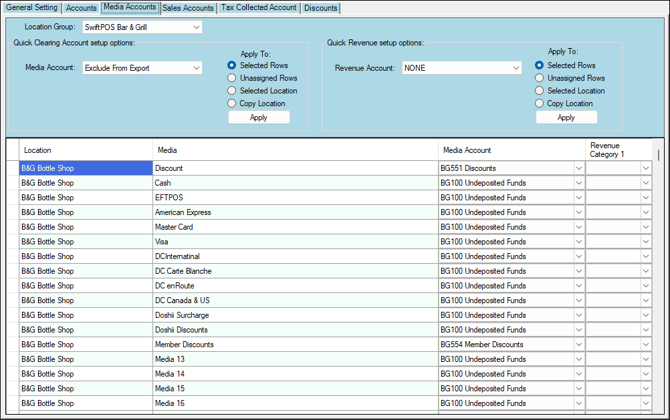
Example of Account assignments/mappings for Media Accounts
Used to assign/map SunSystems Accounts to Swiftpos Location/Media combinations.
Notes ...
If the Exclude from Export Account is used to assign/map a Location/Master Group combination, then it MUST be selected in both columns for the same entry. That is, select in both the Cost of Sales and Sales Account columns.
Header Section
Grid Section
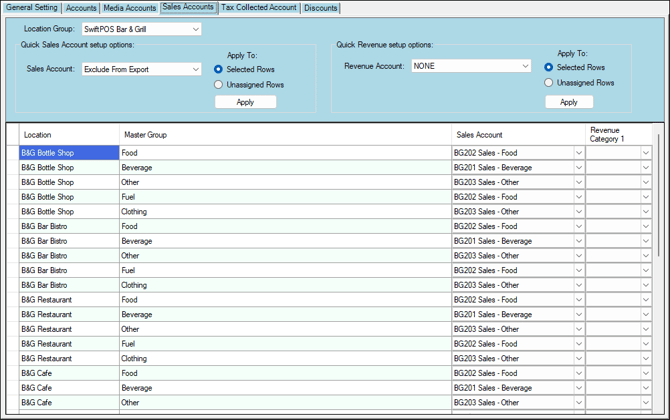
Displays a list of Location/Master Group combinations that are required to be assigned/mapped to a SunSystems Sales Account.
- Location - Displays the Swiftpos Location.
- Master Group - Displays the Swiftpos Master Group.
- Media Account - Displays/Select the SunSystems Cost of Sales Account from the drop-down list that is to be assigned/mapped to the Swiftpos Location/Master Group combination.
- Revenue Account - Displays/Select the SunSystems Sales Account from the drop-down list that is to be assigned/mapped to the Swiftpos Location/Master Group combination.
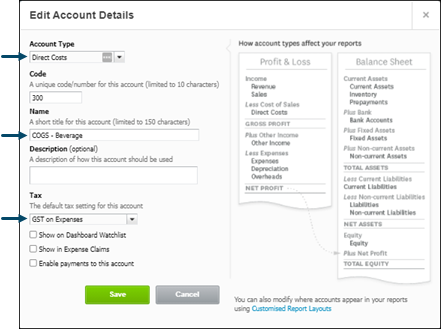
An example of the setup of a Cost of Sales Account in SunSystems can be seen below:
Example of Account assignments/mappings for Sales Accounts
Used to assign/map SunSystems Inventory Accounts to Swiftpos Location/Master Group combinations and used when exporting General Journals and Supplier Invoices.
Header Section
Grid Section
Displays a list of Location/Master Group combinations that are required to be assigned/mapped to a SunSystems Inventory Account.
- Location - Displays the Swiftpos Location.
- Master Group - Displays the Swiftpos Master Group.
- Inventory Account - Displays/Select the SunSystems Inventory Account from the drop-down list that is to be assigned/mapped to the Swiftpos Location/Master Group combination.
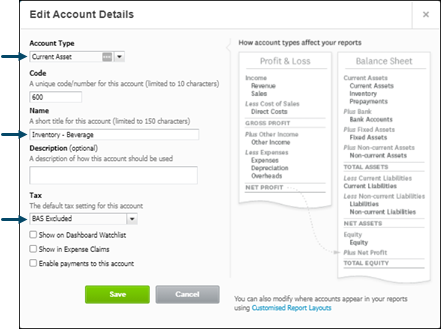
An example of the setup of a Inventory Account in SunSystems can be seen below:
Tax Collected Accounts Tab ▲ ▼
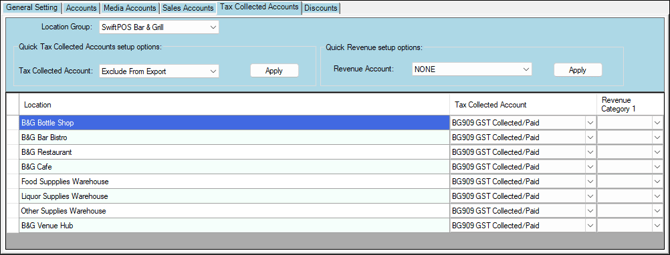
Example of Account assignments/mappings for Tax Collected Accounts
Used to assign/map SunSystems Freight Accounts to Swiftpos Location/Master Group combinations and used when exporting Supplier Invoices.
Header Section
Grid Section
Displays a list of Location/Master Group combinations that are required to be assigned/mapped to a SunSystems Freight Account.
- Location - Displays the Swiftpos Location.
- Master Group - Displays the Swiftpos Master Group.
- Freight Charge Account - Displays/Select the SunSystems Freight Account from the drop-down list that is to be assigned/mapped to the Swiftpos Location/Master Group combination.
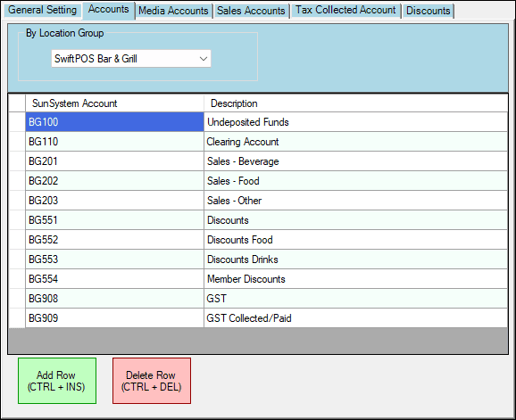 Example of the Accounts tab with Accounts configured or imported
Grid Section
Displays a list of SunSystems Accounts, their ID and Description, as imported from SunSystems. Once imported, they can then be used when assigning/mapping Accounts in the Account Assignment/Mapping tabs to the right.
Notes ...
To refresh the list of Accounts displayed, obtain a new Chart Of Accounts in the form of a CSV file and re-import it. Refer HERE for more information.
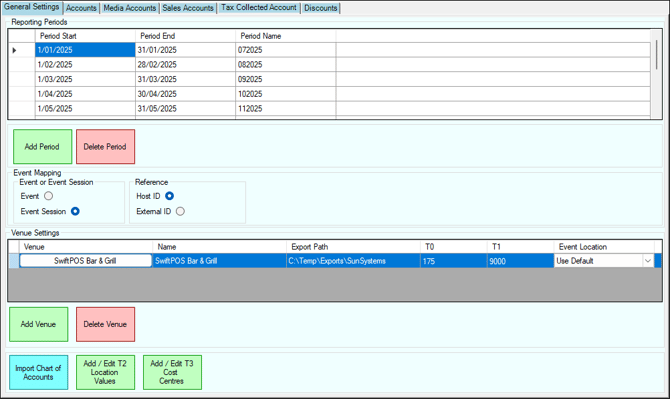
Reporting Periods Section
Displays a list of reporting periods for which sales data will be exported. These are listed along with their:
- Period Start/End Dates - Displays the Start/End dates for a Reporting Period. Generally, a Reporting Period related to a calendar month.
- Period Name - Displays the name of the Reporting Period. Generally, this is the month of the Reporting Period + 6 months. For example, a Reporting Period for the month of December in 2025 (122025) will be given the name 062026.
Refer HERE for more information.
Event Mapping Section
Provides mapping options for sales data relating to an Event or Event Session. The mapping options available are for:
- Event or Event Session
- Event - Select to ensure either the Event's Host ID or External ID are exported for all Event related sales.
- Event Session - Select to ensure either the Event Sessions' Host ID or External ID are exported for all Event Session related sales.
- Reference
- Host ID - Select to ensure either the Event or Event Session Host ID is exported.
- External ID - Select to ensure either the Event or Event Session External ID is exported.
Refer HERE for more information.
Venue Settings Section
Displays a list of Location Groups (Venues) for which sales data will be exported. These are listed along with their:
- Venue - Select to open the Search Location Groups screen to locate and select a Location Group (Venue).
- Name - Displays the name of the Location Group (Venue).
- Export Path - Displays/Enter the path of the folder to which the generated export files will be written to.
- T0 - Displays/Enter the SunSystem's T0 value provided by the Venue.
- T1 - Displays/Enter the SunSystem's T1 value provided by the Venue.
- Event Location - Select from the drop-down list of Locations the Location which will be exported as the Location in the Description field for all Event related sales data, instead of the actual Location the sale was transacted in.
Footer Section
- Import Chart of Accounts - Refer HERE for more information.
- T2 Location Values - Select to open the T2 Locations screen to configure the SunSystem's T2 Location values provided by the Venue.
- T3 Cost Centres - Select to open the Revenue Categories screen to configure the SunSystem's T3 Cost Centre values provided by the Venue.
T2 Locations Screen ▲ ▼
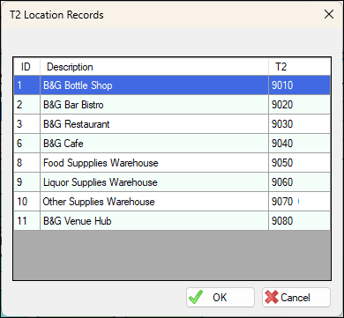
To access select the T2 Location Values option in the footer section of the General Settings tab. Used to configure and manage SunSystem's T2 Location values that maybe required for the Swiftpos SunSystems interface.
Grid Section
Lists the Swiftpos Locations along with their ID, Description and T2 value.
- T2 - Displays/Enter the T2 value for the Swiftpos Location
T3 Revenue Categories Screen ▲ ▼
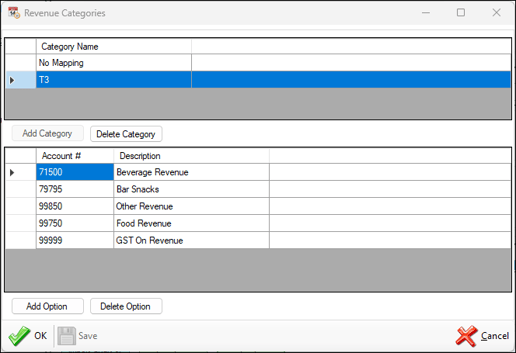
To access select the T3 Cost Centres option in the footer section of the General Settings tab. Used to configure and manage SunSystem's T3 Cost Centres that maybe required for the Swiftpos SunSystems interface.
Category Section
Lists the Cost Centre Categories currently configured.
Cost Centre Section
Lists the Cost Centres for the Category selected in the section above. Lists the Account # and Description for each Cost Centre configured.
IMPORTANT
The Account # entered MUST be numeric. Entering an alphanumeric number will result in sales data NOT being exported. This is an issue that will be fixed in the near future.
End of article ▲