
This provides an overview of the Subtotal (#300) POS Key.
Subjects ▲ ▼
About ▲ ▼
What Is Required? ▲ ▼
- Swiftpos v10+
What To Consider? ▲ ▼
- If required, access to this POS Key can be restricted by the Clerk Security feature.
When Is It Used? ▲ ▼
Used to subtotal an Order/Sale and display it in the sales grid. This can be useful when wanting to, for example, apply a Discount to the whole order/sale. It can also be used to display the subtotal of an Order/Sale in an alternate currency.
Refer HERE for more information.
How To? ▲ ▼
GET STARTED? ▲ ▼
- Review About and ensure the steps outlined HERE are addressed.
- In Keyboard Designer, ensure the Subtotal (#300) POS Key is added to a Layout.
- Ensure it is given an appropriate Caption. For example, Subtotal.
- Select the More Settings option to display the Settings screen and configure the POS Key as required.
- Once configured, ensure a Full Update is sent to all the Touch terminals that will be using the POS Key. Refer HERE for more information.
Screens ▲ ▼
Settings ▲ ▼
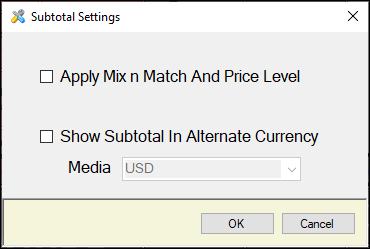
To access, select the More Settings option in Keyboard Designer. Used to configure the settings for this POS Key.
- Apply Mix n Match and Price Level - Select to enable the application of a Mix n Match and Price Level to the order/sale. If this has been enabled, then any Mix n Match rules and Price Level changes will be reapplied to the items up to this current point. When selected, this option will affect previously saved items on a table. If a Customer/Member is in the order/sale, Member Pricing will be used instead of the current Price Level. This feature is useful when a Customer/Member, at the end of a night, presents their Member card after having purchased Products all night at the Normal Price Level instead of the Member Price. To cater for this scenario, do as follows:
- Re-open the Customer/Member's Table/Tab.
- Add the Customer/Member to the order/sale.
- Select the Subtotal (#300) POS Key (with the Apply Mix n Match and Price Level option selected). The entire order/sale will now be subtotalled using the Member Pricing. Item prices will also change to reflect the Member Price.
Notes...
Products that have had a Price manually set in Touch, will NOT be changed. If a Customer/Member is already in the order/sale, then this option will not be applied as the Member Prices would already have been applied. See also the Save Member to Table option, which affects the opening of a Table.
- Show Subtotal In Alternate Currency - Select to ensure that the subtotal is also displayed in the selected currency. Refer HERE for more information. Once selected the following option will be enabled:
- Media - Displays/Select the Media from the drop-down list, that was configured for the Alternate Currency in the Setup.
End of article ▲