
This provides Venues with information relating to the upcoming Card Surcharge changes that will be introduced in Australia effective the 1st of October 2026.
Subjects ▲ ▼
About ▲ ▼
What Is It? ▲ ▼
From 1 October 2026, EFTPOS, Mastercard, Visa and American Express are introducing no-surcharge rules in Australia.
The announced changes cover:
- American Express credit cards.
- EFTPOS debit and prepaid cards.
- Mastercard credit, debit and prepaid cards.
- Visa credit, debit and prepaid cards.
Australian Venues should review every card-payment surcharge configured in or alongside Swiftpos and ensure applicable surcharges have been removed before processing affected card transactions from 1 October 2026.
The changes relate to surcharge fees incurred because a patron chooses to pay by card. They do not apply to genuine weekend, public holiday, or service fees that are separate from the chosen payment method.
WARNING
Do not rename or restructure a card-payment surcharge as another type of fee for the purpose of avoiding applicable payment rules.
For current regulatory requirements, refer to the Reserve Bank of Australia (RBA), Australian Competition and Consumer Commission (ACCC), the applicable card network and your payment service provider.
Also refer HERE for How To Check For And Remove Card Payment Surcharges.
What To Consider? ▲ ▼
-
Venues must comply with the new ruling that prevents them from charging card payment surcharges to debit, prepaid, and credit card transactions. This will affect all American Express, EFTPOS, Mastercard and Visa payments.
-
Venues that currently pass on merchant service fees will need to review their current payment configurations and overall item/product pricing to ensure they comply, before these changes come into effect.
-
The Clear All Surcharges (#22) POS Key removes surcharges from the current order/sale in Touch POS. It DOES NOT prevent surcharges from being applied to future order/sales. Hence, it SHOULD NOT be used as an alternative way to prevent card payment charges from being charged once the new no-surcharge rules in Australia come into effect.
IMPORTANT
EFTPOS and card-payment surcharge configuration can vary between Venues, Locations, payment providers, merchant accounts and individual Touch POS devices.
Do not assume that removing a surcharge from one Location removes it from all payment channels.
Where a surcharge is generated by an EFTPOS provider, payment gateway, PIN pad or acquiring service, contact that provider for instructions on disabling the surcharge.
For Australian Venues, regulatory and card-network requirements may change. Refer to current RBA and ACCC guidance and your payment service provider for information applicable to your circumstances.
How To GET STARTED? ▲ ▼
Complete These Checks ▲ ▼
|
Surcharge Source |
Where to Check? |
What to Check? |
|---|---|---|
|
Payment Provider or PIN Pad |
Provider portal, EFTPOS device, acquiring bank or payment service provider |
Disable applicable card surcharging through the provider first, then test the payment before changing Swiftpos recording fields. |
|
PC-EFTPOS card rules |
Device Settings > Peripheral List > PC-EFTPOS 2 or PC-EFTPOS Cloud > Surcharges |
Remove applicable EFT Surcharges by Card rules, including card groups or configured ranges. |
|
Finalise POS Keys - Merchant Fees |
Back Office > Device Settings > Keyboards > Finalise POS Key > More Settings > Main Settings |
Set applicable Merchant Fees to zero and remove Conditional Fees that apply a card-payment surcharge. |
|
Surcharge POS Key |
Back Office > Device Settings > Keyboards > Surcharge POS Key |
Remove Custom or Predefined Surcharge POS Keys where they are used to apply a card-payment surcharge. |
|
Back Office Surcharge Setup |
Back Office > Vouchers/Discounts > Surcharge Setup |
Disable rules that are being used because the customer pays by card. Do not disable unrelated order-based surcharges that are still required. |
|
Online and Self-Service Payments |
Payment gateway, provider configuration, applicable Keyboard and Back Office surcharge rules |
Repeat the review for Orderaway, Touchmini, self-service or other payment channels in use. |
Identify Where The Surcharge Is Coming From ▲ ▼
How and when the surcharge appears can help identify its source.
-
Surcharge Appears on the PIN Pad or EFTPOS Receipt
If the fee appears on the PIN pad or EFTPOS receipt, particularly where the amount differs by card type, review:-
Payment provider surcharge configuration.
-
EFTPOS device or PIN pad configuration.
-
Acquiring bank configuration.
-
PC-EFTPOS card-specific surcharge rules, where applicable.
-
Notes ...
The surcharge may be generated outside Swiftpos.
-
Surcharge Appears When a Finalise POS Key Is Selected
- If the surcharge appears in Touch POS when the EFTPOS or credit-card Finalise POS Key is selected, before the EFTPOS transaction is processed, review the Merchant Fees configured against that Finalise POS Key.
- Staff Select a Surcharge POS Key
- If staff manually select a Surcharge POS Key when a patron pays by card, check whether the POS Key is configured as:
- Custom Surcharge, or
- Predefined Surcharge.
- If staff manually select a Surcharge POS Key when a patron pays by card, check whether the POS Key is configured as:
- Surcharge Appears Before a Payment Method Is Selected
- If the surcharge is already present on the order/sale before a payment method is selected, review Surcharge Setups for an automatically applied surcharge.
- Only Some Devices or Locations Apply the Surcharge
- Review each of the following in each Venue in each Location where applicable:
- EFTPOS devices
- EFTPOS peripherals
- Finalise POS Keys - Merchant Fee
- Surcharge POS Keys
- Sales Channels
- Surcharge Setups
- Review each of the following in each Venue in each Location where applicable:
Notes ...
Do not assume changing one device or one Keyboard changes every device in the Venue.
Before Making Changes ▲ ▼
TIP
It may also be useful to record the existing surcharge configurations before making changes.
Before removing any surcharges, identify the payment configuration used by the Venue. Where applicable, review:
- Each Venue and Location
- EFTPOS providers
- Merchant accounts
- EFTPOS devices and PIN pads
- Keyboard Layouts
- EFTPOS and card-payment Finalise POS Keys
- Pay at Table
- Touch POS
- Touchmini
- Orderaway
- Self-service or Kiosks
- Other online payment channels
WARNING
Do NOT DELETE the Surcharge Product/PLU
A Product/PLU or Media mapping may only be recording a surcharge created by the EFTPOS provider. Removing the mapping while the provider continues to apply the surcharge can result in the customer still being charged while the surcharge is no longer recorded correctly in the Swiftpos order/sale.
Remove Card Payment Surcharges ▲ ▼
For many integrated EFTPOS services, the payment provider, PIN pad or acquiring service controls the surcharge rate.
Swiftpos may receive the surcharge amount from the payment integration and record it against the order/sale rather than calculate the surcharge itself.
Examples may include integrations such as:
- Oolio Pay
- Linkly
- Tyro
- Verifone-based payment services
- Other integrated EFTPOS providers
Where the payment provider controls the surcharge:
- Access the applicable payment provider portal, device configuration or provider support service.
- Disable applicable surcharging for each merchant account, device, Location and card type.
- Confirm whether any provider configuration, device update or synchronisation is required.
- Complete a test card payment.
- Confirm that the PIN pad and EFTPOS receipt no longer show the surcharge.
- Once the provider surcharge has been confirmed as inactive, review the Swiftpos surcharge recording configuration.
If you are unsure where the surcharge rate is configured, contact the payment provider before changing the Swiftpos mappings.
Card Surcharge PLU and Surcharge Media ▲ ▼
In Touch POS:
-
Navigate to the EFTPOS peripheral's configuration in Peripheral List option of the Device Settings menu.
- Depending on the selected EFTPOS integration, check the configuration for the following options:
- Card Surcharge PLU
- Surcharge Media
- These above options can be used to assign a surcharge returned by the EFTPOS integration to the appropriate Product/PLU and Media in the Swiftpos order/sale. They do not necessarily control the surcharge rate being charged by the EFTPOS provider. If the provider is still returning a surcharge, clearing these fields may prevent Swiftpos from recording it correctly without stopping the customer from being charged.
- Disable and test the provider-side surcharge first.
Remove Card Payment Surcharges ▲ ▼
EFT Card Media Links can provide card-specific Media and surcharge mappings. In Back Office:
-
Navigate to the EFT Media Links in the Price Levels & Media Setup screen. Configured EFT Card Media Links can override the Card Surcharge PLU and Surcharge Media configured locally against the Touch POS EFTPOS peripheral.
- Review any applicable card prefixes or card types and their associated:
- Media
- Surcharge Media
- Surcharge PLU
- Surcharge PLU Tax Free
- These settings may determine how an EFTPOS surcharge is recorded in Swiftpos. They do not necessarily disable a surcharge being generated by the payment provider.
Review Pay at Table ▲ ▼
If Pay at Table is enabled, review it's payment and surcharge configurations separately.
Confirm that:
- Any provider-controlled Pay at Table surcharge has been disabled where required.
- Applicable surcharge Product/PLU and Media mappings are reviewed after the provider surcharge is disabled.
- Test to ensure payments are no longer charging a card payment surcharge.
WARNING
Do not assume that changing the normal Touch POS EFTPOS configuration also changes the Pay at Table configuration.
Remove EFTPOS Peripheral Card Surcharge Rules ▲ ▼
Some EFTPOS peripherals can be configured to contain card-specific surcharge rules within Swiftpos. That is, a Surcharges option is visible in the settings of the peripheral. For example:
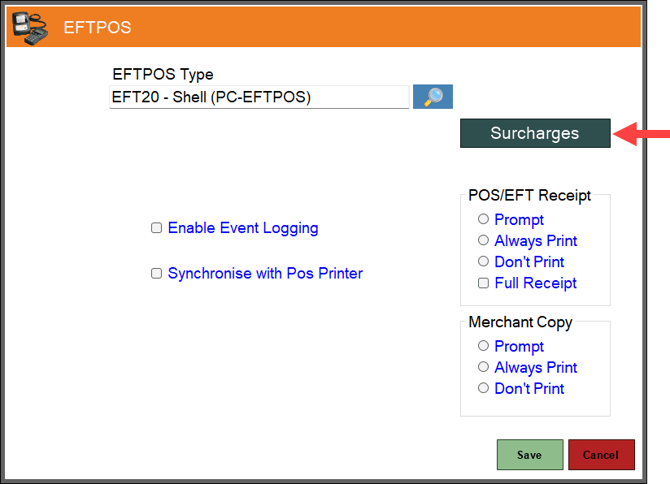
Use these steps where the Surcharges option is available for the configured PC-EFTPOS peripheral. On the Touch POS device:
-
Navigate to the EFTPOS peripheral's settings screen in Peripheral List option of the Device Settings menu.
-
If a Surcharges option is visible, select it.
-
Review each of the Surcharge rules listed in the EFT Surcharges by Card screen and remove those that could apply a card payment surcharge.
-
Save the changes.
-
Review all applicable rules rather than removing only the most commonly used card type.
-
Repeat for each Venue and each Touch POS device.
-
Test to ensure payments are no longer charging a card payment surcharge.
Remove Merchant Fees from Finalise POS Keys ▲ ▼
Merchant fees are Swiftpos-calculated surcharges on Finalise (#2-30) POS Keys.
This surcharge is calculated when the Finalise POS Key is selected and is separate from a surcharge generated by an EFTPOS provider.
It is possible for a Venue to have both provider surcharging and a Swiftpos Merchant Fee configured, so both areas should be checked.
- In Back Office, locate and open each Keyboard Layout that has Finalise (#2-30) POS Keys.
- Select each POS Key and select the More Settings option to display the Settings screen and configure the POS Key as follows:
- Ensure the Merchant Fee % of Total or $ Value amount is set to zero for all Finalise (#2-30) POS Keys in Back Office. Refer HERE for more information.
- Ensure the Display merchant fees before Finalising option is NOT selected.
- If Conditional Charge has been configured, open the Conditional Fees settings.
- Remove any fee bands that are no longer required.
- Save the changes and ensure a Full Update is sent to all the Touch POS devices that will be using the changed Finalise (#2-30) POS Keys. Refer HERE for more information.
- Repeat this process for all applicable:
- EFTPOS Finalise POS Keys
- Credit-card Finalise POS Keys
- Alternate payment POS Keys
- Multi-link Finalise POS Keys
- Location-specific Keyboards
- Repeat this process for all applicable:
- Test to ensure payments are no longer charging a card payment surcharge.
WARNING
Do NOT DELETE the Media PLU
Merchant Fees use the PLU assigned to the selected Media to post the fee. Removing the PLU does not reliably remove the Merchant Fee configuration. Remove or set the Merchant Fee itself to zero.
Remove Surcharge POS Keys Used for Card Payments ▲ ▼
A Surcharge (#80) POS Key can be configured to apply either:
- A Custom Surcharge, or
- A Predefined Surcharge.
If Surcharge (#80) POS Keys are used to apply card payment surcharges, then these will need to be removed. Do as follows:
- In Back Office, locate and open each Keyboard Layout that has Surcharge (#80) POS Keys.
- Select each POS Key and select the More Settings option to display the Settings screen.
- Check whether it uses a Custom surcharge or a Predefined surcharge.
- Remove the POS Key from the Keyboard if it should no longer be available.
- If the POS Key uses a Predefined surcharge, also review and disable it's associated the Surcharge Setup. Refer HERE for more information.
- Save the changes and ensure a Full Update is sent to all the Touch POS devices that were using the changed Keyboard Layout. Refer HERE for more information.
Review Back Office Surcharge Setup ▲ ▼
Back Office's Surcharge Setup screen is commonly used for order-based surcharges, including examples such as public holiday surcharges.
However, Venues should review these rules when removing card-payment surcharges because a rule may have been configured specifically for card payments.
Generally, these would be configured as automatically applied or Predefined surcharges.
- In the Surcharge Setup screen, review each surcharge rule that is listed to see if it is configured specifically for card payment surcharges.
- If a surcharge exists specifically because the customer pays by card and is no longer required:
- Select the Edit option in the footer section to edit each of the Surcharges as follows:
- In the Surcharge Setup Edit screen, ensure the Enabled and Web Enabled options are NOT selected.
- Save the changes and ensure a Full Update is sent to all the Touch POS devices. Refer HERE for more information.
- Select the Edit option in the footer section to edit each of the Surcharges as follows:
IMPORTANT
The changes relate to surcharge fees charged because a patron chooses to pay by card. They do not apply to genuine weekend, public holiday, or service fees that are separate from the chosen payment medium.
Notes ...
Unselecting the Auto Apply option is NOT the same as disabling the surcharge. An enabled surcharge may still be available through a Predefined Surcharge POS Key. If the surcharge should no longer be available, clear Enabled and, where applicable, Web Enabled.
Review Online and Self-Service Payment Channels ▲ ▼
-
Payment and surcharge configurations can differ between sales channels. For example, in:
-
Touch POS
-
Pay at Table
-
Touchmini
-
Orderaway
-
Self-Service Kiosks
-
Online payment gateways
-
Other integrated payment channels
-
- Review and remove any card payment surcharge configurations for:
- The payment provider or gateway configuration.
- Swiftpos Keyboards, Finalise and Surcharge POS Keys and Back Office Surcharges (where they have been configured for online channels, that is the Web Enabled option is selected).
- Complete any provider-required update, synchronisation or device refresh after changing payment configurations.
- Ensure a Full Update is sent to all the Touch POS devices after changing Keyboards or Back Office configurations. Refer HERE for more information.
Complete A Final Test ▲ ▼
Testing should be completed after all applicable surcharge settings have been changed.
Use a transaction amount that would have produced an obvious surcharge under the previous configuration.
|
Test Area |
What to Test |
|---|---|
|
Locations and Devices |
Test each relevant provider, merchant account and device configuration rather than testing only one device. |
|
Card networks |
Test the applicable card types accepted by the Venue. |
|
Card-read methods |
Test contactless and inserted payments where surcharge rules may previously have differed. |
|
Swiftpos POS Keys |
Test every applicable card-payment Finalise and Surcharge POS Keys, including alternate and multi-link POS Keys. |
|
Payment Channels |
Test Touch POS, Pay at Table, Touchmini, Orderaway, Self-Service Kiosks, Online payment gateways and other integrated payment channels where applicable. |
|
PIN Pad |
Confirm no unwanted card surcharge is shown or added. |
|
EFTPOS Receipt |
Confirm no unwanted card surcharge appears. |
|
Swiftpos Order/Sales |
Confirm no unwanted Merchant Fee, surcharge Product or surcharge Media entry is added. |
|
Reporting |
Confirm the order/sale total, payment total and applicable reporting remain correct. |
For Australian Venues preparing for the 1 October 2026 changes, complete this testing before processing applicable card transactions from that date.
Update Patron Facing Information ▲ ▼
-
Where an EFTPOS/card surcharge is removed, also review customer-facing references to the fee. This may include:
-
Menus
-
-
-
Signs
-
Websites
-
Apps
-
Advertising
-
Price lists
-
Payment instructions
-
- Ensure displayed prices and payment information remain accurate.
Review Item/Product Pricing ▲ ▼
A Venue may independently choose to review its overall item/product selling prices when its payment costs or pricing strategy changes.
Swiftpos provides two key features to assist with this transition:
- Price Changes Wizard
- Checkout Stage Discounts
To use either or both of the above features, refer HERE for more information.
Where Product prices are changed, review the resulting selling prices across all applicable channels. An item/product maintained in Swiftpos can be used across multiple sales channels, so changing the item's/product's selling price may affect more than the just Touch POS. This may also include:
-
Menu Boards
-
Orderaway
-
Self-Service Kiosks
-
Self-Service POS
- Touchmini
Venues remain responsible for ensuring their displayed prices and statements about pricing comply with applicable consumer law.
Optional Payment Method Discounts ▲ ▼
Removing a card-payment surcharge does not prevent a Venue from offering an eligible discount for a particular payment method.
Checkout Stage Discounts can be configured to link an eligible discount to a selected Media/payment method.
Where payment-method discounts are used, ensure the normal displayed selling price and the availability of the discount are presented in accordance with applicable pricing requirements.
Refer HERE for more information.
For Australian Venues, refer to current ACCC and RBA guidance when determining how payment-method discounts should be presented.
Troubleshooting ▲ ▼
|
Symptom |
What to Check |
|---|---|
|
The PIN pad or EFTPOS receipt still shows a surcharge |
The EFTPOS provider, device, acquiring bank or PC-EFTPOS card rule may still be applying the surcharge. Clearing a Swiftpos PLU or Media mapping will not stop a provider-generated surcharge. |
|
Touch shows a fee before the EFTPOS request starts |
Review Merchant Fees on the selected Finalise POS Key and any Custom or Predefined Surcharge POS Key used in the order/sale. |
|
Only some card types are surcharged |
Review provider card rules and each applicable EFT Surcharges by Card rule. Also review card-specific EFT Card Media Links. |
|
Only some Devices or Locations are surcharged |
Check Location-specific Keyboards, local peripheral settings, merchant accounts and any shared Table Tracking Master Touch POS device configuration. |
|
The EFTPOS receipt shows a surcharge but the Swiftpos order/sale does not |
The provider may still be applying a surcharge while the corresponding Swiftpos Card Surcharge PLU, Surcharge Media or EFT Card Media Link is missing. Disable the provider surcharge before removing recording mappings. |
|
A surcharge returns after an update |
Review Back Office Surcharge Setup, deployed Keyboards, provider configuration and alternate Finalise POS Keys for another active surcharge source. |
|
Removing a Surcharge POS Key did not stop the surcharge |
Check whether the surcharge is automatically applied from Back Office, generated by Merchant Fees or generated by the EFTPOS provider. |
|
Clearing Auto Apply did not remove the surcharge |
An enabled Predefined Surcharge can still be manually applied using a Surcharge POS Key. Review the Enabled setting and the Keyboard configuration. |
End of article ▲