
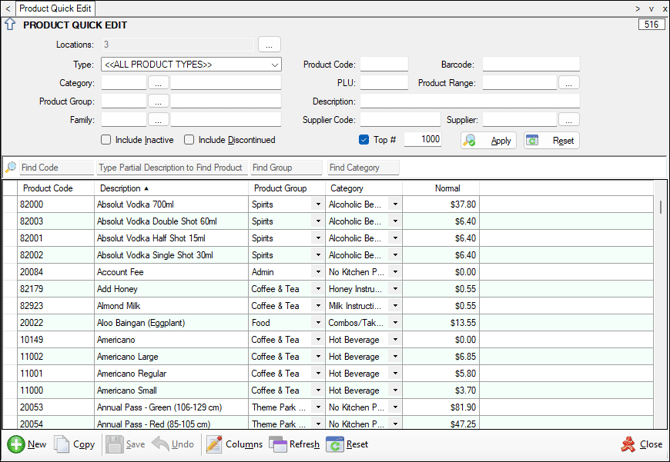
To access, select the Product Quick Edit option in the Products menu in Back Office. Used to quickly add/edit items/products without having to enter a lot of information relating to the item/product.
Subjects ▲ ▼
About ▲ ▼
What To Consider? ▲ ▼
- Access to this feature and it's functions can be configured via Clerk Security Groups under Products HERE.
- The fields available for editing are determined by the currently logged in Clerk's/Staff Member's security permissions, Price Levels and Locations.
- For controlled, bulk or future-dated Sell Price changes, use the Price Changes Wizard.
-
Locations - Selecting one or more Locations in the header section does not restrict a Sell Price change to those Locations. For example, changing an item's/product's Retail Price Level updates the Retail Price for that item/product wherever that Price Level is used. Location selection applies to Location-specific fields such as:
- Cost
- Active
- Labels
- Minimum Stock
- Maximum Stock
IMPORTANT
Do not use the Location filter to attempt to make a Sell Price change for only one Location.
-
Changing Product Group - Where Family Mapping has been configured against Product Groups, changing an item's/product's Product Group may also update its Product Family assignments.
-
Changing Product Code - Changing an item's/product's Product Code should be performed with care. Swiftpos updates the Product Code across related item/product, stock and historical records. Only change the Product Code of an existing live item/product where the change is intentional and absolutely necessary.
-
Deactivating a Product at a Location - An item/product cannot be made inactive at a Location where:
- Stock On Hand exists, or
- A Stocktake/Hold Inventory process is active.
Resolve the applicable stock condition before attempting to make the item/product inactive.
-
Negative Product Prices - From Swiftpos v10.80+, negative item/product Prices cannot be saved in Product Quick Edit. Any item/product Price below $0.00 is rejected. The validation applies to all applicable Price Levels. There is one exception:
-
-$0.01 Price - A price configured at -$0.01 remains supported for items/products to be configured as an Open Price item/product. Refer HERE for more information.
-
-
Barcode Changes - The Product Quick Edit screen only displays a single barcode for each item/product when the Barcode field is selected in the Field Chooser screen. An item/product may have additional barcodes that are not displayed in the grid. Also:
- If no Barcode is displayed, entering a barcode adds it to the item/product.
- Replacing the displayed barcode updates that barcode.
- Clearing an existing Barcode field removes all barcodes assigned to the item/product.
Use the Product Barcodes screen when multiple barcodes against an item/product need to be reviewed or managed.
-
Location Cost Changes - Changing the cost of an item/product initially applies to the applicable Location; however, additional cost or pricing updates may occur depending on the Venue's configuration. This can include:
- Global Cost Price configuration updating other Locations.
- Recipe item/product costs being recalculated.
- Sell Price Levels configured to calculate their price based on the item's/product's cost being recalculated.
Confirm the Venue's item/product Cost configuration before performing bulk cost changes.
When Is It Used? ▲ ▼
Used to quickly maintain common fields across one or more items/products.
Typical uses include:
- Updating item/product Descriptions.
- Changing Product Groups or Categories.
- Changing individual Price Level prices.
- Updating Location Costs.
- Activating or deactivating items/products by Location.
- Updating Minimum and Maximum Stock levels.
- Adding or changing item/product Barcodes.
- Reviewing items/products matching common search criteria.
Notes ...
Use:
-
Product Records for detailed item/product configuration.
-
Price Changes Wizard for controlled, bulk or future-dated Sell Price changes.
-
Cost Changes Wizard where a bulk item/product Cost change is required.
Screens ▲ ▼
Field Chooser Screen ▲ ▼
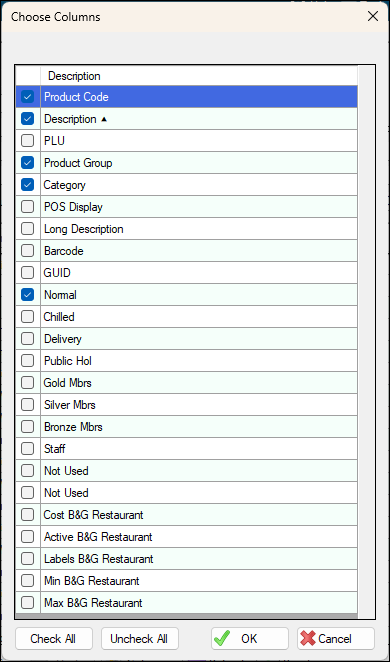
To access, select the Columns option in the footer section of the Product Quick Edit screen. Used to select/unselect the fields to be displayed/hidden as columns in the grid section.
Product Quick Edit Screen ▲ ▼
Sections ▲ ▼
Header Section ▲ ▼
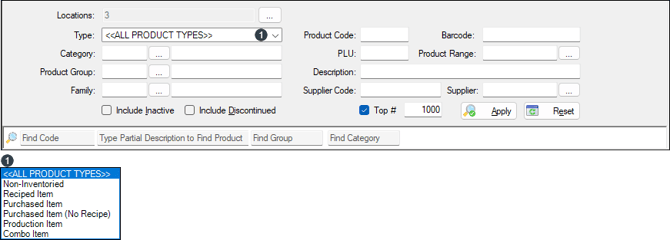
Used to limit the number of rows displayed in the grid section. Once all filters have been selected, select the Apply option to apply them. Otherwise, select the Reset option to clear all filters.
Find fields are also provided to facilitate the locating of a specific row in the grid section.
Noteworthy
- Locations - Refer HERE for more information.
- Type - Select from the drop-down list the Product Type
- Barcode - Enter a barcode. The search considers all barcodes assigned to items/products and is not limited to the single barcode currently displayed in the grid.
- Include Inactive - is a three-state option.

|
Returns active items/products that are in the selected Locations. |

|
Returns active items/products that are in at least one of the selected Locations. |

|
Returns inactive as well as active items/products in the selected Locations. |
- Include Discontinued - Select to include discontinued items/products.
- TOP # Filter - This filter restricts the number of rows returned for a given search. The default number displayed can be changed HERE.
Grid Section ▲ ▼
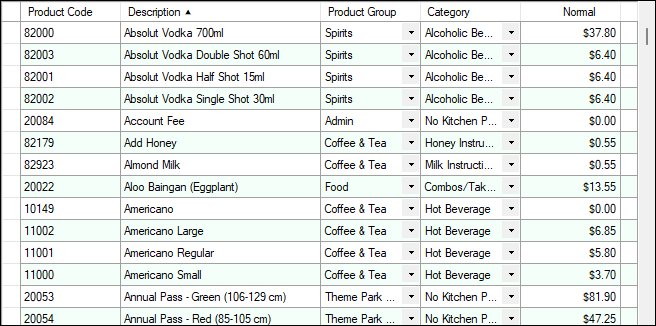
Lists the items/products returned as a result of the filters selected in the header section, along with their Product Code, Description, Product Group, Category and Price Levels (Normal).
Noteworthy
- Active - Indicates whether the item/product is active at the applicable Location. An item/product cannot be made inactive while Stock On Hand exists or a Stocktake/Hold Inventory process is active.
- Barcode - Displays/Enter the item's/product's barcode. The maximum length is 20 numeric characters.
- Cost - Displays/Enter the item's/product's Cost for the applicable Location. Changing a Cost may result in additional cost or pricing recalculation depending on Venue's configuration.
- Description - Displays/Enter the item's/product's description. The maximum length is 60 characters.
- Labels - Displays/Enter the number of item/product Labels configured for the applicable Location. Changing this value does not print item/product Labels.
- Long Description - Displays/Enter the item's/product's long description. The maximum length is 64 characters.
- PLU - Displays/Enter the item's/product's PLU. The PLU entered must be unique. The maximum length is 9 characters.
- POS Display - Displays/Enter the item's/product's short description. The maximum length is 16 characters.
- Price Level - Displays/Enter the item's/product's Price Level. A separate column is displayed for each Price Level available to the Clerk/Staff Member. Changing a Price updates the item's/product's applicable Price Level. Prices are not Location-specific. From Swiftpos v10.80+, item/product Prices below $0.00 are rejected except for exactly -$0.01, which remains supported for Open Price tems/products.
- Product Code - Displays/Enter the item's/product's Product Code. Changing an existing Product Code should be performed with care. The maximum length is 13 characters.
- Product Group - Displays/Select the item's/product's assigned Product Group. Where Product Group Family Mapping is configured, changing the Product Group may also update Family assignments.
Footer Section ▲ ▼

- New - Select to add a new item/product.
- Copy - Select to copy the currently selected item/product and create a new item/product.
- Save - Select to save changes.
- Undo - Select to undo the changes made.
- Columns - Select to open the Field Chooser screen to configure the columns displayed in the grid.
- Refresh - Select to refresh the grid. This will ensure the most up to date data is returned.
- Reset - Select to reset the columns to the default columns. These are; Product Code and Description, Product Group, Category and Normal Price.
- Close - Select to exit.
Troubleshooting ▲ ▼
-
No Items/Products Are Displayed When Product Quick Edit Opens
This is expected. Configure the required search filters and select Apply. -
An Item/Product Cannot Be Found
Check:- Selected Locations
- Product filters
- Include Inactive
- Include Discontinued
- Top #
- Product Code
- PLU
- Barcode
- A Field Is Grey or Cannot Be Edited
The Clerk does not have permission to modify the applicable item/product field or does not have access to the applicable Price Level or Location. Review the Clerk Security permissions. - Selected Location Range Is Too Large
Reduce the number of Locations selected and select Apply again. - Product Cannot Be Made Inactive
Confirm that:- Stock On Hand is zero; and
- There is no current Stocktake/Hold Inventory process for the Location.
End of article ▲