
This provides an overview of the Activate Gift Card (#230) POS Key in Touch.
Subjects ▲ ▼
About ▲ ▼
What Is Required? ▲ ▼
- Swiftpos v10+
- Ensure the NetPOS service is running.
- Ensure this POS Key is added to the appropriate Keyboard Layout using the Designer. Refer HERE for more information.
What To Consider? ▲ ▼
- If required, access to this POS Key can be restricted by the Clerk Security feature.
- Gift cards using the Voucher Mapping connect via NetPOS to retrieve Stored value Voucher information held in the Back Office. These Vouchers are encoded at the Touch terminal with any keyboard input device. The number from the encoded card or Barcode is mapped to the Voucher in Back Office and uses the same trigger parameters that the Voucher has configured. The Gift Cards can be reported on by using the Stored Value Cards Reports.
- If the Gift Card is to be mapped. For example, when a pre-coded Gift Card is being issued, and the Stored Value Voucher needs to be mapped to the Gift Card's code/number, then ensure the Don't Prompt For Mapping option is NOT selected.
When Is It Used? ▲ ▼
Used to activate a Gift Card based on a Stored Value Voucher. Stored Value Vouchers that can be issued can be either one of the following:
- Preset - These Vouchers have a predetermined value set in Back Office. For example, $50 Gift Card. $100 Gift Card, etc. The value of these Vouchers can be topped up using the Stored Value Top Up (#86) POS Key.
- Top Up - These Vouchers have a value of zero set in Back Office. When activating these Vouchers a value will need to be specified in Touch. These Vouchers can also be topped up using the Stored Value Top Up (#86) POS Key.
How To? ▲ ▼
How To GET STARTED? ▲ ▼
- Review About and ensure the steps outlined HERE are addressed.
- In Keyboard Designer, select the Activate Gift Card (#230) POS Key that has been added to a Layout.
- Ensure it is given an appropriate Caption. For example, Activate Gift Card.
- Select the More Settings option to display the Settings screen.
- Once configured, ensure a Full Update is sent to all the Touch terminals that will be using the POS Key. Refer HERE for more information.
Screens ▲ ▼
Settings Screen ▲ ▼
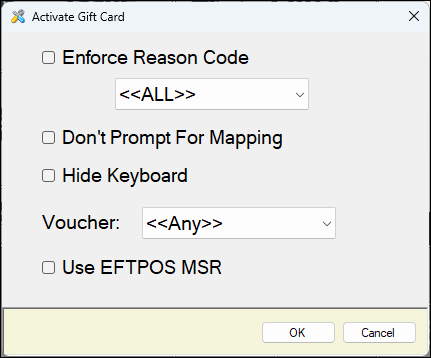
To access, select the More Settings option in Keyboard Designer. Used to configure the settings for the Activate Gift Card (#230) POS Key.
- Enforce Reason Code - Select to enforce the Clerk/Staff Member to select/enter a Reason for activating a Voucher.
- Don't Prompt For Mapping - Select to ensure prompting for Voucher Mapping is NOT displayed. Prompting will be displayed by default.
- Hide Keyboard - Select to ensure the Alpha-Numeric Keyboard is NOT displayed.
- Voucher - Select from the drop down list of available Vouchers a Voucher to be assigned to this POS Key. This feature can be used to ensure that Clerks/Staff do not issue the wrong Voucher. The selected Voucher is assigned to the POS Key. If the Any option is selected the Clerk/Staff Member will be presented with a list of available Vouchers to choose from.
- Use EFTPOS MSR - Select the indicate use of EFTPOS Magnetic Swipe Reader.
End of article ▲