
- Swiftpos Help Guides
- Touch
- POS Keys
-
Installers / Links / Releases
-
API
-
Back Office
-
Cloud Back Office
-
Events
-
Events Portal
-
How To
-
KVS
-
Member Portal
-
Notify
-
Oolio Pay
-
Orderaway
-
POS Keys
-
Self-Service Kiosk
-
Self-Service POS
-
Swiftpos
-
Touch
-
Touchmini
-
Troubleshooting
-
Venue Hub
-
Venue Manager
-
3rd Party Integrations
- Account Management
- Business Intelligence
- Cash Management
- eCommerce
- Exports / Imports
- Front Office Systems
- Fuel Systems
- Gaming
- General Ledger
- Gift Cards / Promotions / Vouchers
- Membership / Loyalty
- Middleware Applications
- Payment Integrators
- Product Level Blocking
- Reservations
- Swiftpos
- Tab Management
- Time & Attendance
- Value Added Services
-
Uncategorized
- API
- Back Office Accounts
- Back Office Administration
- Back Office - Clerks
- Back Office - Data Export
- Back Office - Inventory
- Back Office - Members
- Back Office - Menus
- Back Office - Products
- Back Office - Services
- Back Office - Suppliers
- Back Office - Swiftpos
- Back Office - Terminal Sales
- Back Office - Touch Settings
- Back Office - Vouchers / Discounts
- How To
- KVS
- OrderAway
- Venue Manager
- 3rd Party Integrations
- Touch
- Cloud Back Office
-
Touchmini v1 (End Of Life)
Paid In (#1004)
Touch - POS Keys
This provides an overview of the Paid In (#1004) POS Key.
Subjects ▲ ▼
About ▲ ▼
What Is Required? ▲ ▼
- Swiftpos v10+
What To Consider? ▲ ▼
- If required, access to this POS Key can be restricted by the Clerk Security feature.
- This POS Key can only be used as a separate transaction and cannot be used as part of a sale.
- If required, Touch operators can be forced to provide reasons for the Paid In transaction by ensuring the Enforce Reason Code option has been selected.
- The printing of receipts is optional. Refer HERE for more information.
- Paid In transactions are reported in:
When Is It Used? ▲ ▼
- This POS Key is used to deposit (Paid In) petty cash into the Touch cash drawer.
How To? ▲ ▼
GET STARTED? ▲ ▼
- Review About and ensure the steps outlined HERE are addressed.
- In Keyboard Designer, ensure the Paid In (#1004) POS Key has been added to a Layout. Refer HERE for more information.
- Ensure it is given an appropriate Caption. For example, Cash Deposit, Cash In or Paid In.
- Select the More Settings option to display the Settings screen and configure the POS Key as required.
- Once configured, ensure a Full Update is sent to all the Touch terminals that will be using the POS Key. Refer HERE for more information.
Screens ▲ ▼
Settings Screen ▲ ▼
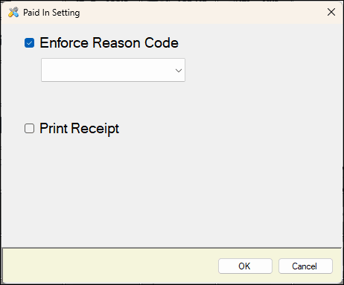
To access, select the More Settings option in Keyboard Designer. Used to configure the settings for the Paid In (#1004) POS Key.
- Enforce Reason Code - Select to enforce the provision of a reason for the Paid In transaction.
- Print Receipt - Select to force the printing of a receipt. This can be used to identify the Touch terminal involved in the transaction.
End of article ▲