
This outlines the How To Make A Cash Deposit in Touch using the Paid In (#1004) POS Key.
How To? ▲ ▼
- Review the Paid In (#1004) article and ensure the steps outlined are addressed.
- In Touch:
- Select the Paid In (#1004) POS Key.
- If the POS Key has been configured to enforce the provision of a reason, then the Enforced Reason screen will be displayed allowing the Touch operator to select a reason for the cash deposit.
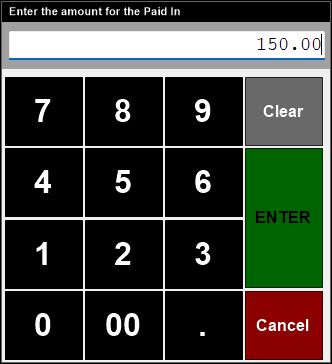
- The Enter the amount for the Paid In prompt will be displayed allowing the entry of the amount being deposited.
- Select the Paid In (#1004) POS Key.
- In Touch continued ...
- Enter the value of the cash being deposited.
- Select Enter.
- The cash drawer will open to allow for the Touch operator to deposit the cash in the drawer.
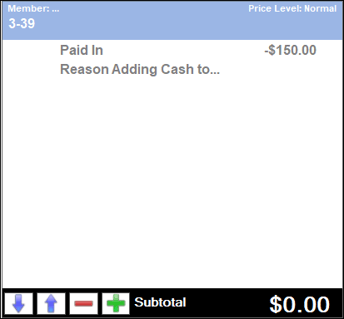
- The value entered will appear as a credit amount (negative value) in the sales grid.
- In Touch continued ...
- If the POS Key has been configured to print a receipt, a receipt will be printed.
- The Paid in transaction is now complete.
End of article ▲