
Also referred to as Metcash V7 Grocery & V8 Liquor.
Subjects ▲ ▼
About ▲ ▼
What Is It? ▲ ▼
Metcash Trading Limited is the parent company for ALM (Australian Liquor Marketers). IBA (Independent Brands Australia) is a marketing division of ALM of which it develops, manages and retails brands such as Cellarbrations, Bottlo, Porters, Thirsty Camel Hump Club (in some states), etc. In addition, it contracts brand customers like LMG (Bottlemart), Liquor Legends, Liquor Stax and a range of others.
Swiftpos currently offers the following Download, Import and Export features in relation to Metcash / ALM & IBA related data:
- Mix n Match - Imports Multi Buy Promotions related data into Swiftpos Back Office using Metcash provided Price Books. Refer HERE for more information.
- Price Books & Promotions - Imports Products & Promotions related data into Swiftpos Back Office using Metcash provided Price Books. Refer HERE for more information.
- Sales Data - Exports Sales (Scan) related data from Swiftpos Back Office. Refer HERE for more information.
- Supplier Invoices - Import Supplier invoices into Swiftpos Back Office and will require the sites to have a Swiftpos Advanced eTrade Registration. Refer HERE for more information.
What Is New? ▲ ▼
In:
What's New In Swiftpos v10.80+? ▲ ▼
- The Metcash Hosts - Purge Contract Pricing option has been added to the End of Day process has now been
What Is Required? ▲ ▼
- Swiftpos v10+
-
Obtain the required credentials from the IBA/ALM/Metcash team to enable the downloading/importing and exporting of Price Book/Promotions and sales related data. These should include Web details, such as HTTP Address, the store's Area ID, Username and Password.
- Ensure the settings are configured by selecting the Settings option in the Metcash section of the Import Price Book tab. To access this, select the Supplier eTrade v2 option in the Suppliers menu in Back Office.
- Venues will need to be registered for the Advanced Host Integration module in order to gain access to this feature. Email registrations@Swiftpos.com.au to obtain the appropriate registration.
- This will ensure the following:
- The Metcash menu item is visible in the Data Portal, which will facilitate the Importing/Export of Metcash related data.
-
- The Host Item Code is visible in the Product Full Edit screen.
- A Metcash tab is visible in the Product Full Edit screen, providing visibility of Metcash data related information.
- In Product Associations, Specials/Promotions associated with a selected item/product will display Metcash specific data. For example:

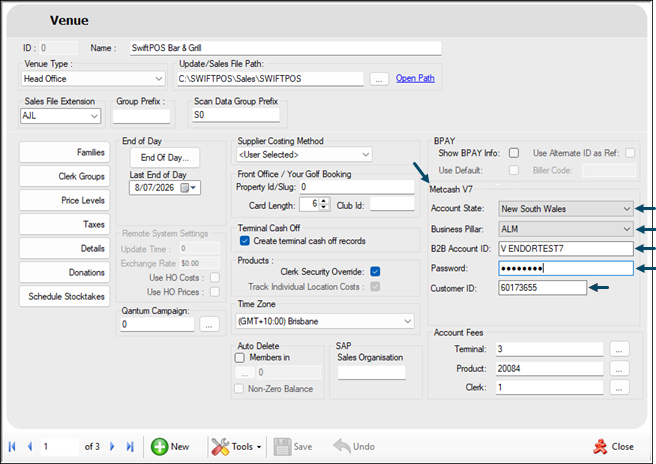
- In Venue Edit - Configure the Metcash V7 Account settings provided by Metcash.
- Ensure that the Save Labels Locally option is NOT selected. This will ensure that Labels are stored as part of the Swiftpos database and that the Metcash Label functionality is used.
- It is also Recommended that the following are created:
- A default Product Group to which new items/products (created during the Import process) can be assigned to by default when no mapping exists between item's/product's (Metcash) Department and existing Swiftpos Product Groups. For example, create a Product Group named Metcash Imported. Once created, ensure that the default Product Group in the Settings > General tab is set to this default Product Groups.
- A default Category to which new items/products (created during the Import process) can be assigned to by default when no mapping exists between item's/product's (Metcash) Category and existing Swiftpos Categories. For example, create a Category named Metcash Imported. Once created, ensure that the default Category in the Settings > General tab is set to this default Category.
- Configure the settings.
What To Consider? ▲ ▼
- Bonus Stock - The following is an example of a typical bonus stock item in Back Office.
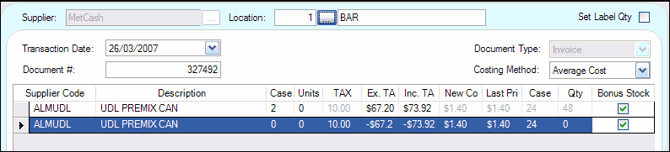
- The 1st item line shows the quantity of the bonus stock but also has a cost attached to it.
- The 2nd line is used to reverse the cost from the first line but has a quantity of 0 which means the bonus stock is being posted at $0.00 cost.
- The bonus stock checkbox at the end of each row is automatically enabled when a Metcash (ALM) invoice is imported into Back Office. When this checkbox is enabled the items on those lines will not be used in the calculation of the new cost for that item.
When Is It Used? ▲ ▼
Used to export sales related data and import Metcash grocery, liquor and invoice data via Metcash's Web Services portal.
How To? ▲ ▼
- GET STARTED
- Download The IBA Price Book/Promotion (XML) File?
- Import The IBA Price Book/Promotion (XML) File?
- Import IBA Promotions?
- Import Metcash Invoices From A XML File?
- Import Supplier Invoices?
How To GET STARTED? ▲ ▼
- Review About and ensure the steps outlined HERE are addressed.
- Import Metcash Host Files Into A New Swiftpos Database?
- Import Metcash Host Files Into An Existing Swiftpos Database?
How To Import Metcash Host Files Into A New Swiftpos Database? ▲ ▼
Venues that are being configured for the first time and requiring integration to the Metcash Web Services portal, then:
-
In a Test environment, do as follows:
- Make a backup of the current Swiftpos database.
- Ensure the following Global Settings are set:
- Set the Default Product Group to the Metcash Import Product Group created HERE.
- Set the Default Category to the Metcash Import Category created HERE.
- If required select one or more of the following options:
- Create Unmatched Products.
- Create Product Groups
- Create Categories
- If required, ensure the following are configured:
- Supplier - Select a Supplier and then select the Set Preferred Supplier option.
- Price Level - Select a Price Level and then select the Update Sell Price option.
- Update Cost Price in Location - Select update and select a Location.
- In Import screen:
- Ensure the correct Customer ID is selected.
- Select the Show Files and Import option.
- At the Show All Documents? prompt, select Yes.
- Select the most recently dated Initial Host file and select the Select option.
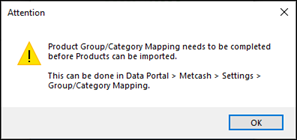
- The following prompt will be displayed:
-
-
- This will mean that no items/products have been imported and that prior to that being done, there is a requirement to ensure the mapping of Metcash Departments, Categories, Commodities and Sub-Commodities to Swiftpos Product Groups and Categories is completed first.
- Using the Host File Mapping tab ensure where possible mappings are configured. Where mappings are not possible or there is uncertainty, then map these to the Metcash Import Product Groups and Categories created HERE. Save the mapping changes.
- Now repeat the above steps from HERE and ensure the same Initial Host file is selected again. This time the above prompt will not be displayed.
- Wait until the importing process has completed.
- On completion the Reports folder will be opened and displayed in File Explorer.
- In the Match Products tab:
- Select the Requiring to be Resolved option from the Load Products drop-down list.
- Work through the list and either:
- Create new items/products in Swiftpos based on the Item Code imported, by selecting the check box in the Create New column, OR
- Match imported Item Codes to Swiftpos items/products, by selecting the check box in the Match column, OR
-
-
-
-
- Repeat the above step until all imported items/products have been actioned.
- Select the Unmatched option from the Load Products drop-down list.
- Work through the list and either:
- Create new items/products in Swiftpos based on the Item Code imported, by selecting the check box in the Create New column, OR
- Match imported Item Codes to Swiftpos items/products, by selecting the check box in the Match column.
- Repeat the above step until all imported items/products have been actioned.
- Import any remaining files that are more recent than the Initial Host file selected HERE. For example, Maintenance Host or Promotion files.
-
-
- Once confirmed that it is all working as expected in the test environment, then the above can be repeated in the production environment.
How To Import Metcash Host Files Into An Existing Swiftpos Database? ▲ ▼
Venues that already have Product Groups, Categories and items/products configured in Back Office and are wanting to import a Metcash Initial Host file for the first time, then ensure the following steps are followed:
-
In a Test environment, do as follows:
- Make a backup of the current Swiftpos database.
- In Import screen:
- Ensure the correct Customer ID is selected.
- Select the Show Files and Import option.
- At the Show All Documents? prompt, select Yes.
- Select the most recently dated Initial Host file and select the Select option.
- The following prompt will be displayed:
-
-
- This will mean that no items/products have been imported and that prior to that being done, there is a requirement to ensure the mapping of Metcash Departments, Categories, Commodities and Sub-Commodities to Swiftpos Product Groups and Categories is completed first.
- Using the Host File Mapping tab ensure where possible mappings are configured. Where mappings are not possible or there is uncertainty, then map these to the Metcash Import Product Groups and Categories created HERE. Save the mapping changes.
- Now repeat the above steps from HERE and ensure the same Initial Host file is selected again. This time the above prompt will not be displayed.
- Wait until the importing process has completed.
- On completion the Reports folder will be opened and displayed in File Explorer.
- In the Match Products tab:
- Select the Requiring to be Resolved option from the Load Products drop-down list.
- Work through the list and either:
- Create new items/products in Swiftpos based on the Item Code imported, by selecting the check box in the Create New column, OR
- Match imported Item Codes to Swiftpos items/products, by selecting the check box in the Match column, OR
-
-
- Repeat the above step until all imported items/products have been actioned.
- Select the Unmatched option from the Load Products drop-down list.
- Work through the list and either:
- Create new items/products in Swiftpos based on the Item Code imported, by selecting the check box in the Create New column, OR
- Match imported Item Codes to Swiftpos items/products, by selecting the check box in the Match column.
- Repeat the above step until all imported items/products have been actioned.
- Import any remaining files that are more recent than the Initial Host file selected HERE. For example, Maintenance Host or Promotion files.
-
-
- Once confirmed that it is all working as expected in the test environment, then the above can be repeated in the production environment.
How To Download The IBA Price Book/Promotion (XML) File? ▲ ▼
Price Books can be created manually by referring to the Price Book File Structure. Swiftpos can also export product related data in the form of a Price Book. Refer HERE for more information. To download the Price Book (Host File)/Promotion file, do as follows:
- In Back Office:
- Navigate to the Import Price Book tab via the Supplier eTrade v2 option in the Suppliers menu.
- Enter/Select the Folder into which downloaded Price Book (Host File)/Promotion file will be placed.
- In the Metcash - IBA section of the tab:
- Select the Venue from the Venue drop-down list for which the download applies.
- Select the Download option to download the IBA Price Book as an XML file.
- The Price Book (Host File)/Promotion file should now download and appear in the Folder specified. For example, iba_product_promotions.xml which is in the IBAPriceBook.zip file. If it doesn't, confirm the settings are correct and check the Event Logs.
How To Import The IBA Price Book/Promotion (XML) File? ▲ ▼
- In Back Office:
- Navigate to the Import Price Book tab via the Supplier eTrade v2 option in the Suppliers menu.
- In the Metcash - IBA section of the tab:
- Select the Import option to import the downloaded Price Book.
- Once the import has completed, do as follows:
Notes ...
If you alter the Category of an imported product and import an IBA promotions file, it will put the product into the original Category for the duration of the Promotion.
How To Import IBA Promotions? ▲ ▼
- Ensure a Price Book (Host File)/Promotion (XML) file has been either downloaded or provided by IBA. For example, an iba_product_promotions.xml file.
- In Back Office:
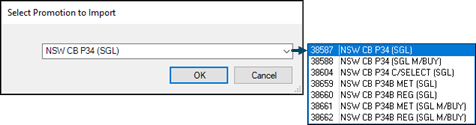
- Select the IBA option from Import drop down list in the footer section of the Specials/Promotions screen, in the Open screen, select the iba_product_promotions.xml file.
- A prompt similar to the one below will be displayed:
Notes ...
If no Promotions are present in the iba_product_promotions.xml file, then the drop down list will contain no entries.
- In Back Office continued ...
- Select a Promotion from the drop-down list.
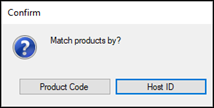
- The following prompt will be displayed:
- In Back Office continued ...
- Select the Host ID option to match the products in the imported IBA Promotions.
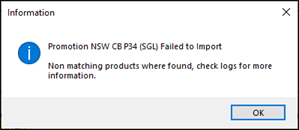
- If a prompt similar to the one below is displayed, then the Promotion will not be imported.
- In Back Office continued ...
-
- Also, as long as the right Promotion Group from IBA has been selected, only the Promotion for that State will be imported.
- Once imported, the Promotions will appear in the grid and can then be processed further as per the Specials/Promotions screen.
How To Import Supplier Invoices From A XML File? ▲ ▼
To import Supplier invoices from a Metcash provided XML file located in a selected folder, do as follows:
-
In Back Office:
- Select the Import option in the footer section of the Import Invoices screen, to open the Import Invoice screen.
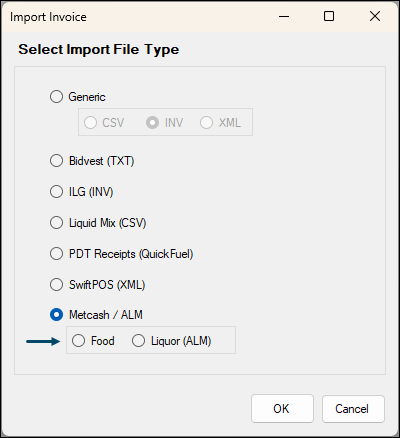
- Select either the Food or Liquor (ALM) options and select OK.
- In the Open screen of file explorer, locate and select the Metcash provided XML file. For example, 20220214_011652_00000000000007550333_1.XML.
- Once imported the following prompt will display:
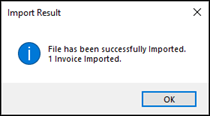
- Select OK.
- The invoice will now appear in the grid of the Import Invoices screen.
- Now follow the steps as outlined from HERE.
- Select the Import option in the footer section of the Import Invoices screen, to open the Import Invoice screen.
How To Import Supplier Invoices? ▲ ▼
- In Back Office:
- To download and import Supplier invoices, select the Metcash / ALM option from the Download option in the footer section of the Invoice Import screen, to open the Metcash Invoice Download screen.
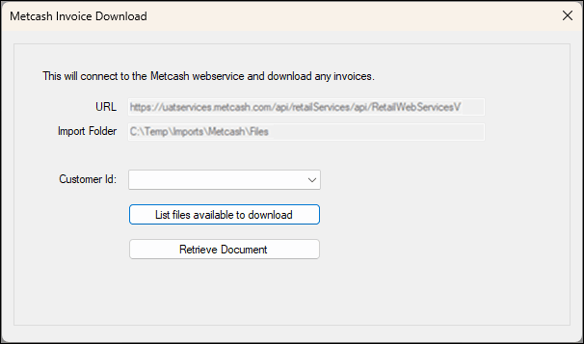
- Select from the Customer ID from the drop-down list for which invoices are to be imported.
- Select either the List files available to download option to display the following prompt:
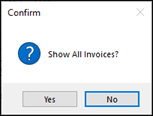
- Select Yes to show all (red and green highlighted) invoices, or No to only show those invoices (green highlighted) that have not as yet been downloaded.
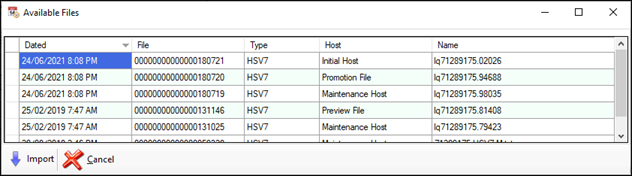
- The Available Files screen will be displayed with invoices previously downloaded highlighted in red and invoices pending download highlighted in green. For example:
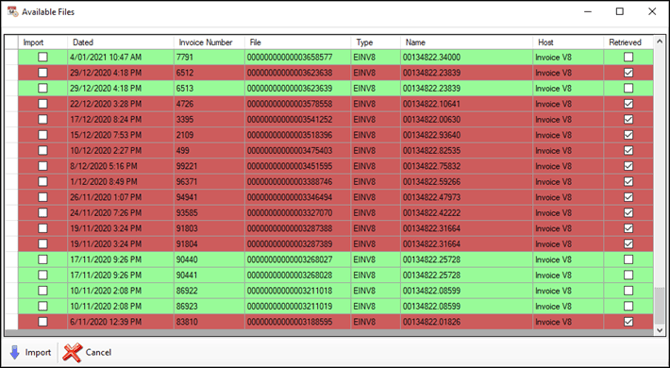
- To download and import Supplier invoices, select the Metcash / ALM option from the Download option in the footer section of the Invoice Import screen, to open the Metcash Invoice Download screen.
-
- Select one or more invoices, from those displayed in green, to download.
- Select the Import option.
- The Match supplier to Invoice screen will be displayed.
- Select the METCASH LIMITED Supplier and select OK.
- The downloaded invoices will now appear in the grid of the Import Invoices screen.
- Match the products for each invoice listed by selecting the Match option to display the Match Invoice tab.
- In the Match Invoice tab:
- Enter a Purchase Order number into the Order # field. This will either be the same as the invoice number or the number of the Purchase Order that was created in Swiftpos.
- If any products listed in the grid do not have any value displayed in the Product Code column then it means that there is no Metcash (ALM) Supplier Record in Back Office for that product. The appropriate product can be selected simply by pressing Enter in the Product Code field then selecting the relevant product from the list. A confirmation message will appear after the product is selected, allowing you to cancel out if the wrong product was selected.
- Once all of the products in the invoice are matched with products, the invoice can be saved as pending by selecting the Commit option. If there are any new barcodes in the invoice, Swiftpos will allow you to select whether to add the new barcodes to the products in the Back Office. It is also at this point that the case quantity of every item in the invoice is updated in Back Office which ensures that the costs displayed in the invoice are updated correctly in Back Office.
- Once all invoices have been matched, save them as Pending either using the Commit option, or selecting the invoices and selecting the Save as Pending option in the Import Invoices screen.
- Saved invoices will no longer be listed in the Import Invoices screen and can be accessed by selecting the Pending Invoice option from the Retrieve drop-down list in the footer section of the Invoices / Receipt Goods screen.
- Review the pending invoices by checking the line totals and entering the invoice total and then selecting the Save as Complete option to complete the process.
Screens ▲ ▼
Food & Liquor (ALM) Settings Screen ▲ ▼
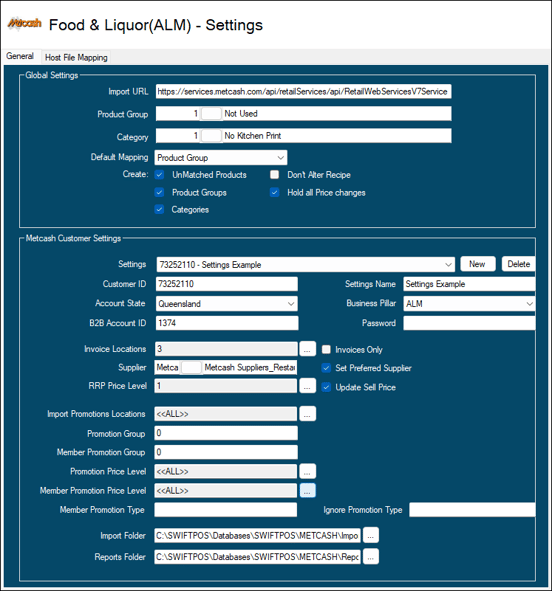
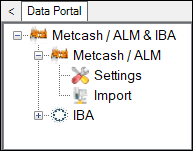
To access, select the Settings option in the Metcash / ALM menu located in the Metcash / ALM & IBA menu option of the Data Portal. Provides a Venue with the ability to configure the settings required to establish a connection to Metcash's Web Services portal, as well as import Food & Liquor data.
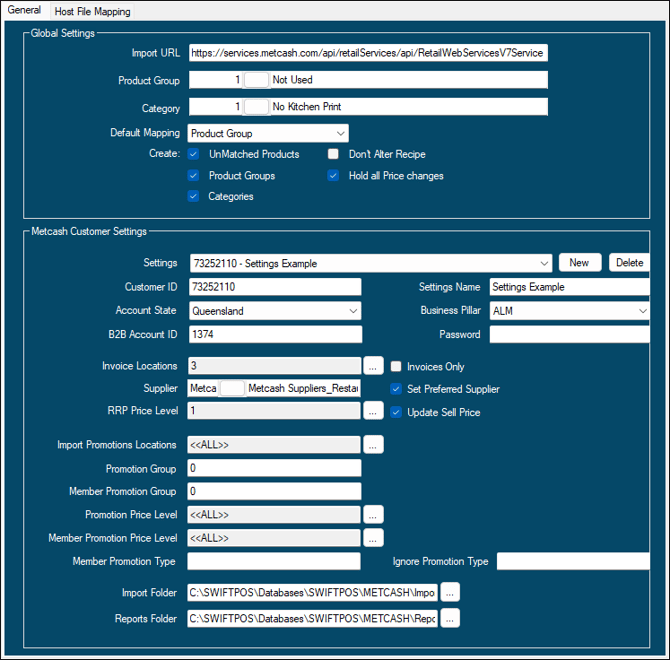
- Import URL - Displays/Enter the Metcash Web Services URL provided for importing files
- Product Group - Select to open the Product Groups Search and select a Product Group that will be used as the default Product Group to be assigned to all items/products that are associated with a Metcash Department/Category/Commodity/Sub-Commodity combination and have not been mapped to a Swiftpos Product Group in the Metcash > Settings > Group/Category Mapping tab.
- Category - Select to open the Categories Search and select a Product Group that will be used as the default Category to be assigned to all items/products that are associated with a Metcash Department/Category/Commodity/Sub-Commodity combination and have not been mapped to a Swiftpos Category in the Metcash > Settings > Group/Category Mapping tab.
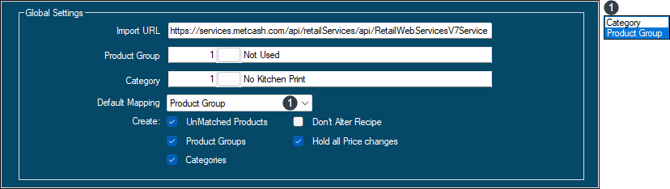
- Default Mapping - Select from the drop-down list to set the mapping of MSC items/products (Metcash Standard Commodity) by either Category or Product Group.
- Create - Select one or more of the following:
- Unmatched Products - Select to ensure Metcash items/products that cannot not be matched to an existing Swiftpos item/product (using the Barcode to match), will automatically be created in Swiftpos (as a new item/product) during the Import process.
- Product Groups - Select to ensure Metcash Departments are created in Swiftpos as Product Groups.
A Metcash Department will only be added as a Product Group in Swiftpos, if the Metcash Department Number does NOT already exist as a Product Group Number in Swiftpos.
- Create continued ...
- Categories - Select to ensure Metcash Categories are created in Swiftpos as Categories.
A Metcash Category will only be added as a Category in Swiftpos, if the Metcash Category Number does NOT already exist as a Category Number in Swiftpos.
- Create continued ...
- Export URL - Displays/Enter the Metcash Web Services URL provided for exporting files.
Metcash Customer Settings Section ▲ ▼
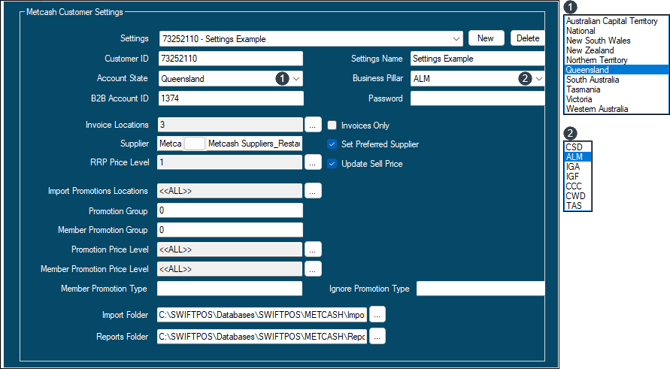
Configure the settings provided by Metcash to ensure a connection can be established with their Web Services portal.
- Settings - Displays/Enter the Customer ID/Settings name for which the settings are being configured.
- New - Select to add a new Customer.
- Delete - Select to delete the selected Customer.
- Customer ID - Displays/Enter the Customer ID provided by Metcash.
- Settings Name - Displays/Enter the name of the Customer.
- Account State - Displays/Select from the drop-down list one of States.
- Business Pillar - Select from the drop-down list one of the options available.
- B2B Account ID - Displays/Enter the B2B Account ID provided by Metcash.
- Password - Displays/Enter the B2B Account Password provided by Metcash.
- Invoice Locations - Displays/Select the Locations that will be importing invoices.
- Invoices Only - Select to enable.
- Supplier - Displays/Select the default Supplier for which invoices will be imported.
- Set Preferred Supplier - Select to ensure that when a new item/product is created, the Supplier selected above is set as the preferred Supplier.
- RRP Price Level - Displays/Select the Price Level that will represent the recommended retail price (RRP).
- Update Sell Price - Select to ensure the Host file sell pricing is used to update the Sell price of the selected Price Level.
-
Import Promotions Locations - Locations the promotion from the imported Host file will be associated with.
-
Promotion Group - Provided by Metcash.
-
Member Promotion Group - Provided by Metcash.
- Promotion Price Level - Displays/Select the Price Level that the Host imported Promotion will use.
- Member Promotion Price Level - Displays/Select the Price Level that the Host imported Member Promotions will use.
- Member Promotion Type - Host will only import the specified promotions, if left blank, all promotions will be imported.
- Ignore Promo type - All promotions will be imported from the host file except the promotion types specified here.
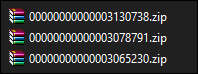
- Import Folder - Displays/Select the folder into which Host files will be imported. Files imported will appear as ZIP files in the folder specified here. For example:
- Reports Folder - Displays/Set the folder into which Reports generated by the Import/Export of data, will be placed. Reports generated by the Import process will be in the form of Excel spreadsheets, For example:

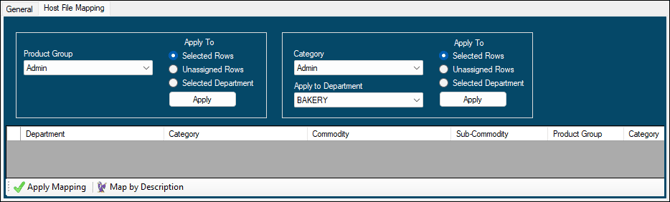
Used to map imported Metcash Departments and Categories to existing Swiftpos Product Groups and Categories respectively.
Mapping to Swiftpos Product Groups and Categories is only recommended for already established Swiftpos sites, that have existing Product Groups, Categories and items/products configured in the Back Office, and for which they wish to continue to maintain in conjunction with the Metcash imported items/products.
Footer Section

- Apply Mapping - Select to Apply the changes to Mappings that have been made. Once selected a confirmation prompt will be displayed to confirm that the updating of the Product Groups and Categories assigned to Swiftpos items/products in line with the Mapping selections displayed in the grid, can go ahead.
Mappings configured prior to the import of an Initial Host file will be applied when the items/products are imported. Any changes to the mapping configuration after the import of an Initial Host file, will require the Apply Mapping feature to be actioned to ensure the changes are applied to items/products.
- Map by Description - Select to automatically map the Metcash Departments/Categories to the Swiftpos Product Groups/Categories based on their Descriptions.
Import Screen ▲ ▼
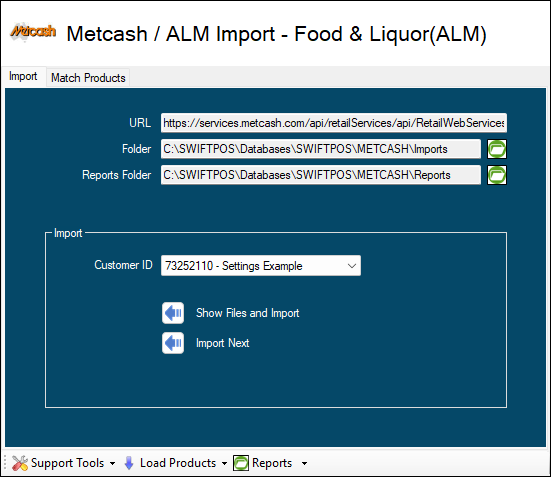
To access, select the Import option in the Metcash / ALM menu located in the Metcash / ALM & IBA menu option of the Data Portal. Provides a Venue with the ability to configure the settings required to establish a connection to Metcash's Web Services portal, as well as import Food & Liquor data.
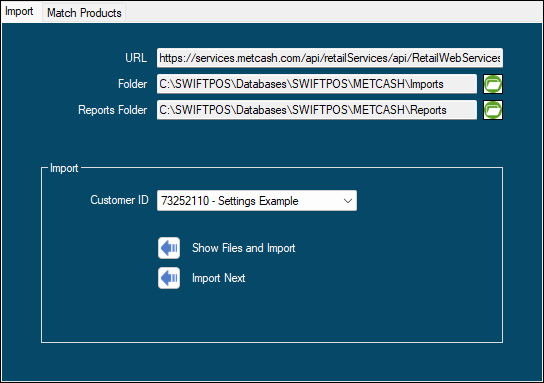
- Import URL - Displays the Metcash Web Services URL as configured in Settings.
- Import Folder - Displays the Import folder as configured in Settings.
- Reports Folder - Displays the Reports folder as configured in Settings.
Import Section
- Customer ID - Select from the drop-down list the Customer ID for which the importing will occur.
- Show Files and Import - Select to open the Available Files screen that lists the files available for importing. Once selected a prompt will be displayed confirming whether to Show All Files? Select Yes to display all Files, including those previously imported. Otherwise select No to only show Files that have not been imported.
- Import Next - Select to Import the next file. If no files are found to be imported, a notification prompt will be displayed.
Footer Section
- Support Tools - Exclusively for use by Swiftpos Support. Select from the drop-down list one of the following:
- Manual File Import
- Load Products - Select from the drop-down list one of the following:
- Requiring to be Resolved
- Unmatched
- Reports - Select from the drop-down list one of the following:
- Check Host ID's
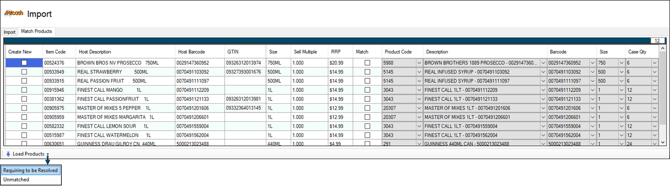
Used to resolve issues relating to the products that have been imported.
Grid Section
Lists the products that have been imported along with their Item Code, Host Description, Host Barcode, Size, Sell Multiple and RRP.
Lists the Swiftpos product that may be associated with the imported product listed on the left, along with it's Product Code, Description, Barcode, GTIN, Size and Case Qty.
Other than the data columns listed above, the following action (column) options are available for each item/product listed in the grid:
- Create New - Select to ensure the imported item/product (Item Code) is created in Swiftpos as a Swiftpos item/product.
The existing Swiftpos barcode will be removed when a match is found with a Metcash product.
- Match - Select to ensure the imported item/product to the left of the Match column is matched to the Swiftpos item/product listed to the right of the Match column. This will result in the Swiftpos item's/product's Host Item Code being updated with the imported Item Code.
Footer
- Load Products - Select from the drop-down list one of the following:
- Requiring to be Resolved - Select to list the imported products for which issues were encountered that need to be resolved.
It is recommended that all items/products listed, be resolved.
- Load Products continued ...
- Unmatched - Select to list the imported items/products that could not be matched (using the Barcode) to an existing Swiftpos item/product.
End of article ▲