
This outlines How To Configure And Use Checkout Stage Discounts for Touch.
Subjects ▲ ▼
About ▲ ▼
What Is Required? ▲ ▼
- SwiftPOS 10.79.12+
- Back Office configured as outlined HERE
What To Consider? ▲ ▼
- The discount will only be applied to the first payment that uses the Media that has the discount associated with it.
When Is It Used? ▲ ▼
Used to offer different payment pricing options at the checkout stage in Touch. For example, patrons paying in cash can receive a 2% discount on the total value of the order/sale.
This enables Venues to:
- Offer different pricing options depending on the Media patrons choose when paying for the order/sale. For example, cash vs cards (EFTPOS).
- Discounts are applied dynamically as items/products are added/removed from the order/sale, and are displayed in the footer section of the sales grid in Touch just above the Subtotal.
This feature requires:
- Back Office to be configured appropriately for Discounts & Media.
- Touch Keyboards need to be configured so patrons can take advantage of the Checkout Stage Discounts on offer in the form of multiple Media POS Keys. For example, Cash and Card (EFTPOS) POS Keys
- It also provides receipt and reporting support for applied discounts.
How To? ▲ ▼
How To GET STARTED? ▲ ▼
- Review About and ensure the steps outlined HERE are addressed.
- Configure Checkout Stage Discounts?
How To Configure Checkout Stage Discounts? ▲ ▼
- In Back Office:
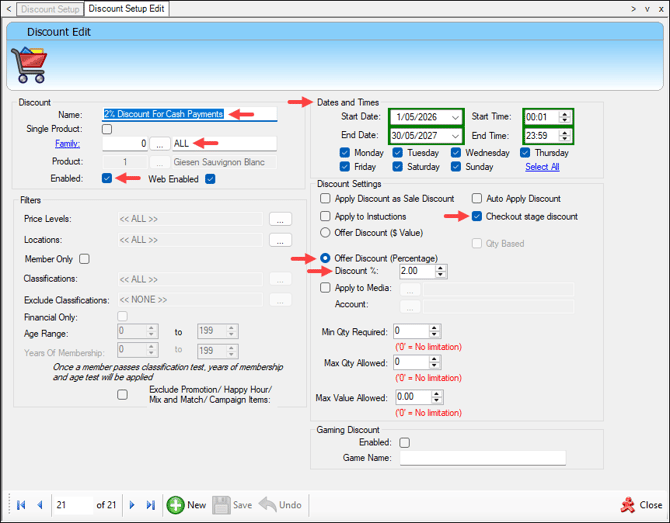
- Create the Discount in Back Office and ensure it is appropriate for checkout stage use. For example, 2% Off for CASH payments. That is, give attention to the Discount Type (% or fixed), applicable products or families (suggest selecting the All option for Family) and any required filters (start/end dates/times, days of the week, etc.).
- Ensure the Discount has the Checkout Stage Discount option selected. This will ensure the discount is not applied automatically during the placing of the order/sale.
- Ensure the Discount does NOT have a Media selected against the Apply to Media option, that is the same as the Media that has the Checkout Stage Discount associated with it. The two Medias should be different.
- Create the Discount in Back Office and ensure it is appropriate for checkout stage use. For example, 2% Off for CASH payments. That is, give attention to the Discount Type (% or fixed), applicable products or families (suggest selecting the All option for Family) and any required filters (start/end dates/times, days of the week, etc.).
- In Back Office continued ...
- Create the Discount continued ...
- Save the Discount.
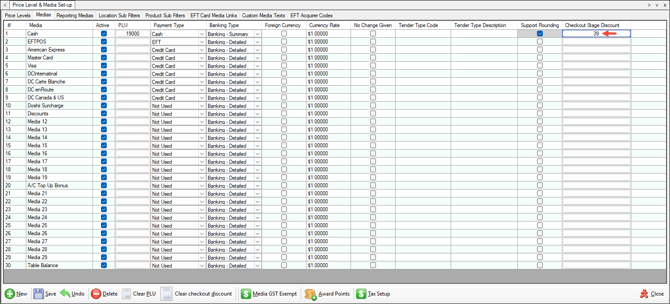
- Ensure the Media for which the Discount is to be applied to, has the appropriate Checkout Stage Discount selected against it. For example, The Cash entry in the Medias tab of the Price Level & Media Set-up screen has the 2% Off for CASH payments Discount (created above) selected.
- Create the Discount continued ...
- In Back Office continued ...
How To Use Checkout Stage Discounts? ▲ ▼
In Touch:
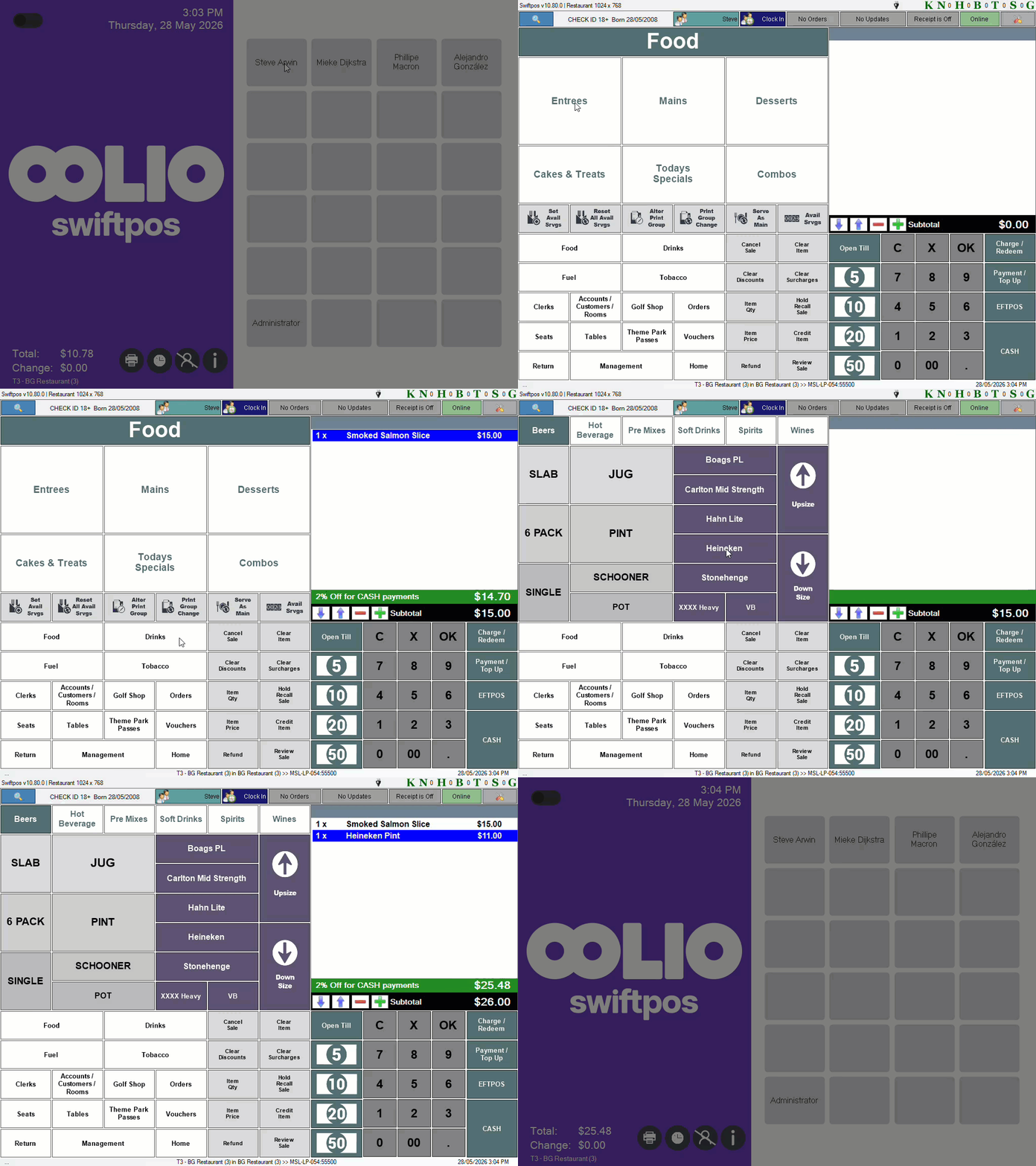
- Add items/products to an order/sale. Items/Products are added without the Checkout Stage Discount applied to them.
- The Checkout Stage Discount will appear at the bottom of the sales grid above the normal (Subtotal amount) card price. It will be adjusted as items/products are added/removed,
- The Touch operator can now offer the 2% Cash payment discount to the patron if they choose to pay with cash.
- Select the Cash POS Key to apply the discount to the order/sale.
- Request the cash payment from the patron.
End of article ▲