
Refer HERE for more information.
Subjects ▲ ▼
About ▲ ▼
What To Consider? ▲ ▼
- If required, access to this screen can be restricted by the HERE.
- Any items/products currently in an active Special/Promotion will NOT have their sell price changed when applying price changes via the wizard. If an item/product is on Promotion on the selected date, the item's/product's selling price will only be updated when the Promotion is finished.
- Price changes marked with today's date will take effect immediately, that is when the price change is saved.
When Is It Used? ▲ ▼
Used to configure how the pricing of Swiftpos Price Levels are determined. Price Level pricing is determined using the following:
-
Source Price - Selected to ensure a price is selected that is used as the basis to calculate a Price Level's price.
-
Update Expression - Used in conjunction with the Source Price selected above, the Update Expression is configured to establish how a Price Level's price is determined. The configured Update Expression is applied to the selected Source Price to determine the price.
This means a Venue can maintain one Price Level, and using the Source Price and Update Expression combination, all other Price Levels can be determined using the one maintained Price Level.
Examples ▲ ▼
- Automatically Update The Sell Price Based On A Change To The Cost Price
- Automatically Update The Sell Price Based On A Change To The Sell Price of A Different Price Level
Automatically Update The Sell Price Based On A Change To The Cost Price ▲ ▼
In this example the Staff Price Level is set to add a 5% mark up to the cost price of each item.
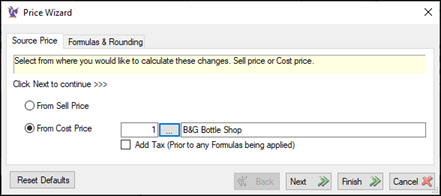
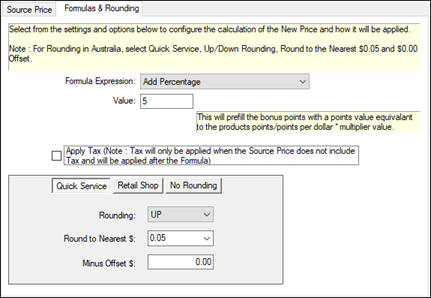
When the cost price of an item/product changes (for example when a Supplier Invoice is committed with a different cost price) the item's/product's selling price for the Staff Price Level will be automatically updated to maintain the 5% markup on cost set in the update expression. If the Venue is tracking cost price by each Location, the cost will be calculated as an average across each Location that has the Price Level active for that Location.
Automatically Update The Sell Price Based On A Change To The Sell Price of A Different Price Level ▲ ▼
In the example below, the Members Price Level is set to subtract 10% from the Normal Price Level of each item. The rule also has an exclusion on all Products in the 'Breakfast' Family. Products in this Family will NOT be updated automatically.
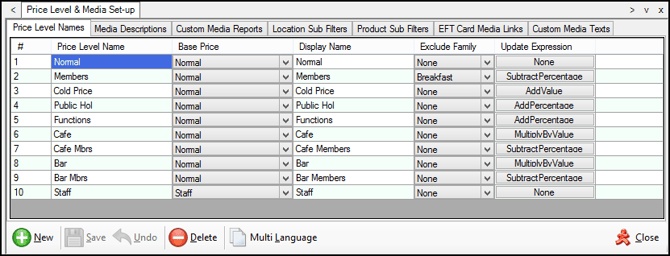
Now when an item's/product's Normal Price Level (selling price) is adjusted in the Product Edit screen the Members Price Level will automatically update when the record is saved.
How To? ▲ ▼
Screens ▲ ▼
Price Wizard ▲ ▼
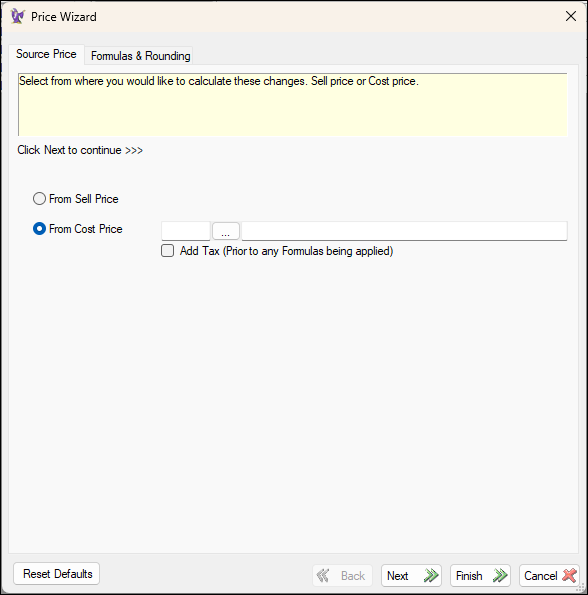
To access, select a cell in the Update Expression column of the rows in the grid of the Price Levels tab in Back Office. Used to automatically calculate prices for Price Levels by applying the selected Update Expression based on an existing price.
Tabs ▲ ▼
Source Price Section ▲ ▼
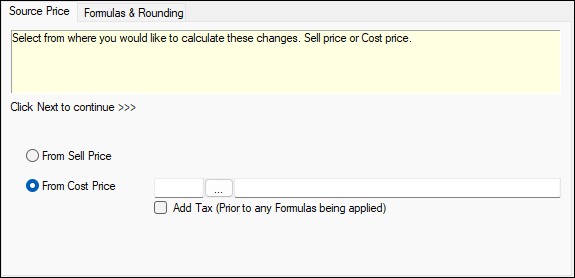
Used to select the price to be used as the SOURCE PRICE for determining the new price for the selected Price Level. If the From Cost Price option is selected, then the Location from which the cist price will be sourced, must also be selected.
- From Sell Price - Select to ensure the selling price is used as the basis for the new price calculation.
- From Cost Price - Select the select option to open the Search Locations screen to select the Location from which the cost price is retrieved and used as the basis for the new price calculation.
- Add Tax - Select to add tax prior to any calculations being done. Used to add tax to the cost field, if the item/product is in a Category that is assigned a tax rate.
Formulas & Rounding Section ▲ ▼
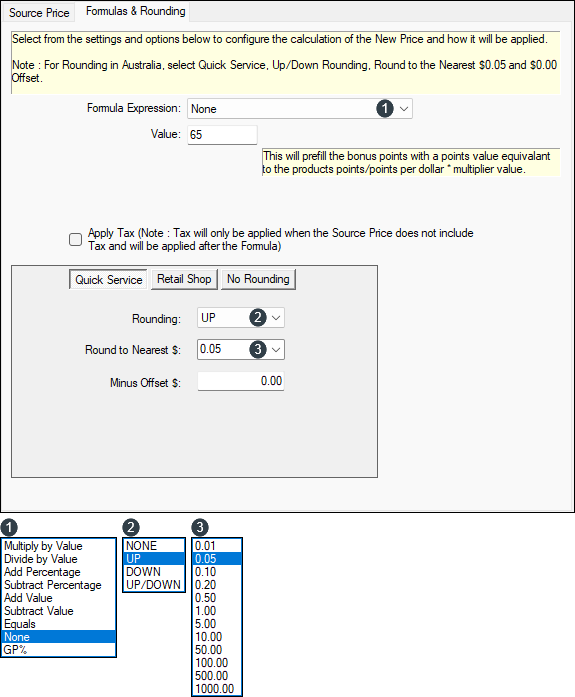
Used to select the formula and rounding required to determine the new price for the selected Price Level. Refer HERE for more information.
Footer Section ▲ ▼

- Reset Defaults - Select to reset to default settings
- Back - Select to return to the previous step.
- Next - Select to proceed to the next step.
- Finish - Select to run the wizard.
- Cancel - Select to exit the wizard without running it.
End of article ▲