
This outlines How To Lock A Device To An Event Area in Back Office.
A Device referred to here, is one that is listed in Devices. Generally this would be either a Touch or Touchmini device.
Subjects ▲ ▼
About ▲ ▼
What Is Required? ▲ ▼
- Venues will need to be registered for the Events module for access to this feature.
- In order, to be able to lock a Touchmini device to an Area (Suite), the device must be enabled to ensure it is listed in Devices. Refer HERE for more information.
- For Touch devices It is recommended to ensure the Show Suites (#951) POS Key is added to the Keyboard Layouts for those Touch devices that will be locked to an Area (Suite).
- Other POS Keys that may also be considered for adding to Keyboard Layouts are:
What To Consider? ▲ ▼
- The Transfer option in the Touchmini menu DOES NOT support the transfer of locked Touchmini devices. That is, when a Touchmini device is locked to one or more Event Areas (Suites) it CANNOT be transferred between Locations using the Transfer menu option. Instead refer HERE for more information.
How To? ▲ ▼
- Lock A Touch Device To An Area?
- Lock A Touchmini Device To An Area?
- Placing A Sale With A Locked Touchmini Device
How To Lock A Touch Device To An Area? ▲ ▼
A Touch device can be locked to one or more Event Areas (Suites). This can be done in two ways:
Once locked, refer HERE for more information.
Locking For An Event Session ▲ ▼
This is temporary, as the Touch or Touchmini device is locked to an Area for a specific Event Session. Thus, ONLY when that Event Session is in progress, will the Touch or Touchmini device be locked to the Area.
Notes...
When using this option, the Touch or Touchmini devices will ONLY be locked to the Areas (Suites) for the duration of the Event Session. Event Session locking will override any Area locking.
To do this, do as follows:
- In the Event Sessions section:
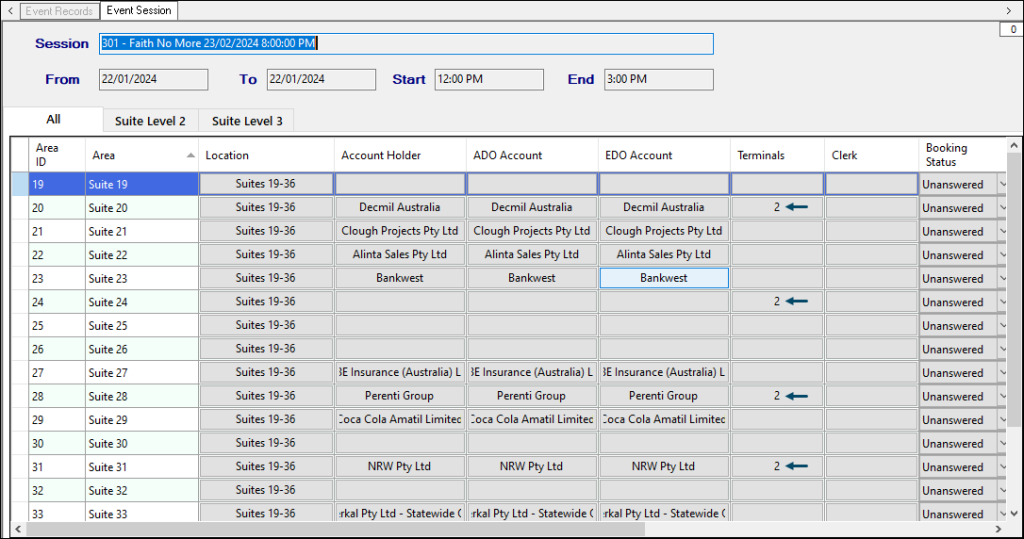
- Select the Areas button to open the Event Session screen.
- Navigate to the Area (Suite) that is to have one or more locked Devices.
- Select the option in the Terminals column opposite the located Area (Suite).
- Select from the drop-down list one or more Devices that will be locked to the Area (Suite). This would normally be a Touch or Touchmini device. To select multiple devices hold down the Ctrl key and select the Devices.
Locking To An Area ▲ ▼
This is more or less permanent, as the Touch or Touchmini device is locked to an Area regardless of any Event. Thus, whenever an Event is in progress, that makes use of the Area, by default the Touch or Touchmini device will be locked to the Area.
To do this, do as follows:
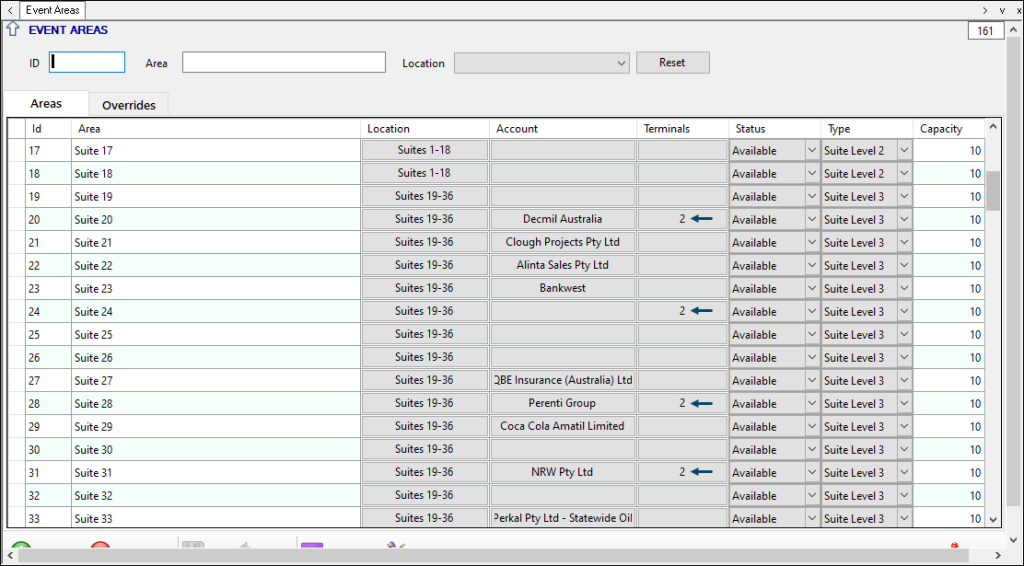
- In the Event Areas screen:
- Navigate to the Area (Suite) that is to have one or more locked Devices.
- Select the option in the Terminals column opposite the located Area (Suite).
- Select from the drop-down list one or more Devices that will be locked to the Area (Suite). This would normally be a Touch or Touchmini device. To select multiple devices hold down the Ctrl key and select the Devices.
How To Lock A Touchmini Device To An Area? ▲ ▼
A Touchmini device can be locked to one or more Event Areas (Suites). This can be done in two ways:
- Locking For An Event Session - Refer HERE for more information.
- Locking To An Area - Refer HERE for more information.
Placing A Sale With A Locked Touchmini Device? ▲ ▼
Do as follows, when an Event Session is in progress and a Touchmini device has been locked to one or more Areas:
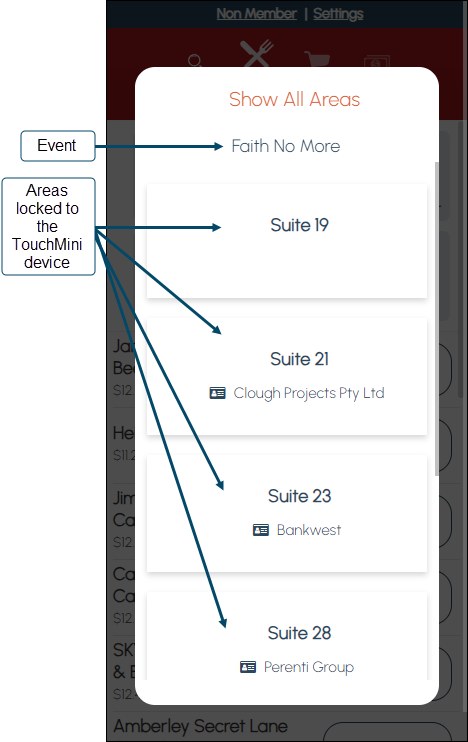
- When the device is activated, the Areas it is locked to, will display automatically. For example:
Notes...
Event Areas will only be displayed when there is an Event Session currently in progress and the Touchmini device is assigned to a Location that is associated with the same Event Session.
- Select Show All Areas to show all other Areas. That is, including the Areas that the device is NOT currently locked to. To return to the display of the locked Areas only, select Show Assigned Areas.
Do as follows, when an Event Session is in progress and a Touchmini device has NOT been locked to one or more Areas:
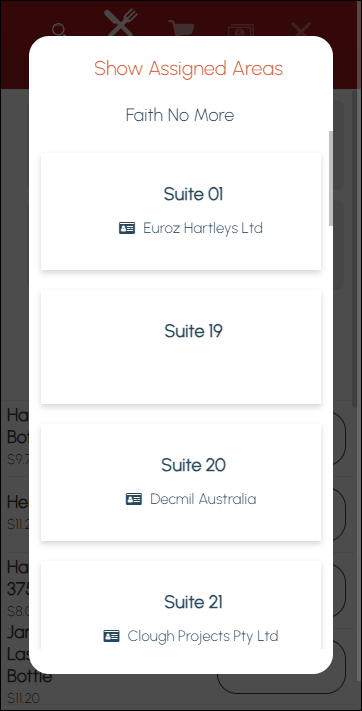
- When the device is activated, the Areas for the Location it is operating in, will display automatically. For example:
Notes...
Event Areas will only be displayed when there is an Event Session currently in progress and the Touchmini is assigned to a Location that is associated with the same Event Session.
- Selecting Show Assigned Areas will reveal there are NO Areas the device is currently locked to. To return to the display of all Areas only, select Show All Areas.
End of article ▲