
IMPORTANT
Touchmini v1 has reached it's end of life and will NO LONGER be enhanced/improved. It is now superseded by Touchmini v2.
This outlines How To Enable/Disable A Device in Touchmini .
Subjects ▼
- How To Enable A Device?
- How To Re-Enable A Device?
- How To Disable A Device?
- What is Required?
- What Is Supported?
What Is Required? ▲ ▼
- A device must be registered before it can be enabled/disabled.
How To Enable A Device? ▲ ▼
When enabled, the device will also be added to the list of Devices available in the Devices screen, with the following attributes:
- It will automatically be assigned the next available Device ID.
- The Active option will be selected.
- It will be given the Name given to it in the Device tab.
Notes ...
If no name is given to it in the Device tab, then the name given to it in the Devices screen will be used. For example, TM-699b81e22c436917.
- It will be given the type Touchmini .
- It will automatically be assigned to the Location associated with the Cloud Client ID the device is registered to. Refer to HERE for more information.
The assigned Device ID will be displayed HERE and HERE.
Notes ...
The Device ID is used to ensure that selected Touchmini devices can be locked to one or more Event Areas. Refer to HERE for more information.
If the Touchmini device was previously disabled, that is, it was previously assigned a Device ID, then that same Device will be activated again and the same Device ID used again for the same Touchmini device.
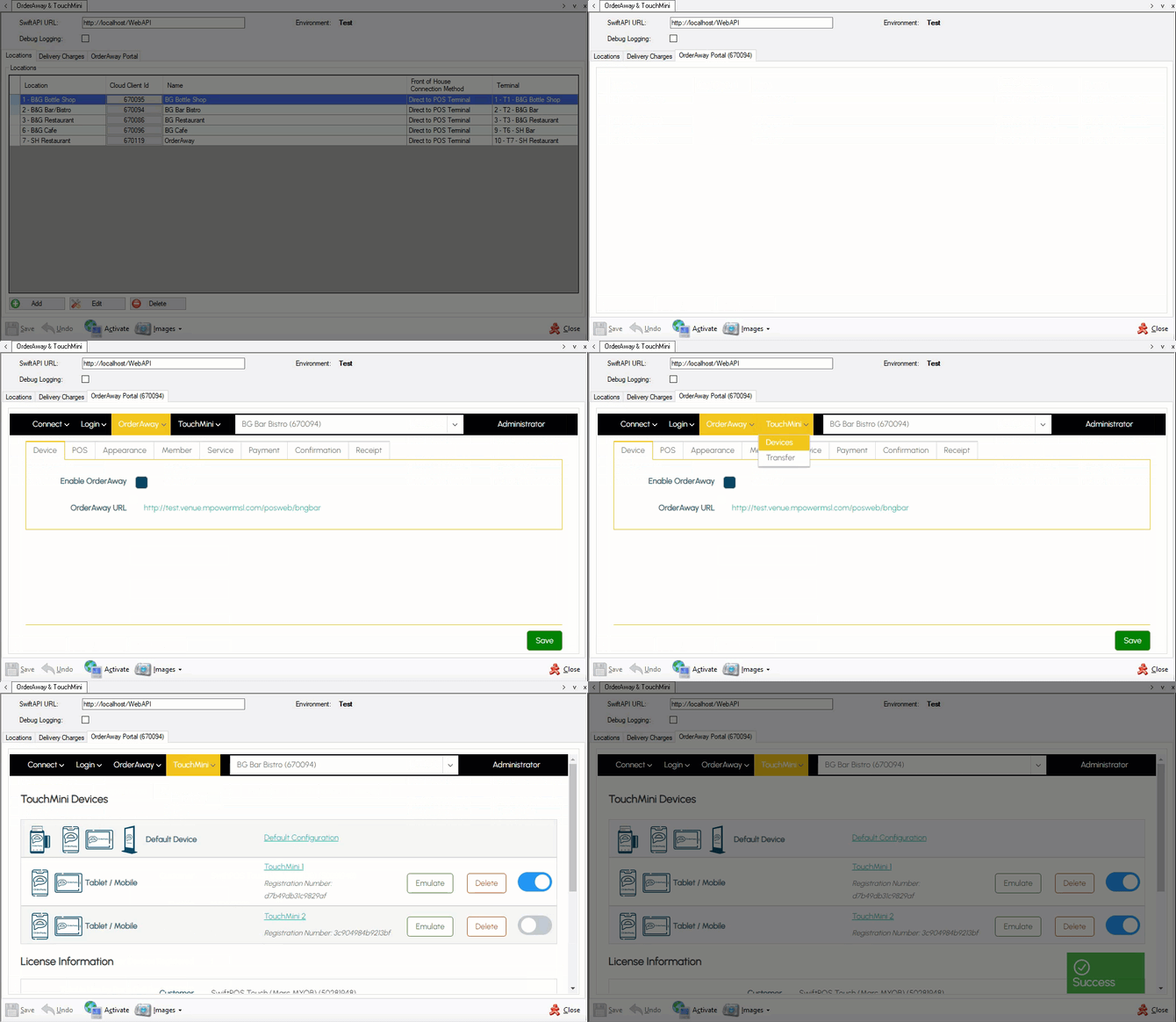
- In the swiftpos Back Office > Administration > OrderAway > Locations tab, select the Cloud Client ID option that was entered in the registration request above.
- This will open Venue Manager within swiftpos Back Office. Select the Devices option from the Touchmini menu.
- Locate the device with the name entered above. That is, Restaurant.
- Enable it by selecting the on/off option (grey) to the right of the device and ensure it is blue.
How To Re-Enable A Device? ▲ ▼
This may be required from time to time, or to assign a Back Office Device ID to the device, given it does not have one assigned.
- Disable it by selecting the on/off button (blue) to the right of the device and ensure it is greyed out. Refer to How To Disable A Device for more information.
- Enable it by selecting the on/off button (grey) to the right of the device and ensure it is blue. Refer to How To Enable A Device for more information.
How To Disable A Device? ▲ ▼
When disabled, the device's assigned Device ID in Back Office will be set to inactive. That is, the Active option will NOT be selected.
Notes ...
The Device will NOT be deleted in Back Office. If required, then the Device will need to be deleted via Back Office.
- In the swiftpos Back Office > Administration > OrderAway > Locations tab, select the Cloud Client ID option that was entered in the registration request above.
- This will open Venue Manager within swiftpos Back Office. Select the Devices option from the Touchmini menu.
- Locate the device with the name entered above. That is, Restaurant.
- Enable it by selecting the on/off option (blue) to the right of the device and ensure it is greyed out.
What Is Supported? ▲ ▼
- Refer HERE for the types of devices that can be registered and supported in Touchmini .
End of article ▲