
Subjects ▲ ▼
About ▲ ▼
What Is Supported? ▲ ▼
- The following types of Devices are supported:
- KVS (Basic)
- KVS (PRO)
- Menu Board
- PDA
- Reception
- Rental Self Serve Kiosk
- Rental Self Serve POS
- Rental Touch Lite
- Rental Touch POS
- Rental Touchmini POS
- Rental To
- Rental Waiter Station
- Self Serve Kiosk
- Self Serve POS
- Touch Lite
- Touch POS
- Touchmini POS
- Touchv2 POS
- Waiter Station
What To Consider? ▲ ▼
- Devices to be used in conjunction with Touch, will also need to be added to the POS Devices. For example, KVS, Menu Boards, Touch, Reception, Touchmini, Waiter, etc.
- The number of active devices cannot exceed the number covered by the Venue's current Swiftpos Registration.
- Touch devices created and flagged as Active can be selected when using the Basic Invoicing menu option in Back Office. However, a Touch device can also be created just for Basic Invoicing, in which case it will NOT need to be added to the list of POS Device.
- Training Device - Devices with an ID within the range of 999901 - 999999 inclusive, are reserved for training use only and will not be counted as a licenced device that is covered by the Venue's Swiftpos Registration. Also, transactions created while using a training device will not be recorded in Swiftpos as a sale. Training devices are provided at no extra licensing cost and can also be used to design and configure keyboard layouts in Back Office to test, prior to activating them across the Venue's active Touch terminals.
When Is It Used? ▲ ▼
Used to manage all Swiftpos supported devices used throughout the Venue. Refer HERE for more information.
How To? ▲ ▼
Screens ▲ ▼
Devices Screen ▲ ▼
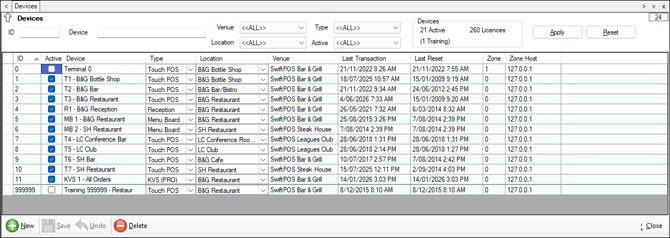
To access, select the Devices option in the Administration menu in Back Office.
Sections ▲ ▼
Header Section ▲ ▼

Filters
Provides filters to limit the number of Devices listed in the grid. The filters available are ID, Device name, Venue, Location, Type and Active. Once all filters have been selected, select the Apply option to apply them. Otherwise, select the Reset option to clear all filter selections.
Devices
- Active - Displays the number of Terminals currently marked as Active.
- Licences - Displays the Total POS Terminals count, which represents the total number of Touch devices available. This count is calculated as follows:
POS Terminals + PC Users
Notes ...
Each PC user licence issued includes 1 Touch licence to ensure the Basic Invoicing menu option in Back Office can be used.
Grid Section ▲ ▼
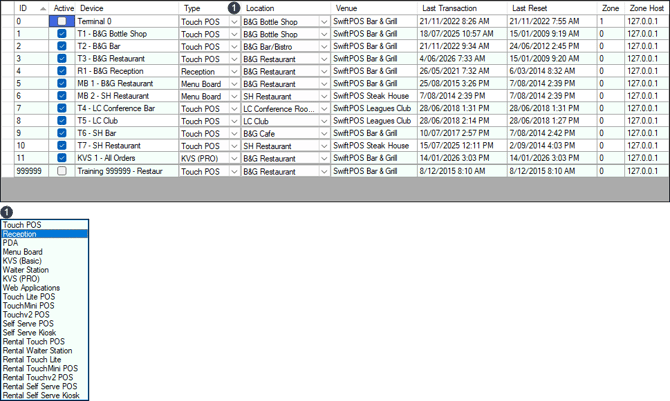
Lists the Devices returned as a result of the filters selected in the header, along with their:
- ID - Displays/Enter the number identifying the Device. Once a Device has been created its ID cannot be changed.
- Active - Select to render the selected Device active/inactive.
Notes ...
The number of active Terminals cannot exceed the number currently covered by the Swiftpos Registration licence. A Touchmini type terminal will NOT consume a Terminal Licence in Registration.
- Device - Displays/Enter the name of the Device.
Notes ...
A Touch Lite licence does not support the following features/settings are NOT available:
- Type continued ...
- Mobile - Used for Mobile devices such as IPAD, Iphone, IPod, PDA or tablets, etc.
- Menu Board - Used for Menu Boards.
- Reception - Used for Reception Terminals.
- Waiter - Used for Waiter mode of operation in Restaurants.
- KVS Basic - Kitchen Video System Basic.
- KVS Pro - Kitchen Video System Pro.
- Type continued ...
- Web Apps - Web Applications.
- Touchmini - Used for Touchmini devices.
- Location - Displays/Select from the drop-down list the Location in which the Device will be used.
Notes ...
Changes made will be logged and can be viewed by generating the Database Activity Report (ADM002). Also, it is recommended to do Z Read at the Touch device BEFORE changing Locations as the report data will be lost once the Location has been changed.
- Venue - Displays the Venue the selected Location is associated with.
- Last Transaction - Displays the last date/time a transaction was completed using the Device.
- Last Reset - Displays the last date/time a reset was completed at the Device. This only applies to Touch type devices.
- Zone - Displays/Enter the number of the security camera that is monitoring the selected Device. This enables security (DVR) surveillance to be directly accessed from the Search Transactions screen. For information relating to setting up a security (DVR) surveillance camera, click here.
- Zone Host - Displays/Enter the Host IP address of the security camera that is monitoring the selected Device.
Footer Section ▲ ▼

- New - Select to add a Terminal. Refer HERE for more information.
- Save - Select to save changes.
- Undo - Select to undo changes made.
- Delete - Select to delete the selected Terminal. Refer HERE for more information.
- Close - Select to exit.
End of article ▲