
Screens ▲ ▼
Account Status Screen ▲ ▼
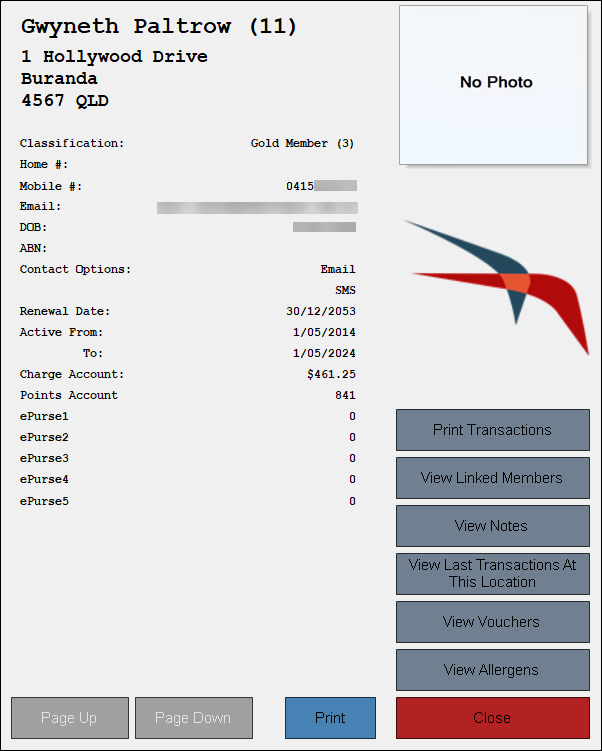
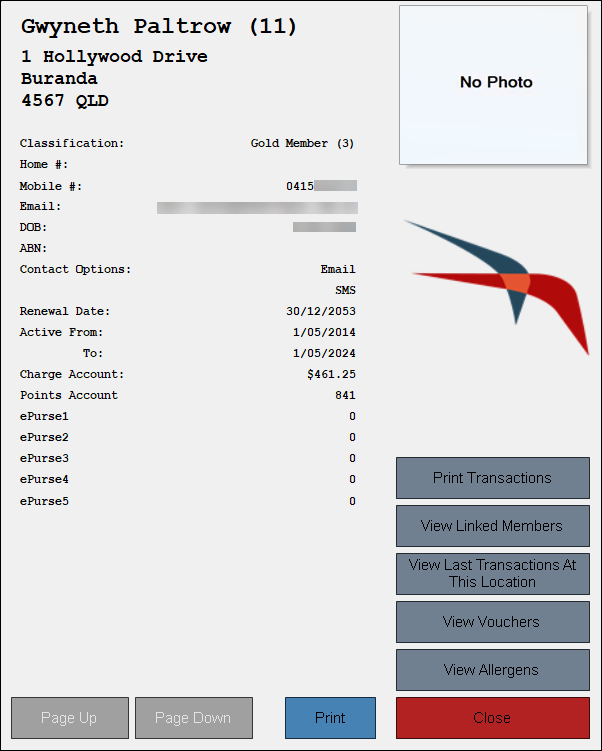
To access, select the Account Status (#104) POS Key in Touch or ensure the Always pop up Customer Status Window when Member added to the sale option is selected. Used to view the status of a Customer's/Member's account. Refer HERE to configure the details displayed in this screen.
Notes ...
Charge and Points Accounts are only displayed when they are selected in the NetPOS Swiftpos Back Office screen HERE.
- Print Transactions - Select to display a date range selection prompt to specify the transactions to be printed. Transaction will be printed on the Receipt printer.
- View Linked Members - Select to view Customers/Members that are currently linked to the selected Customer/Member.
- View Notes - Select to view the Internal Notes associated with the Customer/Member that was entered in the Back Office HERE.
Notes ...
This option will only be displayed if notes exist.
- View Last Transactions At This Location - Select to open the Last Member Sales in Location screen to view the Customer/Member's previous sales. For more information ...
Notes ...
Unlike the Customer Sales by Location POS Key where the items displayed against selected transactions can be limited by Category, this is not the case here. When selecting the View Last Transactions At This Location button all items will be displayed.
The Number of Transactions to track and return is configured against the Location
- View Vouchers - Select to open the Ledgers screen and view all the Customer/Member's outstanding Vouchers.
- Print - Select to print a copy of the Account Status details displayed. The Account Status print out will be sent to the Receipt Printer.
Ledgers Screen ▲ ▼
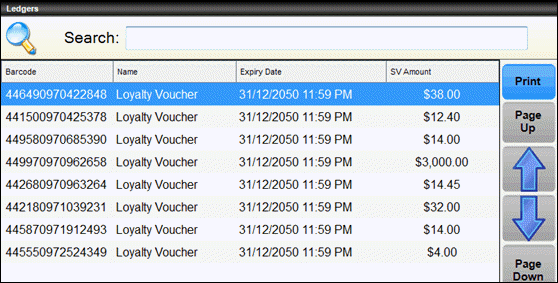
Used to display a list of all the Customer's/Member's outstanding vouchers and select a voucher to add to the order/sale.
End of article ▲