

This provides an overview of the Filtered Search (#107) POS Key.
Subjects ▲ ▼
About ▲ ▼
What Is Required? ▲ ▼
- Swiftpos v10+
- Ensure this POS Key is added to the appropriate Keyboard Layout using the Designer. Refer HERE for more information.
What To Consider? ▲ ▼
- If required, access to this POS Key can be restricted by the Clerk Security feature.
- The number of items/products returned can be set HERE. Default is 50.
- The wildcard for searching is the "%" symbol. For example, to search for "Coke" and "ml" anywhere in the search then enter "Coke%ml" to find all the different sizes of Coke.
- Multiple Filtered Search POS Keys can be added to a keyboard and each can be preset to a search Categories/Product Groups/Families only. For example, one to search the Category Alcoholic Beverage, and one to search the Family Breads.
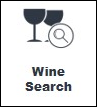
Example of a POS Key preset to search the Family Wines.
When Is It Used? ▲ ▼
Used to search for items/products using pre-configured filters. Alternatively, the Search option in Touch POS can be used.
How To? ▲ ▼
How To GET STARTED? ▲ ▼
- Review About and ensure the steps outlined HERE are addressed.
- In Keyboard Designer, select the Filtered Search (#107) POS Key that has been added to a Layout and then select the More Settings option to display the Settings screen.
- Ensure it is given an appropriate Caption. For example, Filtered Search.
- Configure the POS Key by selecting the options available HERE.
- Once configured, ensure a Full Update is sent to all the Touch terminals that will be using the POS Key. Refer HERE for more information.
Screens ▲ ▼
Settings Screen ▲ ▼
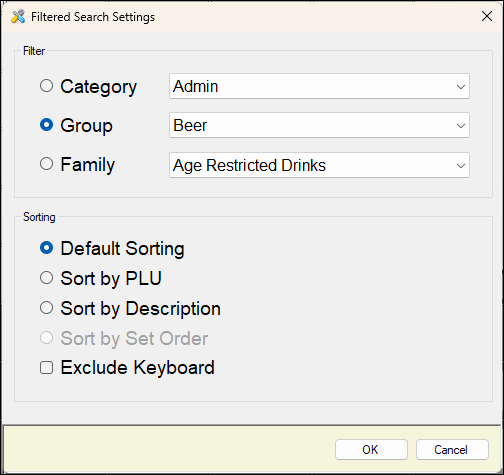
To access, select the More Settings option in Keyboard Designer. Used to configure the settings for the Filtered Search (#107) POS Key.
- Category - Select from the drop-down list of Categories, to limit the Products searched to the Category selected.
- Group - Select from the drop-down list of Product Groups, to limit the Products searched to the Product Group selected.
- Family - Select from the drop-down list of Families, to limit the Products searched to the Family selected.
- Sorting - Select from one of the following:
- Default Sorting
- Sort by PLU
- Sort by Description
- Exclude Keyboard - Select to ensure that when the Search screen is displayed in Touch, the qwerty keyboard is not displayed at the bottom of the screen.
End of article ▲