

This provides an overview of the Category Change (#123) POS Key. Refer also to the Alter Category (#122) POS Key.
Subjects ▲ ▼
About ▲ ▼
What Is Required? ▲ ▼
- Swiftpos v10.80+
- Ensure this POS Key is added to the appropriate Keyboard Layout using the Designer. Refer HERE for more information.
What To Consider? ▲ ▼
- If required, access to this POS Key can be restricted by the Clerk Security feature.
- The Category change will only apply to the items/products in the current order/sale. It does NOT update the item's/product’s Category in Back Office.
- The POS Key can be configured to ensure the Category is selected in Touch when the POS Key is selected, or the POS Key can be configured to ensure a specific Category is applied each time it is selected. Refer HERE for more information.
-
The following will apply when changing from one Category to another:
-
Tax Rate ID mismatches are blocked.
-
Normal sale/non-sale Category changes are blocked both ways.
-
Restricted Categories are blocked both ways.
-
Fractional Category rules are enforced. *Blocked from moving to a nonfractional Category
-
Loyalty points per $ mismatch displays a non-blocking warning and records a log entry.
-
Instructional Category changes display a warning.
-
Happy Hour Category changes can be overridden by this POS Key.
-
Multiple items/products in the same order/sale can have different effective Categories.
-
Logs include enough detail for support/audit review.
-
When Is It Used? ▲ ▼
Used to provide Venues greater control over KVS and kitchen printer routing, allowing individual items/products to be redirected in an ad hoc, on-demand way without requiring the duplication of items/products or changes to be made to items/products in Back Office.
Examples ▲ ▼
- A Venue configures a DO NOT PRINT Category that is not assigned to any KVS/kitchen printer. Staff can then change an item/product to this Category using this POS Key, to ensure it can be ordered/sold, but will not be sent to the KVS/kitchen printer.
- An item/product normally routes to the main kitchen, but during an event it needs to be sent to a temporary prep station or alternate KVS/kitchen printer.
- An item/product normally routes to one KVS/kitchen printer, but the patron requests a preparation method handled by a different station.
- A bar or food outlet with multiple preparation areas can send a single item/product to a different KVS/kitchen printer without needing duplicate items/products.
- During equipment failure, staff can redirect selected items/products to a different preparation area.
- In an order/sale containing multiple items/products, one item/product can be redirected while all other items/products continue using their normal Category and routing behaviour.
How To? ▲ ▼
How To GET STARTED? ▲ ▼
- Review About and ensure the steps outlined HERE are addressed.
- In Keyboard Designer, select the Category Change (#123) POS Key that has been added to a Layout and then select the More Settings option to display the Settings screen.
- Ensure it is given an appropriate Caption. For example, Change Category.
- Configure the POS Key by selecting the options available HERE.
- Once configured, ensure a Full Update is sent to all the Touch terminals that will be using the POS Key. Refer HERE for more information.
Screens ▲ ▼
Settings Screen ▲ ▼
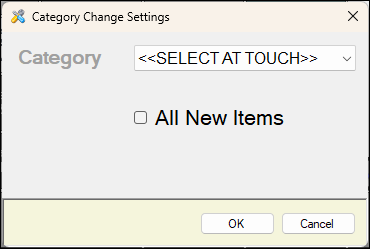
To access, select the More Settings option in Keyboard Designer. Used to configure the settings for the Category Change (#123) POS Key.
- Category - Select from the drop-down list either the <<SELECT AT TOUCH>> option or one of the Categories listed.
- ALL New Items - Select to ensure that all new items/products added to the order/sale will have their Category changed to the Category selected the first time this POS Key is selected.