
This outlines How To Transfer A Table in Touch.
Refer HERE for information on how to transfer Table items.
Subjects ▲ ▼
About ▲ ▼
What Is Required? ▲ ▼
-
Tables can be transferred in Touch either using the Transfer Table (#34) POS Key or via the use of the Floor Plan Display (#402) POS Key. Therefore, one or both of these POS Keys will need to be added to a Keyboard Layout. Hence, refer:
When Is It Used? ▲ ▼
Used when a Table's order has to be moved from one Table to another.
How To? ▲ ▼
- GET STARTED?
- Transfer Tables Between Locations?
- Transfer A Table using the Floor Plan Display (#402) POS Key?
- Transfer Tables using the Transfer Table (#34) POS Key?
How To GET STARTED? ▲ ▼
How To Transfer Tables Between Locations? ▲ ▼
To explain this, the following scenario is being used as an example: The requirement is to transfer orders currently placed on Table 3 in Location 1 to Table 5 in Location 2.
-
Before any transfer can take place, the following MUST BE addressed:
- Ensure the Location to which the Table is being transferred to is visible in Touch. This can be achieved by:
- Selecting the Locations option in the Table Tracking screen.
- Ensuring the Active option is set to True against the Location to be transferred to. That is, Location 2.
- Ensure the Location to which the Table is being transferred to is visible in Touch. This can be achieved by:
- In Touch in Location 1, open Table 3.
- Once Table 3 is displayed in the sales grid, enter 2.5.
Notes ...
The 1st value (2) entered indicates Location 2 and the 2nd value (5) entered indicates Table 5. Using this format enables different Locations to have the same Table numbers.
- Select the Transfer Table (#34) POS Key.
- The following prompt will be displayed:
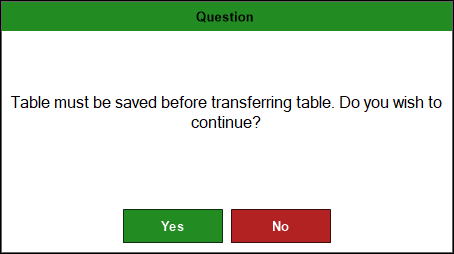
- Select Yes to continue with the transfer or select No to cancel the transfer.
- The order previously for Table 3 should now appear in Location 2 for Table 5.
How To Transfer A Table using the Floor Plan Display (#402) POS Key? ▲ ▼
In Touch, do as follows:
- Select the Floor Plan Display (#402) POS Key to display the Floor Plan layout.
- Select the Transfer option in the footer section of the screen.
- At the following prompt, select the Table option.
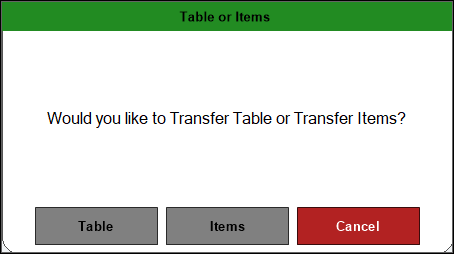
- Select a non-empty Table in the Floor Plan.
- The select Table will display the text SELECTED
- Select the Table to which the order is to be transferred to.
- The following prompt will be displayed:
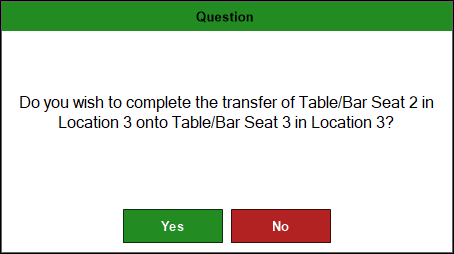
- Select Yes to transfer the Table.
- If the Table selected was already an open Table, then the following prompt will be displayed:
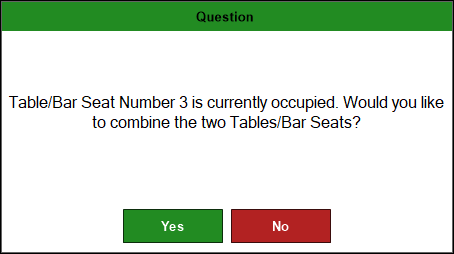
- Select Yes to transfer the order and add it to the selected Table.
- Select No to cancel the transfer and exit the process.
- If the Table selected was an empty Table, then the order will be transferred to the new Table.
- If the Table selected was already an open Table, then the following prompt will be displayed:
- That completes the transfer of the selected Tables.
How To Transfer Tables using the Transfer Table (#34) POS Key? ▲ ▼
In Touch, do as follows:
- Open the Table to be transferred.
- Enter the number of the Table to which the order is to be transferred to.
- Select the Transfer Table (#34) POS Key.
- The following prompt will be displayed:
- Select Yes to continue with the transfer or select No to cancel the transfer.
- If Yes was selected and the Table number entered was already an open Table, then the following prompt will be displayed:
- Select Yes to transfer the order and add it to the selected Table.
- Select No to cancel the transfer and exit the process.
- If Yes was selected and the Table number entered was already an open Table, then the following prompt will be displayed:
- That completes the transfer of the selected Tables.
End of article ▲