
This outlines Subsidise A TAB in Touch using the Finalise To TAB (#45) POS Key.
How To? ▲ ▼
-
Firstly, configure the TAB:
- Open a new TAB.
- When the TAB Information screen is displayed:
- Select the Subsidy Per Item value option and enter the value of the subsidy to be applied to each item/product.
- Select SAVE, to save the changes.
- Save the TAB by Selecting the Table (#30) POS Key configured for a TAB, to
To apply the subsidy:
Notes ...
To add items/products to a TAB and have the subsidy applied, the TAB must NOT be opened first. Instead, add the items/products to an order and then select the Finalise to TAB (#45) POS Key and select the subsidised TAB. This will ensure the subsidy is applied to all items/products in the order.
The following message will be displayed if the TAB is opened prior to items being sold. 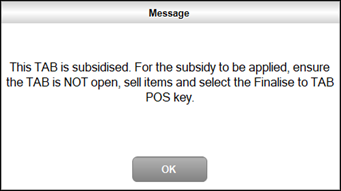
- Add items/products to the sales grid.
- Select Finalise to TAB and select the TAB with the Subsidy.
- A prompt similar to the one below will be displayed:
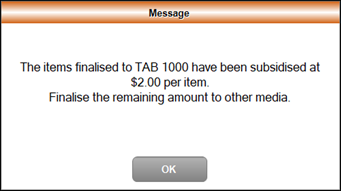
- Select OK.
- The subsidy will be added to the order.
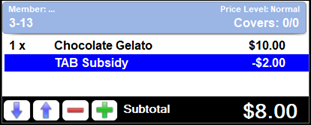
- Finalise the TAB.
- The subsidised TAB will remain open.
End of article ▲