
This outlines How To Move Table Items/Products Between Seats using the Split Table Bill (#35) POS Key in Touch.
Subjects ▲ ▼
About ▲ ▼
When Is It Used? ▲ ▼
Used when a patron is paying for the items/products they themselves ordered as well as those of one or more other patrons.
Example ▲ ▼
How To? ▲ ▼
To do this in Touch, do as follows:
- Select the Split Table Bill (#35) POS Key.
- Select the Table to be split from the Tables listed in the Open Tables for All Clerks screen.
- The Split Bill screen will be displayed.
- Select items/products to be moved by either:
- Selecting individual items/products that are listed in either the No Seat Assigned panel or in any one of the seats listed in the Seat panel.
- Selecting all items/products listed by selecting the header of either the No Seat Assigned panel or of anyone of the seats listed in the Seat panel.
- Once the selected items/products have been selected they will be highlighted.
- Now select inside the Seat panel of the seat to which the items/products are to be moved to.
- The following confirmation prompt may be displayed when a header is selected. If so, select Yes to continue.
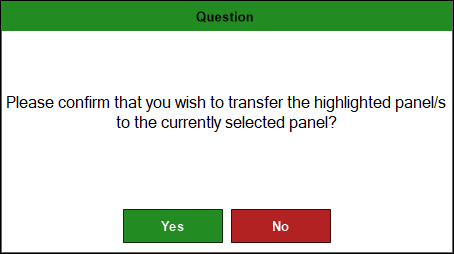
- Those items/products will now appear in the newly selected seat in the Seat panel.
End of article ▲