
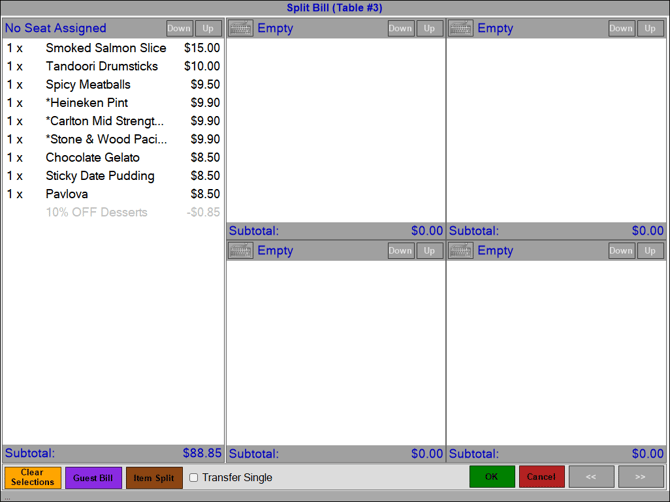
To access, select the Split Table Bill (#35) POS Key. Used to assign unassigned Table items/products to seats, move Table items/products between seats, split Table bills, transfer items/products between Tables and unassign Table items/products.
Subjects ▲ ▼
How To? ▲ ▼
- Assign Seats To Unassigned Table Items/Products?
- Move Table Items/Products Between Seats?
- Split A Table Bill By Patron Numbers?
- Transfer Items/Products Between Tables?
- Unassign Table Items/Products?
Screens ▲ ▼
Split Bill Screen ▲ ▼
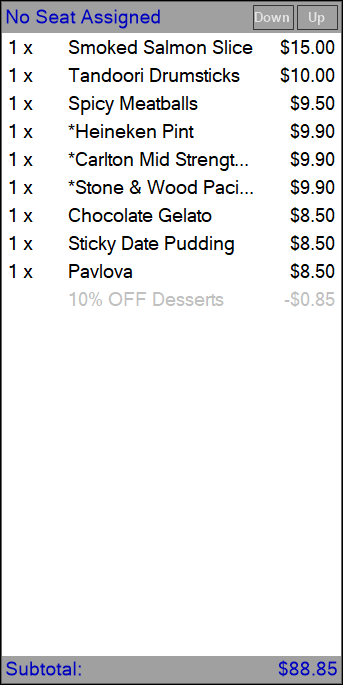
Lists the Table items/products that have not been assigned to a seat. To assign unassigned Table items/products to seats, refer HERE. Select the header (No Seat Assigned) to select all items/products listed.
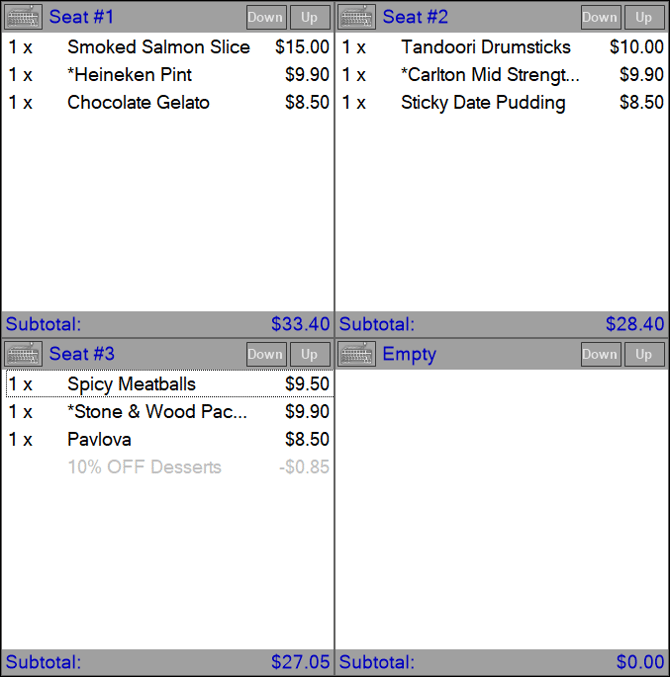
Lists the Table items/products that have been assigned to seats and list each individual seat and it's items/products. Also, the subtotal in each seat panel displays the seat's total item/product value. A panel with the text Empty in the header indicates an empty seat. Select the header (Seat#) to select all the seats' items/products.

- Clear Selections - Select to clear all items/seats currently selected. This button is available in Split Bill, Transfer Items and Re-Order Items screens.
- Guest Bill - Select to print a Guest/Table bill for the currently selected items/products. This feature is only available when Splitting a Bill.
- Item Split - Select to split the currently selected items/products in the No Seat Assigned section by the number of patrons for which the Table bill is to be split. All of the split items/products will be automatically moved onto seats. This feature is only available when Splitting a Bill.
Notes ...
For example, when 1 item on a Table, that is subject to a Member Campaign, is split over 2 seats, then the split items are considered to be 2 half items. So, when 1 half item is moved back to the Table and saved, the Member Campaign discount applied, will only be based on 1 half item and NOT the whole item.
- Transfer Single - Select to transfer a quantity of one for the currently selected items. If not selected then the entire quantity ordered will be transferred.
- Transfer to Table # - Select to transfer selected items/seats to the Table # entered. Only enabled when the Transfer Single option is selected.
End of article ▲