
This provides an overview of the Split Table Bill (#35) POS Key.
Subjects ▲ ▼
About ▲ ▼
What Is Required? ▲ ▼
- Ensure this POS Key is added to the appropriate Keyboard Layout using the Designer. Refer HERE for more information.
When Is It Used? ▲ ▼
Used to split Table items/products, move Table items/products between seats, pay for selected items/products and print Guest bills / Table bills. However, it is mostly used to split Table items/products to facilitate the payment of a patron's individual bill.
How To? ▲ ▼
- GET STARTED
- Move Table Items / Products Between Seats?
- Print A Split Bill?
- Split A Table Bill By Items / Products?
- Split A Table Bill By Patron Numbers?
GET STARTED ? ▲ ▼
- Review About and ensure the steps outlined HERE are addressed.
- In Keyboard Designer, select the Split Table Bill (#35) POS Key that has been added to a Layout.
- Ensure it is given an appropriate Caption. For example, Split Table Bill.
- Select the More Settings option to display the Settings screen.
- Configure the POS Key by selecting the options available HERE.
- Once configured, ensure a Full Update is sent to all the Touch terminals that will be using the POS Key. Refer HERE for more information.
Screens ▲ ▼
Settings Screen ▲ ▼
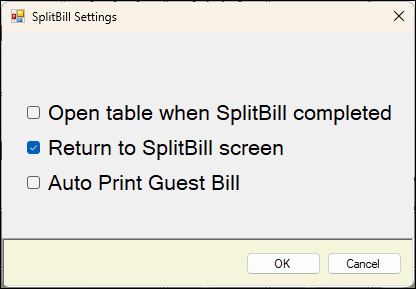
To access, select the More Settings option in Keyboard Designer. Used to configure the settings for this POS Key.
- Open table when Split Bill completed - Select to ensure the Table is opened once a bill has been split.
- Return to SplitBill screen - Select to ensure the Split Bill screen is re-displayed after making a split bill payment.
- Auto Print Guest Bill - Select ensure the that once a bill has been split the Guest / Table bill automatically print.
End of article ▲