
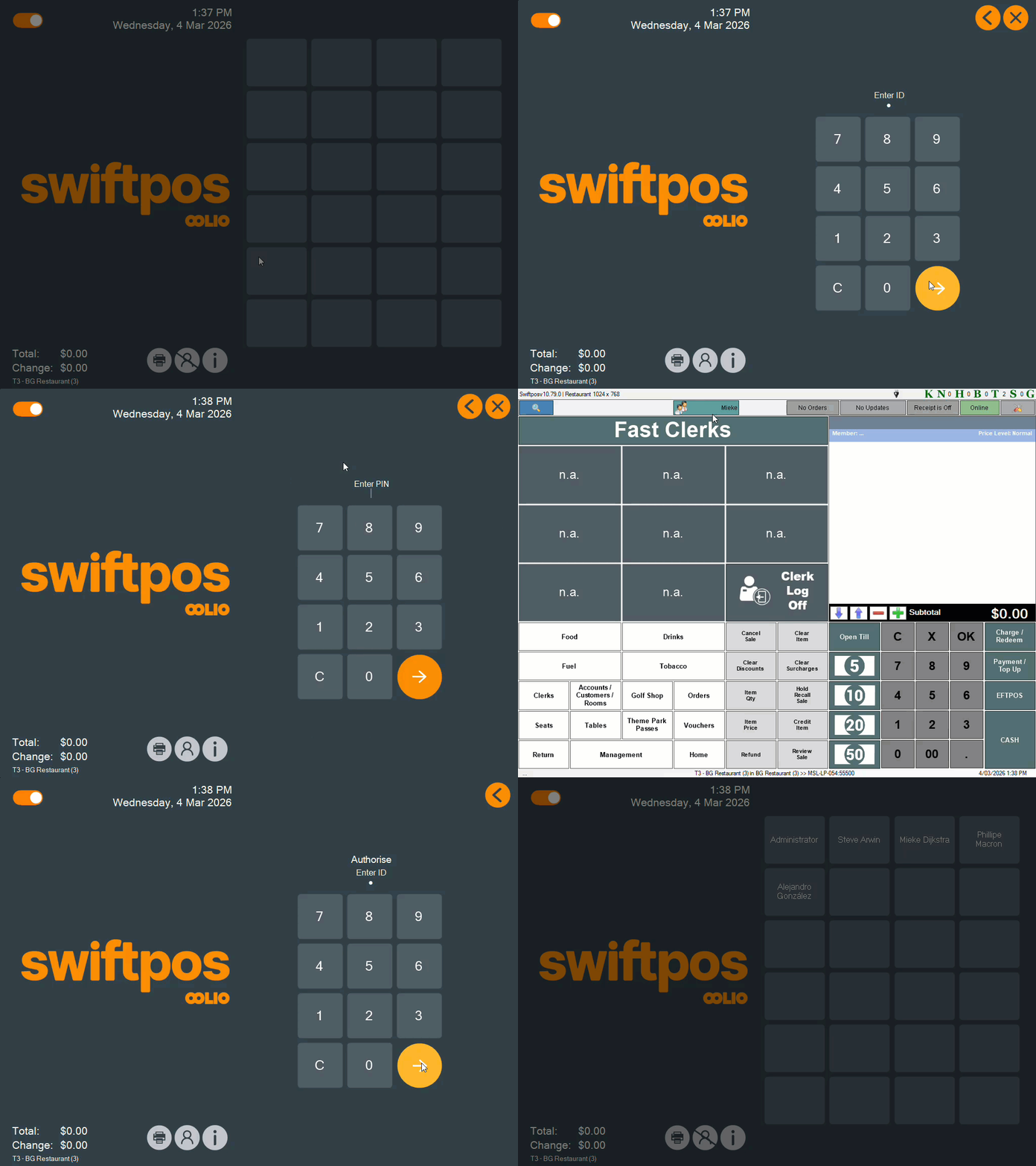
Example of Logging In / Off and Switching Clerks/Staff Members using a Fast Clerk Layout
This outlines the How To Login / Log Off Using A Fast Clerk Layout in Touch.
Subjects ▲ ▼
About ▲ ▼
What Is Required? ▲ ▼
- Clerk/Staff will need to exist in Back Office and be configured with the appropriate authorisation to ensure they are able to login to operate Touch.
- Ensure the appropriate Fast Clerk Layout option is selected against the Entry Type setting in Clerk Settings. Refer to How To Login Using Fast Clerks? for more information.
What To Consider? ▲ ▼
- Once a Clerk/Staff Member has successfully logged in they maybe prompted to select a Cash Drawer. Refer HERE for more information.
- If the Cash Off By Cash Drawer option is also selected with Fast Clerks, then in order to Log Off from Fast Clerks mode unselect the Cash Off By Cash Drawer option before you can exit Fast Clerks mode.
- Refer HERE for more information.
- The Floor Plan will not be displayed if using Fast logins. To ensure the Floor Plan is displayed when Fast Clerks is selected, then ensure the Show Floor Plan Layouts after xx seconds option is set to 1 second or higher.
When Is It Used? ▲ ▼
Fast Clerks is generally used when there is a significant number of Clerks/Staff Members operating a single Touch terminal, and they are required to login in each time they place an order/sale. For example, Touch operators serving behind a bar.
How To? ▲ ▼
- Review About and ensure the steps outlined HERE are addressed.
- GET STARTED?
- Login?
- Log Off?
- Switch Clerks/Staff Members?
How To GET STARTED? ▲ ▼
- Ensure the Fast Clerk Layout option is selected against the Entry Type setting in Clerk Settings. This will ensure the Fast Clerk Layout is displayed whenever a login by Clerks/Staff is required.
How To Login? ▲ ▼
In Touch:
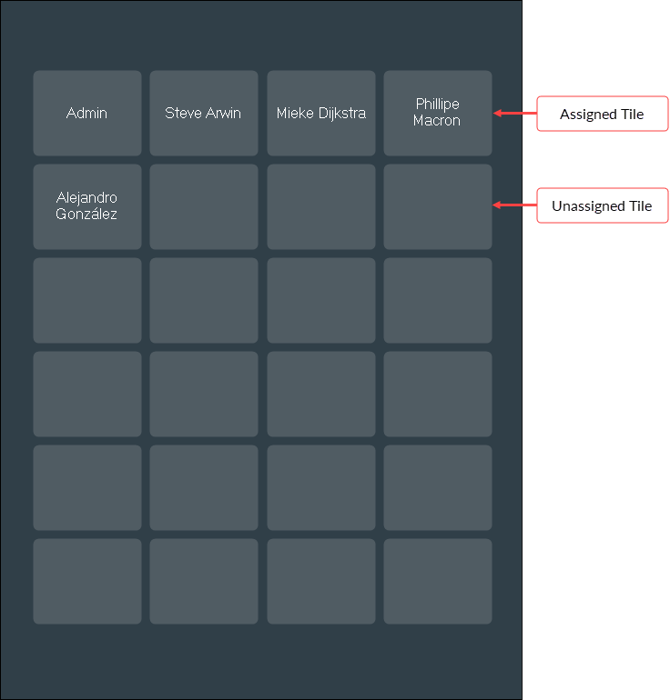
- Select one of the unassigned tiles in the Fast Clerk Layout to display the Clerk Login prompt.
- Login.
- One logged in, the logged in Clerk/Staff Member's name will appear in the Fast Clerk Layout on the selected tile and will remain there until the Clerk/Staff Member logs off.
- Select the assigned tile displaying the Clerk/Staff Member's name to login.
How To Log Off? ▲ ▼
In Touch:
- Select the Log Off icon.
- Select the assigned tile in the Fast Clerk Layout assigned to the Clerk/Staff Member to be logged off.
- An Authorisation prompt will be displayed ensuring that only authorised personnel are able to logoff Clerk/Staff Members. Refer HERE for more information.
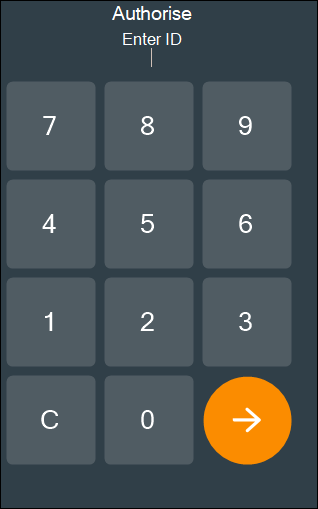
- The selected tile will now appear as unassigned in the Fast Clerk Layout.
How To Switch Clerks/Staff Members? ▲ ▼
In Touch:
- To switch from one Clerk/Staff Member to another during Touch operations, select the Clerk Menu option in the Toolbar that display's the Clerk's/Staff Member's name.

- The Fast Clerk Layout will be displayed.
- Select the assigned tile of the Clerk/Staff Member to switch to.
End of article ▲