
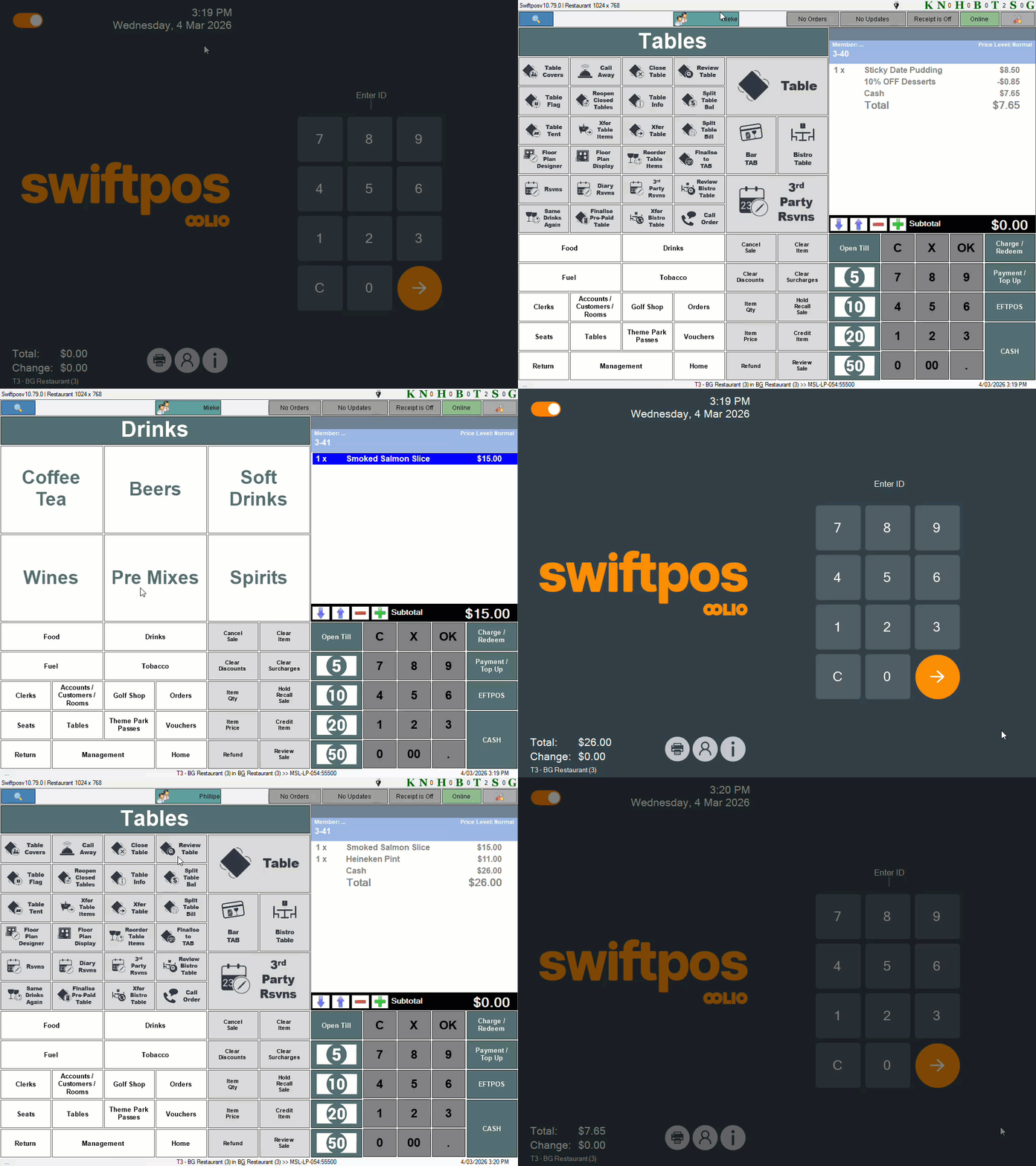
Example of Logging In and Switching Clerks/Staff Members using the Log Off When Sale Finalises option
This outlines the How To Log Off When Sale Finalises in Touch.
Subjects ▲ ▼
About ▲ ▼
When Is It Used? ▲ ▼
Used to ensure Clerk/Staff are forced to login each time an order/sale is completed.
How To? ▲ ▼
How To GET STARTED? ▲ ▼
- Ensure the Log off when sale finalises option is selected in the in the Clerk screen.
How To Log Off When Sale Finalises? ▲ ▼
In Touch:
- Login.
- Add items/products to the sales grid.
- Finalise the sale.
- The login prompt will automatically be displayed requiring the next Touch operator to login.
- Login.
How To Switch Clerks/Staff Members? ▲ ▼
In Touch:
- To switch from one Clerk/Staff Member to another during Touch operations, select the Clerk Menu option in the Toolbar that display's the Clerk's/Staff Member's name.

- The login prompt will automatically be displayed.
- Login.
End of article ▲