
This outlines How To Issue A Gift Card / Voucher using the Issue Voucher (#85) POS Key. This is can also be referred to as:
- Activate a gift card/voucher
- Load a gift card/voucher
How To? ▲ ▼
Firstly, do as follows:
In Touch, do as follows:
- Select the Issue Voucher (#85) POS Key.
- If the Any option is SELECTED in the Voucher drop-down list:
- The Vouchers screen is displayed to locate and select a voucher.
- If the Don't Prompt For Mapping option is NOT SELECTED in the Voucher drop-down list:
- Select the voucher.
- The prompt will be displayed, prompting the Touch operator to enter either the voucher number or mapping text.
- If the Don't Prompt For Mapping option is SELECTED in the Voucher drop-down list:
- Select the voucher.
- If the Any option is NOT SELECTED in the Voucher drop-down list and a specific voucher is selected:
- The voucher is added to the sales grid.
- Complete the order/sale.
Swipe Gift Card Or Enter the text you want to map to this voucher
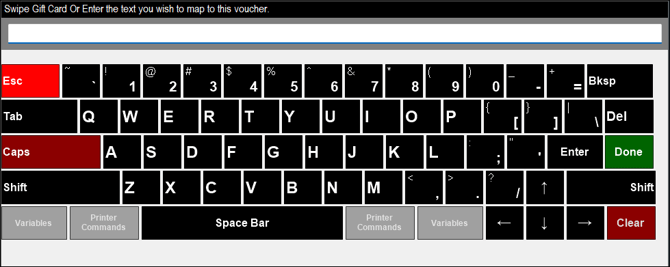
Used to enter either the voucher number manually, or by swiping the gift card, or enter the text to map to the voucher. Mapping text can be entered to facilitate the retrieval of the voucher in the future when using the Voucher Entry (#87) POS Key.
End of article ▲