
This outlines the How To Hide The Clerk Login In Floor Plans in Touch.
Subjects ▲ ▼
About ▲ ▼
What Is Required? ▲ ▼
-
Ensure Floor Plan layouts have been scheduled to ensure the correct Floor Plan layout is displayed on the correct day/time.
-
Ensure the Scheduled Floor Plan option is selected.
-
Set the Show Floor Plan Layouts after xx seconds option to -1.
-
Ensure the Clear grid after x seconds option is set to say 5 seconds.
-
Ensure the Log off when sale finalises option is selected.
When Is It Used? ▲ ▼
Used when Floor Plans are scheduled, and there is a requirement for the Clerk Login screen to be hidden (that is, not overlayed over the Floor Plan), and thus ensuring all Tables are visible.
How To Hide The Clerk Login In Floor Plans? ▲ ▼
Do as follows:
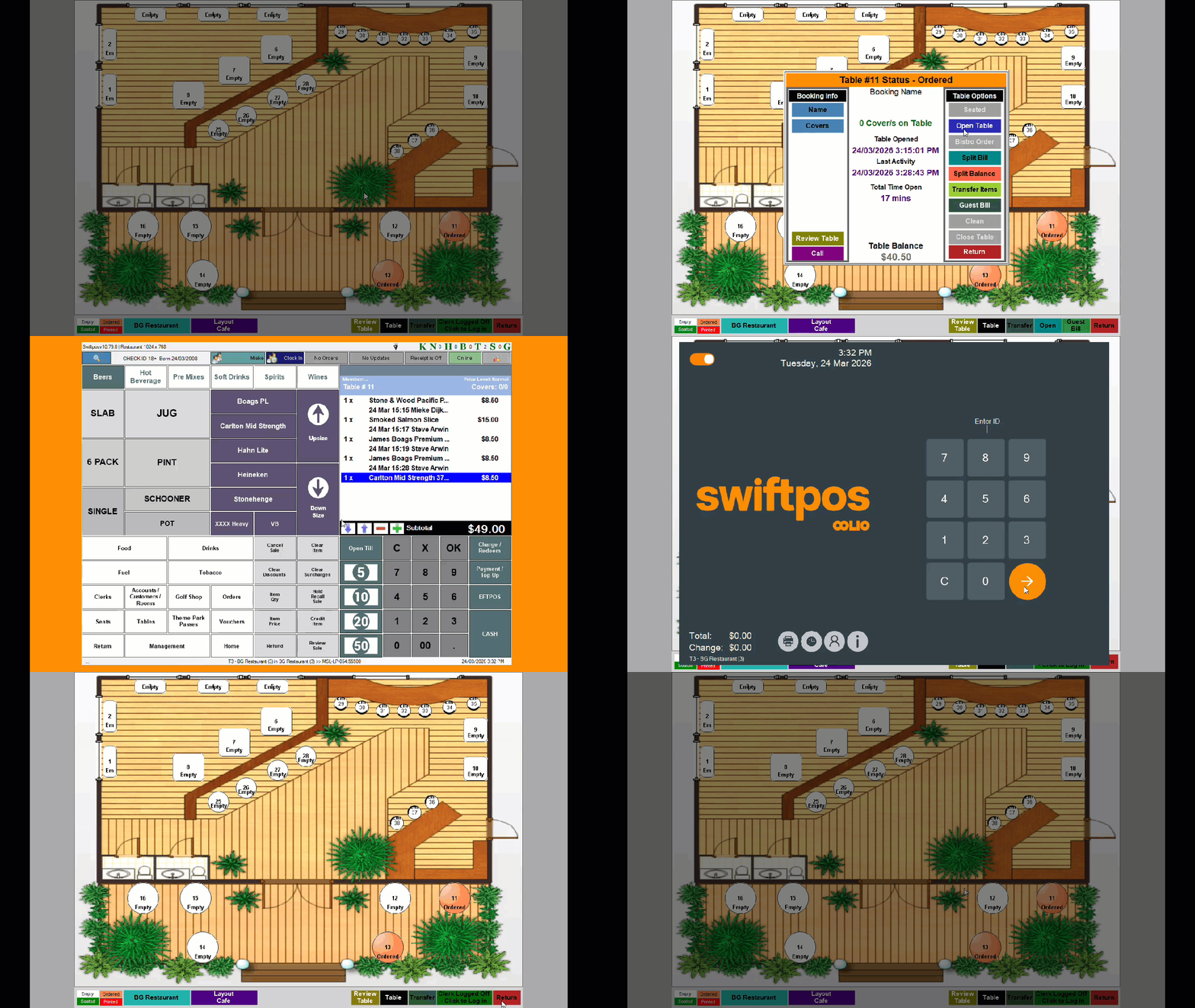
- Once a sale is finalised, the Clerk/Staff Member is logged off.
- The scheduled Floor Plan layout will be displayed with the Clerk Login screen overlayed.
- After 5 seconds (configured HERE) the Clerk Login screen will be removed to only display the Floor Plan layout.
- To login again, either:
- Select the Clerk Logged Off - Click to Log In option displayed in the bottom right-hand corner of the Floor Plan layout to display the Clerk Login screen and once logged in to remain in the Floor Plan layout.

- To login again continued ...
-
- Select the Return option displayed in the bottom right-hand corner of the Floor Plan layout to display the Clerk Login screen and once logged in to return to Touch.

End of article ▲