
This outlines How To Configure Touch Settings In Back Office in Touch.
Notes ...
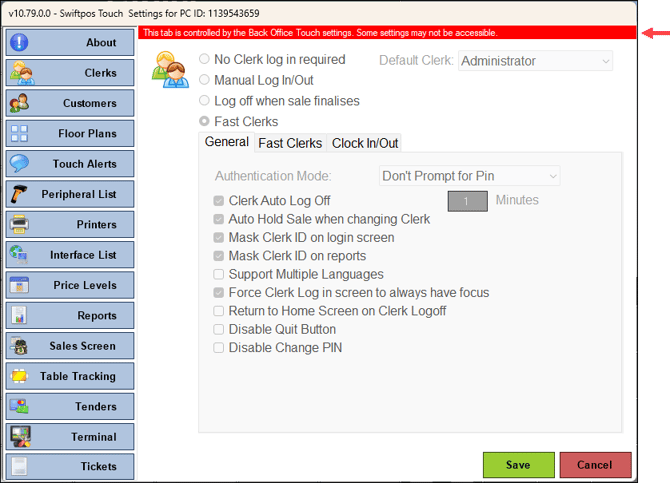
Touch Settings that are configured in Back Office will display the following the warning at the top of the Touch Settings screen in Touch: This tab is controlled by the Back Office Touch settings. Some settings may not be accessible. For example:
How To? ▲ ▼
For the purposes of explaining how to configure Touch Settings in Back Office, the following examples are provided, in order to convey an understanding of the process:
- Configure Manual Log In/Out For All Terminals?
- Configure For Bar Staff?
- Configure For Self Service Kiosks?
- Configure For Rebooting Touch Terminals?
- Configure For Wait Staff?
How To Configure Manual Log In/Out For All Terminals? ▲ ▼
- Ensure the manual log in/out by Clerks/Staff is ENFORCED with the requirement to enter a PIN for all Touch terminals in the Venue. To do this do as follows:
- In Back Office, select the Touch Settings option in the Touch Settings menu to open the Touch Settings screen.
- Select the Global tab.
- Select the cell in the Clerks column.
- Double click the cell or select the Edit option in the footer section to open the Modify Terminal Settings screen.
- Ensure the Clerks menu option is selected on the left hand-side of the screen.
- Select the Override configuration type option at the top of the screen on the right hand-side.
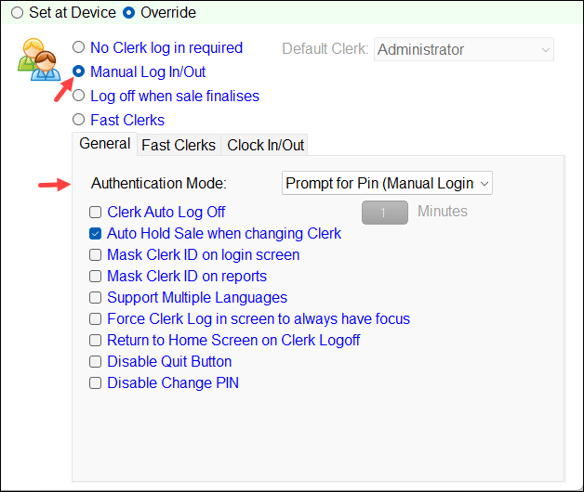
- Ensure the Manual Log In/Out option and Prompt for Pin (Manual Logins) option are selected. For example:
- Select Save to save the changes.
- The Touch Settings screen will now be displayed with the cell that was selected now being displayed with an Override background colour (as depicted in the legend at the top of the screen).
- Ensure a Full Update is sent to all the Touch terminals in the Venue. Refer HERE for more information.
How To Configure For Bar Staff? ▲ ▼
In this example, Touch settings are configured to ensure bar staff are able to quickly login when taking orders.
- First, ensure the manual log in/out by Clerks/Staff is ENFORCED with the requirement to enter a PIN for all Touch terminals in the Venue. To do this refer HERE.
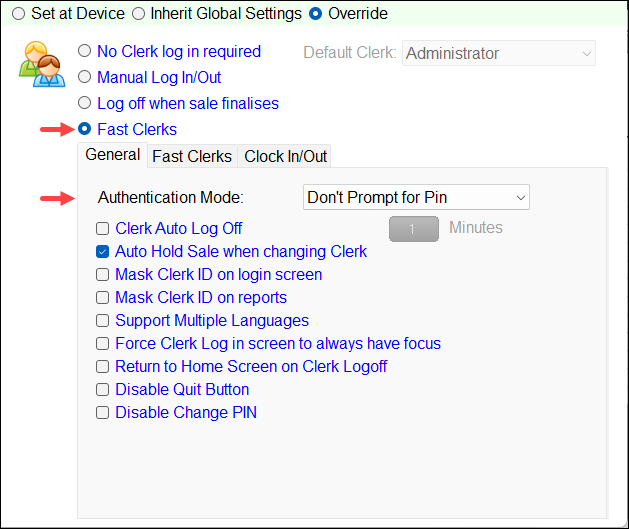
- Ensure the Fast Clerks option is ENFORCED with no requirement to enter a PIN for all Touch terminals in the bar. To do this do as follows:
- In Back Office, select the Touch Settings option in the Touch Settings menu to open the Touch Settings screen.
- Select the Locations tab.
- Locate and select the bar's Location from the list of Locations.
- Select the cell in the Clerks column.
- Double click the cell or select the Edit option in the footer section to open the Modify Terminal Settings screen.
- Ensure the Clerk menu option is selected on the left hand-side of the screen.
- Select the Override configuration type option at the top of the screen on the right hand-side.
- Ensure the Manual Log In/Out option and Prompt for Pin (Manual Logins) option are selected. For example:
- Ensure a Full Update is sent to all the Touch terminals in the Venue. Refer HERE for more information.
How To Configure For Self Service Kiosks? ▲ ▼
In this example, Touch settings are configured to ensure no login is required for Self Service Kiosks when placing orders.- First, ensure the manual log in/out by Clerks/Staff is ENFORCED with the requirement to enter a PIN for all Touch terminals in the Venue. To do this refer HERE.
- Ensure no Clerk/Staff login required is ENFORCED for all Self Service Kiosk type terminals in the Venue. To do this do as follows:
- In Back Office, select the Touch Settings option in the Touch Settings menu to open the Touch Settings screen.
- Select the Terminals tab.
- Select the Self Service Kiosk option from the Type drop-down list to only list the Self-Service type terminals.
- For each Terminal listed, select the cell in the Clerks column, then:
- Double click the cell or select the Edit option in the footer section to open the Modify Terminal Settings screen.
- Ensure the Clerks menu option is selected on the left hand-side of the screen.
- Select the Override configuration type option at the top of the screen on the right hand-side.
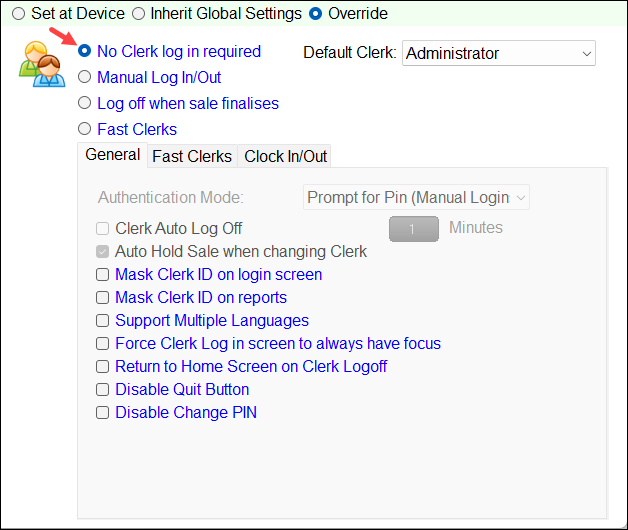
- Ensure the No Clerk log in required option is selected. For example:
-
-
- Select Save to save the changes.
- The Touch Settings screen will now be displayed with the cell that was selected now being displayed with an Override background colour (as depicted in the legend at the top of the screen).
- Repeat the above for each of the terminals listed in the grid.
-
- Ensure a Full Update is sent to all the Touch terminals in the Venue. Refer HERE for more information.
How To Configure For Rebooting Touch Terminals? ▲ ▼
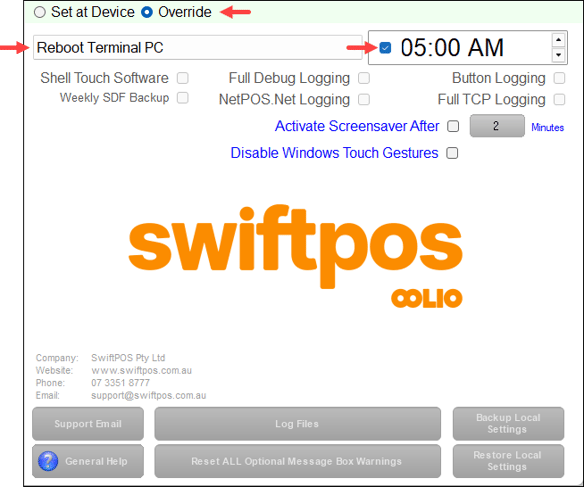
In this example, Touch settings are configured to ensure all terminals are rebooted at a specific time each day.- In Back Office, select the Touch Settings option in the Touch Settings menu to open the Touch Settings screen.
- Select the Global tab.
- Select the cell in the About column.
- Double click the cell or select the Edit option in the footer section to open the Modify Terminal Settings screen.
- Ensure the About menu option is selected on the left hand-side of the screen.
- Ensure the Reboot Terminal PC option is selected and the correct time is set and enabled. For example:
- Select Save to save the changes.
- The Touch Settings screen will now be displayed with the cell that was selected now being displayed with an Override background colour (as depicted in the legend at the top of the screen).
- Ensure a Full Update is sent to all the Touch terminals in the Venue. Refer HERE for more information.
How To Configure For Wait Staff? ▲ ▼
In this example, Touch settings are configured to ensure wait staff do not need to enter their PIN when using tablets when taking orders.
- First, ensure the manual log in/out by Clerks/Staff is ENFORCED with the requirement to enter a PIN for all Touch terminals in the Venue. To do this refer HERE.
- Ensure the Fast Clerks option is ENFORCED with no requirement to enter a PIN for all Waiter Station type terminals in the Venue. To do this do as follows:
- Select the Terminals tab.
- Select the Waiter Station option from the Type drop-down list to only list the Waiter Station type terminals.
- For each Terminal listed, select the cell in the Clerks column, then:
- Double click the cell or select the Edit option in the footer section to open the Modify Terminal Settings screen.
- Ensure the Clerks menu option is selected on the left hand-side of the screen.
- Select the Override configuration type option at the top of the screen on the right hand-side.
- Configure the settings required for Fast Clerks. Specifically, the Fast Clerks and Don't Prompt for Pin option.
- Select Save to save the changes.
- The Touch Settings screen will now be displayed with the cell that was selected now being displayed with an Override background colour (as depicted in the legend at the top of the screen).
- Repeat the above for each of the terminals listed in the grid.
- Ensure a Full Update is sent to all the Touch terminals in the Venue. Refer HERE for more information.
End of article ▲