
Subjects ▲ ▼
About ▲ ▼
What To Consider? ▲ ▼
-
Settings can be configured globally and/or for a Venue, Location and/or individual Device level or inherited from the levels above in the hierarchy. The hierarchy is:
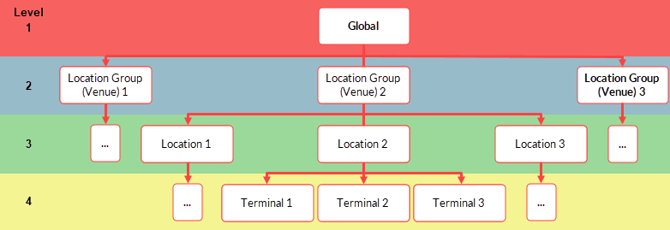
When configured, settings can be applied to be:-
Set at Device - This is the default and infers that the settings are configured at the Device itself.
-
Inherit - If selected, the settings will be inherited as follows:
-
For a Device, it will inherit from it's assigned Location's settings or from any level in the hierarchy above it.
-
For a Location, it will inherit from it's assigned Venue's settings or from any level in the hierarchy above it.
-
For a Venue, it will inherit from the Global settings.
-
- Override - If selected, the settings will override as follows:
- For a Device, it will override the settings of it's assigned Location's settings or from any level in the hierarchy above it.
- For a Location, it will override the settings of it's assigned Venue's settings or from any level in the hierarchy above it.
- For a Venue, it will override the settings of the Global settings.
-
Notes ...
If not configured here, then by default all settings are configured at the Devices themselves.
- Settings can be configured for the following menu options:
- About - Refer HERE for more information.
- Clerks - Refer HERE for more information.
- Customers - Refer HERE for more information.
- Floor Plans - Refer HERE for more information.
- Price Levels - Refer HERE for more information.
- Reports - Refer HERE for more information.
- Sales Screen - Refer HERE for more information.
- Tenders - Refer HERE for more information.
- Device - Refer HERE for more information.
- Location TT - Refer HERE for more information.
When Is It Used? ▲ ▼
Used to configure settings for Devices in Back Office.
How To? ▲ ▼
Screens ▲ ▼
Modify Device Settings Screen ▲ ▼
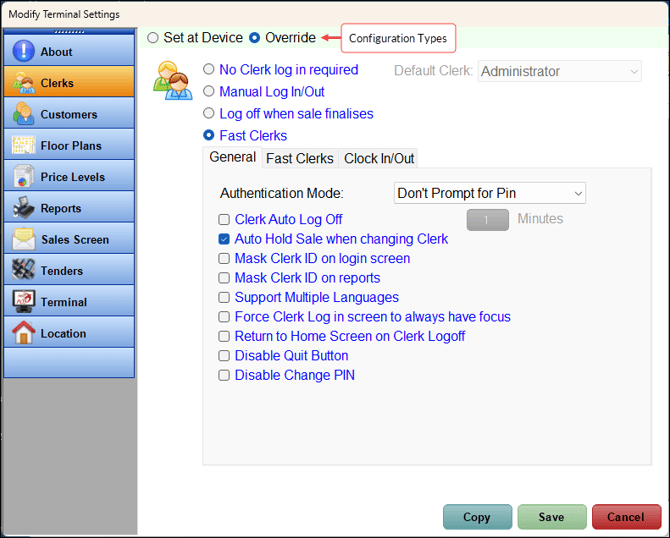
To access, double click any cell in any one of the columns in the grid section of the Device Settings screen or select any cell in any one of the columns in the grid section of the Device Settings screen and then select the Edit option. Used to configure settings for one or more Devices in a Venue. The settings displayed in this screen will depend on the cell selected in the Device Settings screen. For example, if a cell is selected in the Clerks column of anyone of the tabs (Global, Venues. Locations and Devices), then the settings that can be configured relating to Clerks will be displayed (as seen in the screenshot above).
-
Configuration Types - Select from one of the following, the type of configuration that is to be applied:
-
- Set at Device
- Inherit Global Settings
- Inherit Venue Settings
- Inherit Location Settings
- Override
Notes ...
The configuration types displayed along the top of the screen will vary depending on the cell that was selected in the Device Settings screen. For example:
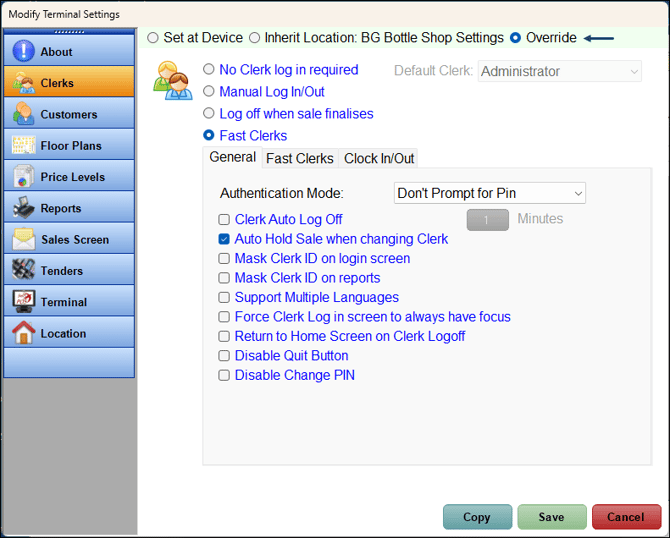
Refer HERE for a list of the menu options that can be configured.
Footer Section
- Copy - Select to open the Search Locations screen to select one or more Locations to which all settings from the current Location will be copied to.
Notes ...
Only those menus, that have the Use Location Settings option selected will take affect in the copied to Location.
- Save - Select to save any changes and exit.
- Cancel - Select to exit without saving.
Device Settings Screen ▲ ▼
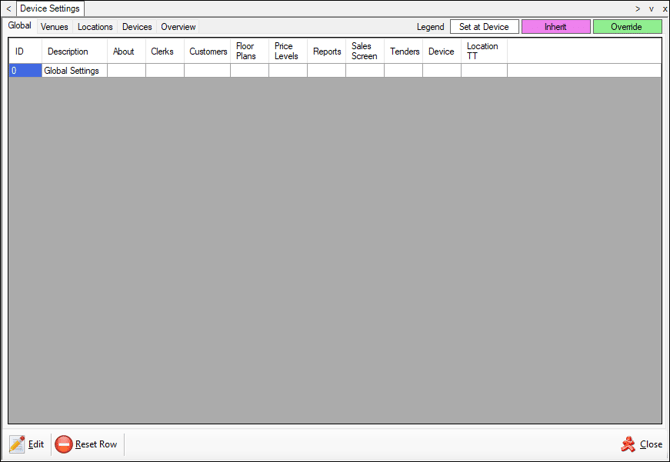
To access, select the Device Settings option in the Device Settings menu in Back Office. Used to configure settings for one or more Touch devices in Back Office.

Displays the tabs and the Legend in the form of colours that depict the configuration Types. Refer HERE for more information.
Displays tabs that can be configured in hierarchical order from left to right with the Global tab being the highest level and the Devices tab being the lowest level.

- Edit - Select to open the Modify Device Settings screen and configure the settings relevant to the specific menu option selected.
- Reset Row - Select to ensure the setting are reset for the currently selected row.
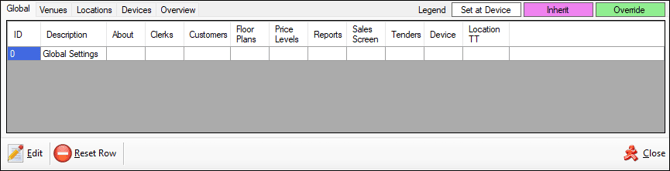
Used to configure Device settings at a global level (highest level).
Grid Section
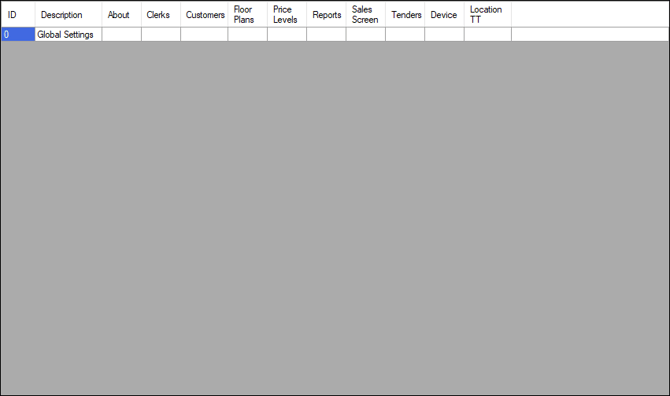
Lists the menu options (columns) that can be configured at a global level. Double-click in anyone of the cells in the column of the relevant menu option to open the Modify Device Settings screen and configure the settings relevant to the specific menu option selected.
Notes ...
Cells previously configured are displayed in a background colour (as depicted in the legend) that represents the type of configuration that was selected (for example, Set at Device (default), Inherit or Override) at the time.
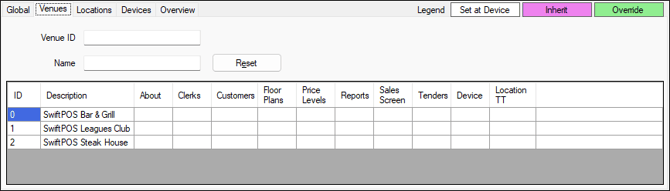
Used to configure Device settings at a Venue level (2nd Level)
Header Section
Enter either the Venue ID or Name of the Venue to search the list of Venues listed in the grid and return only those Venues that match the search criteria.
- Reset - Select to reset the grid to list all Venues.
Grid Section
Lists the Venues along with their ID, Description, and the menu options (columns) that can be configured at a Venue level. Double-click in anyone of the cells in the column of the relevant menu option to open the Modify Device Settings screen and configure the settings relevant to the specific menu option (column) and the Venue (row) selected.
Notes ...
Cells previously configured are displayed in a background colour (as depicted in the legend) that represents the type of configuration that was selected (for example, Set at Device (default), Inherit or Override) at the time.
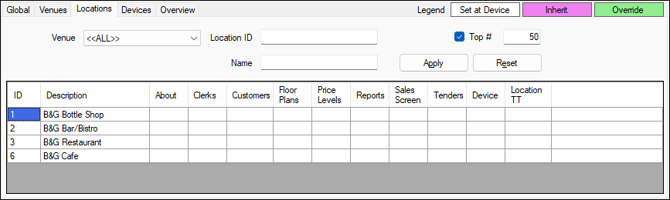
Header Section
Select from the drop-down list the Venue or enter either the Location ID or Name of the Location to search the list of Locations listed in the grid and return only those Locations that match the search criteria.
- Reset - Select to reset the grid to list all Locations.
Grid Section
Lists the Locations along with their ID, Description, and the menu options (columns) that can be configured at a Location level. Double-click in anyone of the cells in the column of the relevant menu option to open the Modify Device Settings screen and configure the settings relevant to the specific menu option (column) and the Location (row) selected.
Notes ...
Cells previously configured are displayed in a background colour (as depicted in the legend) that represents the type of configuration that was selected (for example, Set at Device (default), Inherit or Override) at the time.
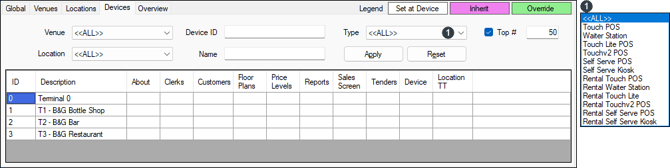
Header Section
Select from the drop-down lists the Venue, Location and/or Type and/or enter either the Device ID or Name of the Device to search the list of Devices listed in the grid and return only those Devices that match the search criteria.
- Type - Select from the drop-down list a Device Type to display only those Devices of the selected type in the grid.
- Reset - Select to reset the grid to list all Devices.
Grid Section
Lists the Devices along with their ID, Description, and the menu options (columns) that can be configured at a Device level. Double-click in anyone of the cells in the column of the relevant menu option to open the Modify Device Settings screen and configure the settings relevant to the specific menu option (column) and the Device (row) selected.
Notes ...
Cells previously configured are displayed in a background colour (as depicted in the legend) that represents the type of configuration that was selected (for example, Set at Device (default), Inherit or Override) at the time.
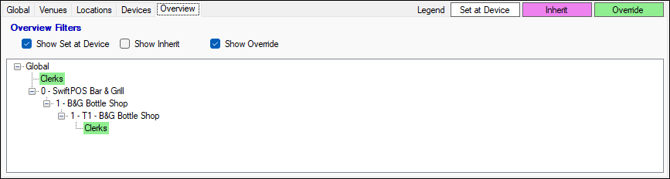
Header Section
Select/deselect one or more of the following options to change the view to include/exclude settings as are appropriate:
-
Show Set at Device
-
Show Inherit
-
Show Override
Grid Section
Displays a hierarchical view of the settings that have been set to either Set at Device, Inherit or Override.
Notes ...
The settings are displayed with a background colour (as depicted in the legend) that represents the type of configuration that was selected (for example, Set at Device (default), Inherit or Override) at the time.
End of article ▲