
This outlines How To Configure For Points Pay Discounts in Back Office.
How To? ▲ ▼
In Back Office, do as follows:
- Navigate to and open the Member Classification screen.
- Locate the Classification for which a Point Pay discount is to be applied.
- In the PP Discount % column opposite the located Classification, enter the discount as a percentage value.
- In the PP Discount Media column opposite the located Classification, select the cell to open the Search Media screen.
- If required, in the PP Discount Exclusions column opposite the located Classification, select the cell to open the Excluded Families screen to select Families of Products to be excluded from being discounted when a PP Discount % has been configured.
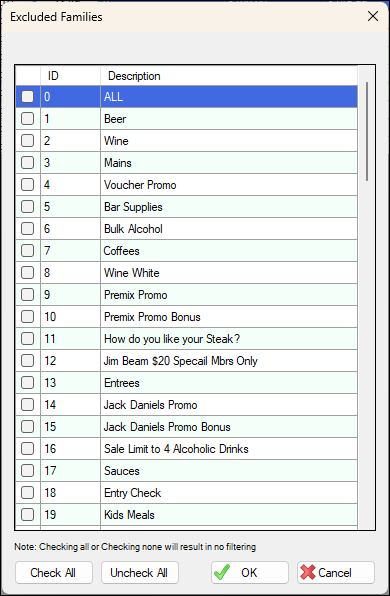
- For example:
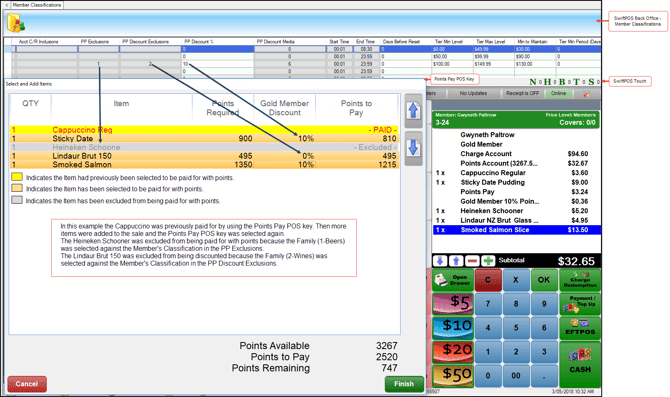
- Select the Save option to save the changes.
- Also ensure the Points Pay (#155) POS Key has been added to a Layout.
- Ensure a Full Update is sent to all the Touch devices that will be using the Points Pay (#155) POS Key. Refer HERE for more information.
End of article ▲