
This outlines the How To Configure And Capture Post Codes / Zip Codes.
How To? ▲ ▼
How To Configure Post Codes / Zip Codes? ▲ ▼
In Back Office, do as follows:
- In Product Records, ensure the ØPOSTCODE (19800) System PLU is configured such that the String PLU option is selected.
- In Global Preferences, ensure the ØPOSTCODE System PLU is selected from the Post Code PLU drop-down list.
- In Keyboards, configure either:
- A Product POS Key is created and linked to the ØPOSTCODE System PLU configured above. Ensure it is added to the appropriate Keyboard Layout using the Designer. Refer HERE for more information. This POS Key will need to be selected with every sale and the Customer's Post Code entered, in order to capture Post Code/Zip Code data.
OR - Create a Multi Link (Macro) (#999) POS Key for a Finalise POS Key (for example, CASH, EFTPOS, etc). The following is an example of the linked events required to capture the Post Code/Zip Code data when completing an order/sale:
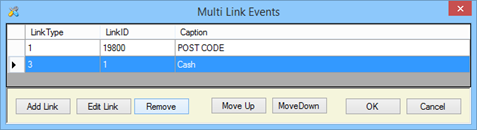
- A Product POS Key is created and linked to the ØPOSTCODE System PLU configured above. Ensure it is added to the appropriate Keyboard Layout using the Designer. Refer HERE for more information. This POS Key will need to be selected with every sale and the Customer's Post Code entered, in order to capture Post Code/Zip Code data.
- Ensure a Full Update is sent to all the Touch POS devices that will be capturing the Post Code/Zip Code data. Refer HERE for more information.
How To Capture Post Codes / Zip Codes? ▲ ▼
In Touch POS, do as follows:
- Add items/products to the sales grid.
- Then either:
- Select the Product POS Key (if this option was chosen above to capture the Post Code).
- This will open the POST CODE screen to allow the entry of the patron's Post Code.
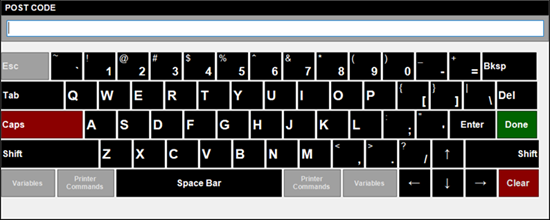
- The Post Code/Zip Code entered will appear as part of the order/sale.
- Complete the order/sale.
OR - Select the Multi Link (Macro) CASH POS Key (if this option was chosen to capture the Post Code).
- This will open the POST CODE screen to allow the entry of the patron's Post Code.
- The order/sale will be completed and the Post Code/Zip Code entered will appear as part of the order/sale.
- Once the order/sale is processed in Back Office, it can then be reported using the following reports:
End of article ▲