
This provides an overview of the Paid Out (#13) POS Key.
Subjects ▲ ▼
About ▲ ▼
What Is Required? ▲ ▼
- Swiftpos v10+
What To Consider? ▲ ▼
- If required, access to this POS Key can be restricted by the Clerk Security feature.
- This POS Key can only be used as a separate transaction and cannot be used as part of a sale.
- If required, Touch operators can be forced to provide reasons for the Paid Out transaction by ensuring the Enforce Reason Code option has been selected.
- The printing of receipts is optional. Refer HERE for more information.
- The Paid Out POS Key can be Password protected (using the Keyboard Designer), thus requiring Touch operators to get an authorised staff member perform the Paid Out transaction.
- Paid Out transactions are reported in:
When Is It Used? ▲ ▼
- This POS Key is used, as opposed to the Cash Drop POS Key, to withdraw cash from the Touch cash drawer and use it for any purpose other than for safekeeping.
How To? ▲ ▼
GET STARTED? ▲ ▼
- Review About and ensure the steps outlined HERE are addressed.
- In Keyboard Designer, ensure the Paid Out (#13) POS Key has been added to a Layout. Refer HERE for more information.
- Ensure it is given an appropriate Caption. For example, Cash Out, Paid Out or Cash Withdrawal.
- Select the More Settings option to display the Settings screen and configure the POS Key as required.
- Once configured, ensure a Full Update is sent to all the Touch terminals that will be using the POS Key. Refer HERE for more information.
Screens ▲ ▼
Settings Screen ▲ ▼
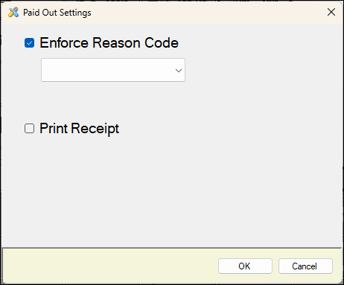
To access, select the More Settings option in Keyboard Designer. Used to configure the settings for the Paid Out (#13) POS Key.
- Enforce Reason Code - Select to enforce the provision of a reason for a Paid Out transaction.
- Print Receipt - Select to force the printing of a receipt. This can be used to identify the Touch terminal involved in the transaction.
End of article ▲