
How To? ▲ ▼
Disable Items/Products? ▲ ▼
To disable items/products in Orderaway, do as follows:
- Login to Notify. Refer HERE for more information.
- Once logged in, select the Menu icon in the top left-hand corner of the Orders screen.
- Once selected, the Notify option will be displayed.
- Select the Manage Menus option to open the Manage Menus screen.
- Locate and navigate to the item/product the needs to be disabled. Use the filter options in the header section of the screen if needed.
- Select the Disable option opposite the item/product.
- The change will be saved and the Disable option will now read Enable to ensure the same item/product can be re-enable when it becomes available again.
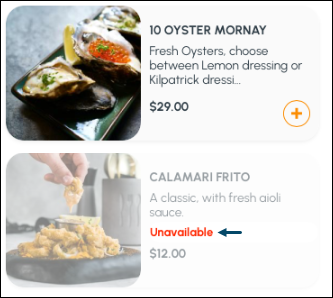
- The disabled item/product will immediately appear in Orderaway with the text Unavailable displayed. For example:
Enable Items/Products? ▲ ▼
To enable items/products in Orderaway, do as follows:
- Login to Notify. Refer HERE for more information.
- Once logged in, select the Menu icon in the top left-hand corner of the Orders screen.
- Once selected, the Notify option will be displayed.
- Select the Manage Menus option to open the Manage Menus screen.
- Locate and navigate to the item/product the needs to be enabled. Use the filter options in the header section of the screen if needed.
- Select the Enable option opposite the item/product.
- The change will be saved and the Enable option will now read Disable to ensure the same item/product can be re-disable when it is again required.
End of article ▲