
Notes ...
Refer HERE for an up-to-date overview of the availability of features in relation to orders/sales placed and/or Vouchers redeemed.
Refer HERE for more information.
Subjects ▲ ▼
About ▲ ▼
What Is New? ▲ ▼
In Swiftpos V10.10.80+
-
For the UCB file import:
-
The file format now includes an optional 23rd column to control the Members Only option of the imported Mix & Match rule.
YorYesenables Members Only. The value is not case-sensitive.- A blank or omitted field leaves Members Only disabled.
- Existing UCB files containing the original 22 columns continue to import without modification.
-
Notes ...
The v10.80 change applies only to the Members Only option. Location and Price Level are not included in the UCB file specification.
What Is Supported? ▲ ▼
The following Mix n Match rules are currently supported:
- Buy A, B and C for Z
- Buy Multiple for Z
- Buy X and Get X
- Buy X Get Y
- Buy X Get Multiple
- Buy X and Y for Z
- Buy X Money and Get Y
- Max Allowed X in Sale
- Volume Discount
What To Consider? ▲ ▼
- There is no limit to the number of rules created.
- The order in which the rules are listed in the grid, determines how the rules are applied. That is, rules are applied from the top of the grid to the bottom. Use the Up/Down arrow keys in the footer section of the screen to change the order of the rules.
- Rules are applied to all Touch POS devices across all Locations selected.
- Multiple rules can be applied to the same Family of Products. E.g. 3 buy, 6 buy, 12 buy etc.
- The Printing of Vouchers is separate to Mix n Match rules and is set up in Touch.
- The discount that occurs as a result of using rules is posted against the Product sold and shown in the Electronic Journal/Transaction (EJ Table) in Back Office.
- Open Price items/products are not counted in a Mix n Match as they are set to not be re-priced.
- The number of times each rule will triggered in an order/sale can be limited.
- Mix n Match rules are NOT designed to sell large quantities like 100 buys. It is recommended that you use a wholesale Price Level or discount rule to achieve this.
- Mix n Match rules ONLY apply to the current order/sale. This is especially important with regards to tables. Each time you close and open a table, it is considered as a new order/sale.
- Most Mix n Match rules cannot be applied to Products in Categories that have been flagged as Fractional. Only Buy X Get Y, Buy X Get M, & Buy X Money Get Y can be used.
- Mix n Match rules (except the Volume rule) will only apply to the cheapest applicable item/product in the order/sale.
When Is It Used? ▲ ▼
Used to define rules that can be applied to a range of items/products to produce special pricing or print Vouchers in Touch POS. These rules are based on Families that are created in Back Office and are then sent to Touch POS devices.
File Formats ▲ ▼
UCB Import File Format ▲ ▼
The UCB format is a standardised retail promotion format commonly used by United Convenience Buyers (UCB) to distribute promotional data to stores and Point of Sale systems. The format has also been adopted and is widely used by other retail groups and promotion providers.
UCB files are typically supplied as Comma-Separated Values (.CSV) files and contain the information required to create promotions, including promotional dates and times, product barcodes, product groups/families, quantities and promotional values.
In Swiftpos, the UCB import creates the applicable Mix & Match rules and associated Families from the supplied promotion data. Files do not need to originate directly from UCB; any provider can generate a compatible file using the UCB specification below.
New Sunrise promotion files use the same file structure.
In Swiftpos v10.80+ the UCB format supports an optional Members Only field in column 23. Existing 22-column UCB files remain supported.
|
Col |
Field | Length | Description |
|
1 |
PromotionCode |
Text |
Promotion code supplied by the promotion provider. |
|
2 |
PromotionName |
Text |
Promotion name/description. |
|
3 |
StartDate |
|
Mix & Match start date. |
|
4 |
StartTime |
|
Mix & Match start time. |
|
5 |
EndDate |
|
Mix & Match end date. |
|
6 |
EndTime |
|
Mix & Match end time. |
|
7 |
Group |
Number |
Family ID number. |
|
8 |
Group1Description |
Text |
Family name for Family 1. |
|
9 |
Group1APN |
Text |
Product Code/Barcode assigned to Family 1. |
|
10 |
Group1StockDescription |
Text |
Product description for the product assigned to Family 1. |
|
11 |
BuyInStart |
|
Reserved. Not currently supported. |
|
12 |
BuyInEnd |
|
Reserved. Not currently supported. |
|
13 |
CostEx |
Number |
Cost excluding GST for the product in Family 1. |
|
14 |
Group1Value |
Number |
Quantity required from Family 1 for the Mix & Match rule. |
|
15 |
Group2Description |
Text |
Family name for Family 2, where applicable. |
|
16 |
Group2APN |
Text |
Product Code/Barcode assigned to Family 2, where applicable. |
|
17 |
Group2Desc |
Text |
Product description for the product assigned to Family 2. |
|
18 |
BuyInStart |
|
Reserved. Not currently supported. |
|
19 |
BuyInEnd |
|
Reserved. Not currently supported. |
|
20 |
CostEx |
Number |
Cost excluding GST for the product in Family 2. |
|
21 |
Group2Value |
Number |
Quantity required from Family 2 for the Mix & Match rule. |
|
22 |
ResultValue |
Number |
Resulting value of the Mix & Match rule. |
|
23 |
MembersOnly |
Text, optional |
From v10.80. Enables Members Only for the imported Mix & Match rule. |
How To? ▲ ▼
Screens ▲ ▼
Mix and Match Screen ▲ ▼
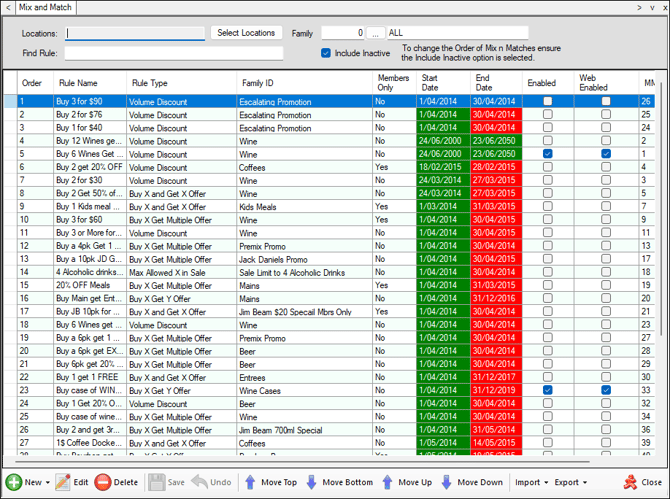
To access, select Mix and Match option in the Vouchers/Discounts menu in Back Office. Used to define rules that can be applied to a range of items/products to produce special pricing or print Vouchers in Touch POS. These rules are based on Families that are created in Back Office and are then sent to Touch POS devices.

Used to limit the number of rows displayed in the grid section.
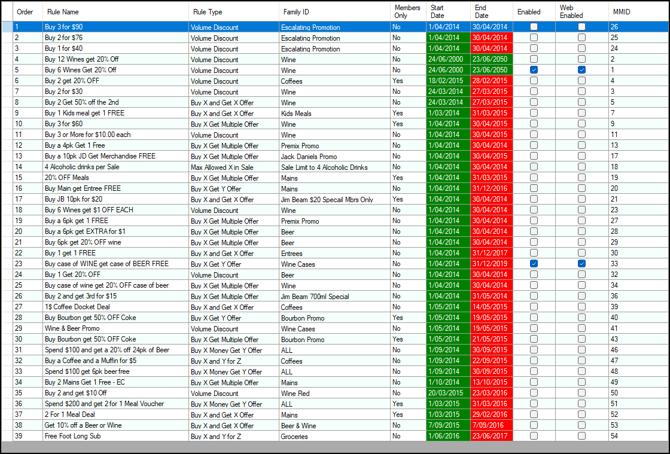
Lists the Mix n Match rules currently configured along with their Order, Rule Name, Rule Type, Family ID, Members Only, Start/End Date, Enabled, Web Enabled and MMID.
Notes ...
To edit an entry in the grid, double click a row. Rows displayed in the grid can be sorted by toggle selecting the column headings.
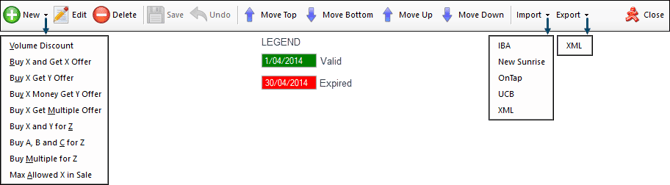
- New - Select a rule from the drop-down list.
- Edit Rule - Select a rule listed in the grid and click to edit. The edit screen of the relevant Mix n Match rule will be displayed dependent on the Type of rule.
- Delete Rule - Select to delete the selected rule.
- Move Top/Bottom or Up/Down - Select to re-order how the rules appear in the grid. The order in which the rules are listed in the grid, determines how the rules are applied. That is, rules are applied from the top of the grid to the bottom.
- Import -Select from the drop-down list below, the import option required:
- IBA - Select to open File Explore to select an open the XML Promotion file provided by IBA.
Notes ...
A Promotion Group and a Members Promotion Group will need to be configured against the Venue prior to importing.
- Import continued ...
- New Sunrise - Select to import a Promotion File supplied by New Sunrise. The file structure used is the same as UCB.
- OnTap - Select to import Mix n Match rules from a XML file.
- UCB - Select to import a Promotion File supplied by UCB. See the file structure below.
- XML - Select to import Mix n Match rules from a XML file.
- Export - Select from the drop-down list, the export option required:
- XML - Select to export Mix n Match rules to a XML file.
End of article ▲