
Notes ...
Refer HERE for an up-to-date overview of the availability of features in relation to orders/sales placed and/or Vouchers redeemed.
Subjects ▲ ▼
About ▲ ▼
What Is Required? ▲ ▼
- If required three Families of items/products may need to be created specifically for this rule.
When Is It Used? ▲ ▼
Used when Venues want to for example, offer a promotion such as buy multiple items/products for a discount.
Screens ▲ ▼
New Buy Multiple for Z Offer Screen ▲ ▼
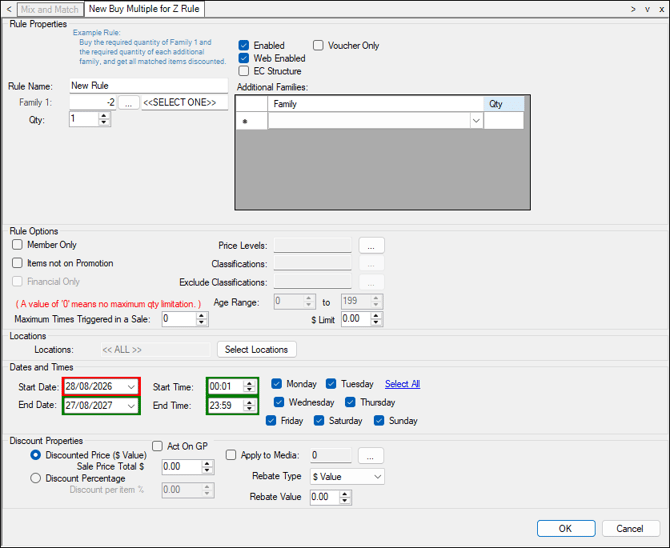
To access, select the MnM - Buy Multiple for Z Offer option from the New option's drop-down list in the footer section of the Mix and Match screen. Used when Venues want to for example, offer a promotion such as 2 Burgers + 2 Fries + 4 Drinks + Optional Kids Items.
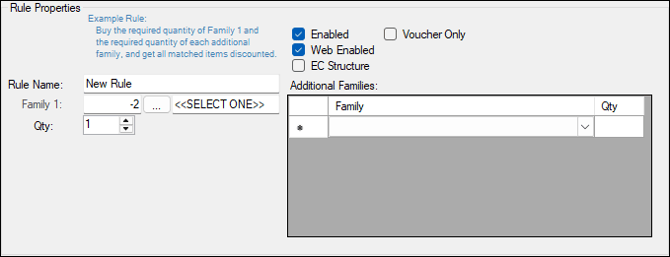
- Enabled - Select to ensure this rule is active and enabled for use.
- Voucher Only - Select to ensure this rule will only be applied when a Voucher (that has this rule setup as it's Action) is redeemed.
- Web Enabled - Select to ensure this rule is active and enabled for use via the Web API.
- EC Structure (Entertainment Coupon) - Select to ensure the discount is only applied when an order/sale includes more than 1 cover (seats at a Table). The discount applied will be limited to the $ Limit setting and will only be applied depending on the Maximum Times Triggered in a Sale setting. Refer HERE for an example.
- Rule Name - Displays/Enter a rule name that will make it easy to identify later.
- Family 1 - Select from the drop-down list the Family of items/products to which the rule is to be applied. Select the select option to open the Search Families screen.
- Additional Family - Add Families of items/products to the grid to which the rule is to be applied.
- Qty - Displays/Enter the quantity of items/products required to be sold for the rule to be triggered.
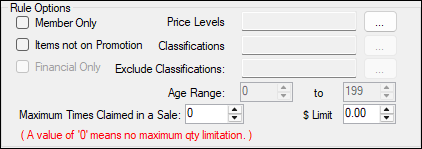
- Member Only - Selected ensures the rule is only triggered when orders/sales are made to Customer/Members.
- Price Levels - Select to restrict the rule to apply to specific Price Levels only. The default value of 0 means that all Price Levels are selected.
- Items not on Promotion - Selected ensures that the rule will NOT apply to items/products currently in a Special/Promotion.
- Classifications - Select to restrict the rule to apply to specific Member Classifications only. The default value of 0 means that all Member Classifications are selected.
- Financial Only - Select to ensure the rule is only triggered when orders/sales are made to Customer/Members that are Financial.
Notes ...
This option will only be enabled when the Member Only option is selected.
- Exclude Classifications - Select to restrict the rule to NOT apply to specific Member Classifications. The default is no Member Classifications are selected.
- Age Range - Select to enable senior citizen pricing - When Customer/Members over 65 swipe their card they might get access to a Special/Promotion, Mix n Match, Price Level shifts, Discounts or Vouchers etc.
- Maximum Times Triggered in a Sale - Displays/Enter the maximum times the rule can be applied to a single order/sale. A value of 0 means no maximum limit will be applied.
- $ Limit - Displays/Enter a dollar value to ensure that the discount applied to each item/product sold does not exceed this value.

- Locations - Select to open the Locations screen and select the Locations where the rule is to be active. By default, the rule will be active in all Locations.
-
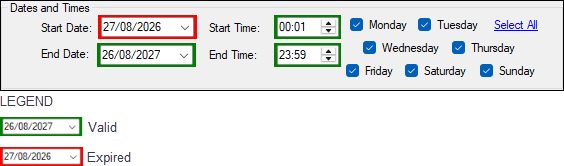
Dates and Times - Displays/Set the period in days the rule is active. This is done by selection the Start/End Dates/Times, and by selecting the days in the week the rule is to apply.
Notes ...
Time values entered will either be displayed with a red or green border, depending on the current time and the time values entered. For example, if the Start and End times entered is 12:00 and 12:30, then:
- The current time is 11:45, then the Start time will have a red border and the End time a green border.
- If the current time is 12:15, then the Start time will have a green border and the End time a green border.
- If the current time is 12:45, then the Start time will have a green border and the End time a red border.
Discount Properties Section ▲ ▼

- Act on GP - Select to attribute the discount more evenly based on the GP of the items/products rather than the order/sale value. For example, if a rule is configured for a bottle of spirits and a 2L Coke then the discount is applied based on GP% instead of value.
- Discounted Price ($ Value) - Displays/Enter the value to override the Sell Price of the discounted items/products e.g. $5 each.
- If the value entered is greater than the sell price of the discounted item/product, then the Mix n Match discount will be calculated as follows:
Mix n Match discount = Discounted Price ($ Value) entered - Sell Price of the item/product. - If the value entered is less than the sell price of the discounted item/product, then the Mix n Match discount will be calculated as follows:
Mix n Match discount = Sell Price of the item/product - Discounted Price ($ Value) entered.
- If the value entered is greater than the sell price of the discounted item/product, then the Mix n Match discount will be calculated as follows:
- Apply to Media - Selected will ensure the Mix n Match discount will be allocated to the media selected.
- Discount Percentage - Displays/Enter a discount as a percentage to be applied. By default, the discount will be calculated based on the item/product in the order/sale having the smallest value.
- Rebate Type - Select the appropriate option from the drop-down list.
- Rebate Value - Displays/Enter the Rebate as $ Value or Percentage of the item/product sold depending on the Rebate Type selected. Rebates are sometimes provided by the Manufacturers to promote items/products. The rebate applicable is entered here, while the item/product is on offer during the Happy Hour. The value of the Rebate reduces the Cost of an item/product, ensuring the GP is reported correctly. Rebates applied are reported on in the Extended Specials Sales Report (SAL013) and Specials Sales Reports (SAL036).
End of article ▲