
- Swiftpos Help Guides
- Touch
- POS Keys
-
Installers / Links / Releases
-
API
-
Back Office
-
Cloud Back Office
-
Events
-
Events Portal
-
How To
-
KVS
-
Member Portal
-
Notify
-
Oolio Pay
-
Orderaway
-
POS Keys
-
Self-Service Kiosk
-
Self-Service POS
-
Swiftpos
-
Touch
-
Touchmini
-
Troubleshooting
-
Venue Hub
-
Venue Manager
-
3rd Party Integrations
- Account Management
- Business Intelligence
- Cash Management
- eCommerce
- Exports / Imports
- Front Office Systems
- Fuel Systems
- Gaming
- General Ledger
- Gift Cards / Promotions / Vouchers
- Membership / Loyalty
- Middleware Applications
- Payment Integrators
- Product Level Blocking
- Reservations
- Swiftpos
- Tab Management
- Time & Attendance
- Value Added Services
-
Uncategorized
- API
- Back Office Accounts
- Back Office Administration
- Back Office - Clerks
- Back Office - Data Export
- Back Office - Inventory
- Back Office - Members
- Back Office - Menus
- Back Office - Products
- Back Office - Services
- Back Office - Suppliers
- Back Office - Swiftpos
- Back Office - Terminal Sales
- Back Office - Touch Settings
- Back Office - Vouchers / Discounts
- How To
- KVS
- OrderAway
- Venue Manager
- 3rd Party Integrations
- Touch
- Cloud Back Office
-
Touchmini v1 (End Of Life)
Linked Customer Search (#116)
Touch - POS Keys

This provides an overview of the Linked Customer Search (#116) POS Key.
Subjects ▲ ▼
About ▲ ▼
What Is Required? ▲ ▼
- Swiftpos v10.63.5+
What To Consider? ▲ ▼
- If required, access to this POS Key can be restricted by the Clerk Security feature.
- The default for the maximum number of Customers/Members returned for a search is 50. This can be adjusted HERE.
- The wildcard for searching is the "%" symbol. If a search for "Mc" and "Donald" anywhere in the name is required, then enter "Mc%Donald" to find all the different Customers/Members with that name.
- If the NetPOS Available Interfaces option is set to either eBet or Odssey, the Linked Customer Search lookup will now determine whether to prefix the search with the Club ID.
When Is It Used? ▲ ▼
- This POS Key is used to search for a Customer/Member via one interface and return their details from another interface.
How To? ▲ ▼
GET STARTED? ▲ ▼
- Review About and ensure the steps outlined HERE are addressed.
- In Keyboard Designer, ensure the Linked Customer Search (#116) POS Key has been added to a Layout. Refer HERE for more information.
- Ensure it is given an appropriate Caption. For example, Customer Lookup or Customer Search.
- Select the More Settings option to display the Settings screen and configure the POS Key as required.
- Once configured, ensure a Full Update is sent to all the Touch terminals that will be using the POS Key. Refer HERE for more information.
Screens ▲ ▼
Settings Screen ▲ ▼
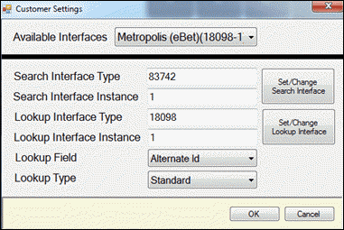
To access, select the More Settings option in Keyboard Designer. Used to configure the settings for the Linked Customer Search (#116) POS Key.
- Available Interfaces - Select from the drop down list the required Interface. Note : If no interface is selected, the default used will be the interface which is set as Default in NetPOS.Net.
- Set/Change Selected Interface - Select to select the interface selected above and set the Type and Instance.
- Search Interface Type - Displays the Type selected.
- Search Interface Instance - Displays the Instance selected.
- Lookup Interface Type - Displays the Type selected.
- Lookup Interface Instance - Displays the Instance selected.
- Lookup Field - Select from the drop-down list one of the following fields that will be used when doing a Lookup:
- Member Number
- Alternate ID
- Lookup Type - Select from the drop-down list one of the following lookup types:
- Standard
- Alternate
Notes ...
The Customer/Member details displayed in the sales grid can be configured HERE and the details printed on Receipts can be configured HERE.
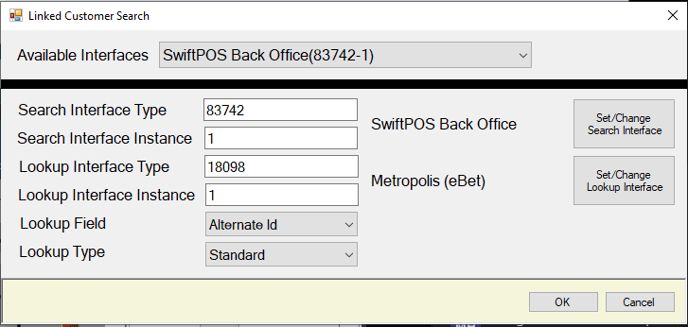
Example of a configuration for the Linked Customer Search (#116) POS Key
End of article ▲