
KVS - Screens
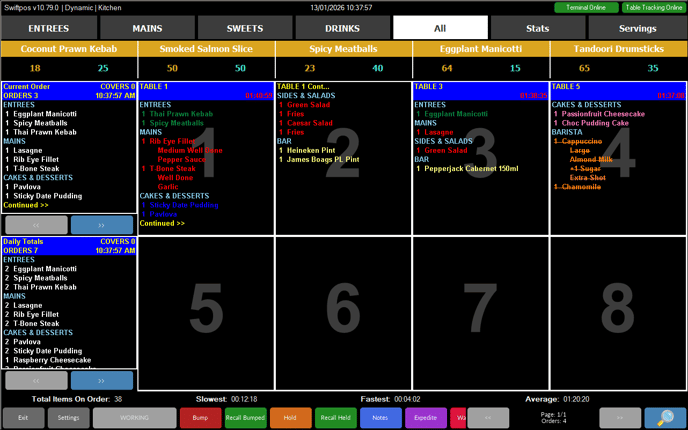
To access, refer HERE. Used primarily by kitchen staff to manage, search and or view orders sent from Touch. refer HERE for more information.
KVS Screen ▲ ▼
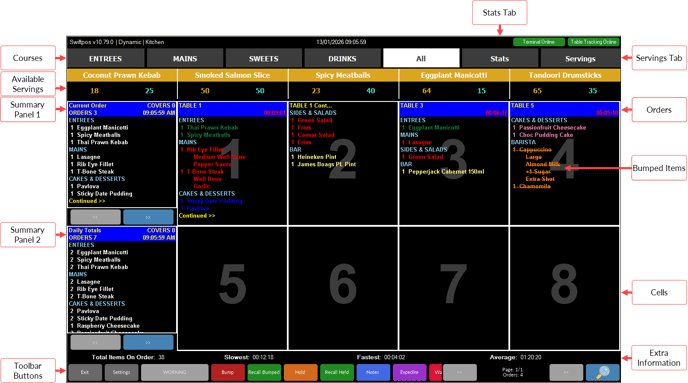
- Tabs - Courses, Stats and Servings tabs. Refer HERE for more information.
- Available Servings - Refer HERE for more information.
- Summary Panel 1 - Displays the summary information of all the current KVS orders. Refer HERE for more information.
- Cells - Orders are displayed in the cells in the order they are sent to KVS from left to right and then from top to bottom. Refer HERE for more information.
- Orders - Refer HERE for more information.
- Bumped Items - Bumped Items (served) will only be visible if the Bumped Lines option is selected.
- Summary Panel 2 - Displays the summary information of the total daily KVS orders. Refer HERE for more information.
- Extra Information - Displays the total number of items on order as well as the slowest, fastest and average KVS times. Refer HERE for more information.
- Toolbar Buttons - Refer HERE for more information.
Sections ▲ ▼

The tabs displayed in this section will only be visible if their respective options are selected. To display the following tabs, do as follows:
- Courses - Select the Enable option in the Courses section to display the Courses listed in the grid as tabs along with the All tab. In the screenshot above this would be the ENTREES, MAINS, SWEETS, DRINKS and All tabs.
- Stats - Select the Show Statistics option in the Courses section to display the Stats tab.
- Servings - Select the Enable Servings Screen option in the Available Servings section to display the Servings tab.
Available Servings Section ▲ ▼

This section will only be visible if the Enable option in the Available Servings section is selected. Displays the total number of servings ordered and the number available. There are two modes in which available servings can be displayed. Refer HERE for more information.
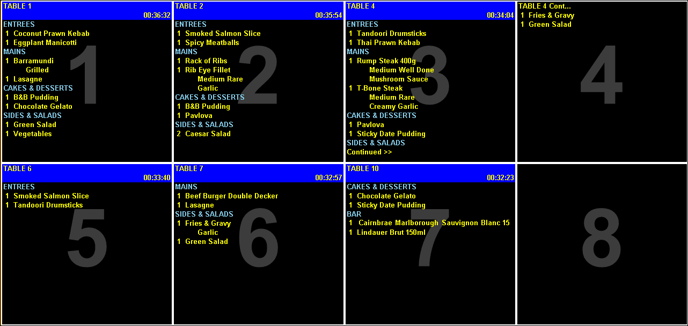
Displays the orders sent from Touch to KVS. In the screenshot above, the KVS is configured to display a maximum of 8 cells per screen. Orders will be displayed in cells from left to right and top to bottom in the order that they are sent to the KVS. If an order is too long, it will be continued in the next cell. For example, as shown in cells 3 and 4 above. The grid and number of cells displayed can be configured HERE.

Displays the options available to staff to be able to manage the orders. The options displayed can be configured HERE and HERE.
- Settings - Select to open the KVS Settings screen.
- Prep - Select to ensure the preparation timer is started. Normally the Print Group that has the item with the longest preparation time would be selected first.
This option will only be displayed when either the Pass Cooking Time, Section Cooking Time or Section Journal KVS Type is selected.
- Working - Select to ensure the selected order is moved to the first cell in the KVS screen. Select again while the same order is selected, and the same order will be moved back to it's original position.
- Bump - Select to remove the selected order or mark (strikethrough) the selected item from the KVS. Right click on the Bump option to remove all Orders currently displayed on the KVS.
To mark individual items as removed (strikethrough) ensure the Allow bump of Individual Items settings is selected.
- Recall Bumped - Select to display a Recall Bumped screen, similar to the Recall Orders screen below, which allows for the selection and recall of previously bumped orders.
- Hold - Select to place the selected order on hold. The held order will be removed from displaying on the KVS until it is recalled. The order timer also goes on hold until the order is recalled.
This is option is disabled when in Journal Mode. To hold an order when using Journal Mode make use of the Hold / Recall Sale POS Key in Touch.
- Recall Held - Select to display a the Recall Orders, which allows for the selection and recall of previously held orders.
This is option is disabled when in Journal Mode. To recall an order when using Journal Mode make use of the Hold / Recall Sale POS Key in Touch.
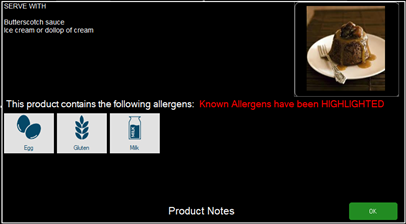
- Expedite - Select to move the selected Order to the front of the queue (that is, the first cell in in the KVS). If however Orders are required to be moved elsewhere in the queue, then the Prompt to Move/Expedite Order option will need to be selected to enable this. Once selected, a cell number can be entered in order to move the selected Order to that position in the queue.
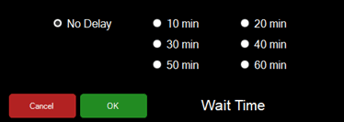
- Wait Time - Select to open the following prompt below to set the current average Wait time between an Order being placed and the Order being available. The Wait time would normally be determined and set by the Head Chef. Once set the Wait time will be displayed here if the Wait Time option is set to True for the same KVS. Refer HERE for more information.
- << - Select to navigate to the previous screen of orders. This option is only enabled when there are previous screens to navigate to.
- >> - Select to navigate to the next screen of orders. This option is only enabled when there are more screens to navigate to.
- Search - Select to open the Search Cells screen to search for an order to recall or select.
End of article ▲