
- Swiftpos Help Guides
- KVS
- How To
-
Installers / Links / Releases
-
API
-
Back Office
-
Cloud Back Office
-
Events
-
Events Portal
-
How To
-
KVS
-
Member Portal
-
Notify
-
Oolio Pay
-
Orderaway
-
POS Keys
-
Self-Service Kiosk
-
Self-Service POS
-
Swiftpos
-
Touch
-
Touchmini
-
Troubleshooting
-
Venue Hub
-
Venue Manager
-
3rd Party Integrations
- Account Management
- Business Intelligence
- Cash Management
- eCommerce
- Exports / Imports
- Front Office Systems
- Fuel Systems
- Gaming
- General Ledger
- Gift Cards / Promotions / Vouchers
- Membership / Loyalty
- Middleware Applications
- Payment Integrators
- Product Level Blocking
- Reservations
- Swiftpos
- Tab Management
- Time & Attendance
- Value Added Services
-
Uncategorized
- API
- Back Office Accounts
- Back Office Administration
- Back Office - Clerks
- Back Office - Data Export
- Back Office - Inventory
- Back Office - Members
- Back Office - Menus
- Back Office - Products
- Back Office - Services
- Back Office - Suppliers
- Back Office - Swiftpos
- Back Office - Terminal Sales
- Back Office - Touch Settings
- Back Office - Vouchers / Discounts
- How To
- KVS
- OrderAway
- Venue Manager
- 3rd Party Integrations
- Touch
- Cloud Back Office
-
Touchmini v1 (End Of Life)
Configure For Courses
KVS - How To
This outlines the How To Configure For Courses in KVS.
Subjects? ▲ ▼
How To Configure For Courses? ▲ ▼
- Start KVS and navigate to the Configuration Tabs. Refer HERE for more information.
- Select the Courses tab.
- In the Courses section ensure the Enable option is selected in the Courses section.
- Select the Add option to open the Courses screen to locate and select a Print Group to add to the grid. Once added, the Print Group will be displayed as a tab across the top of the KVS. Each Course (Print Group) tab configured will only display those Items/Products that have been sent to the KVS and are associated with each. Repeat, to add as many Items/Products as is required.
- Select OK to save the selection and exit.
- Consider selecting the Show Statistics and/or the Avg Times options. Once selected, the Stats tab will be visible in KVS. Refer HERE for more information.
- Select OK to save the changes and exit.
- Select the Appearance tab:
- Ensure the Working option in the Hide Toolbar Buttons section is NOT selected to ensure the Working option is displayed at the bottom of the KVS screen. Refer HERE for more information.
- Once configured and enabled, the KVS screen will now display the selected courses across the top of the screen as tabs including the additional All tab. The All tab ensures all the orders are displayed, as opposed to the Course tabs, that only display the orders that include the course selected.
Examples? ▲ ▼
The following are examples of when the courses tabs (displayed across the top of the screen) are selected.
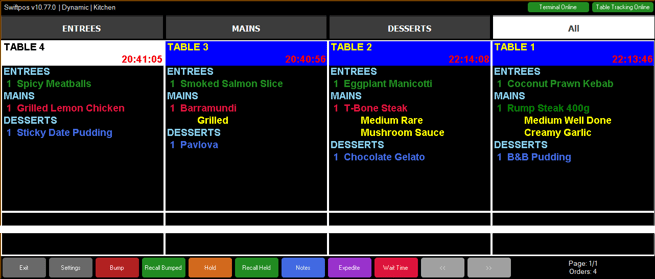
With the All tab selected
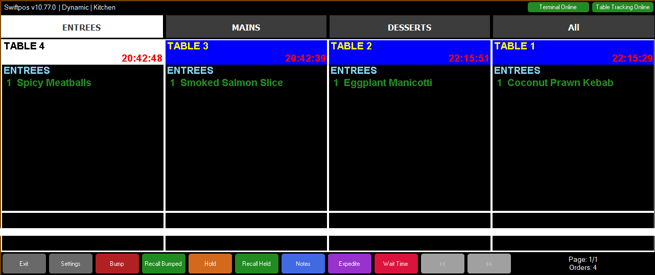
With the ENTREES tab selected
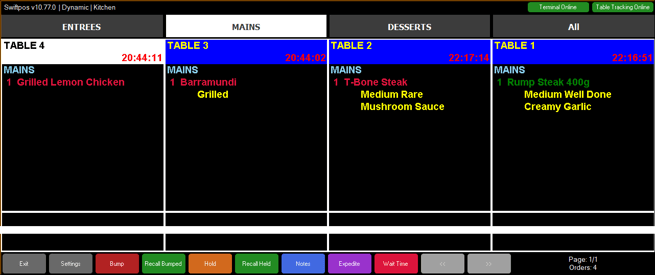
With the MAINS tab selected
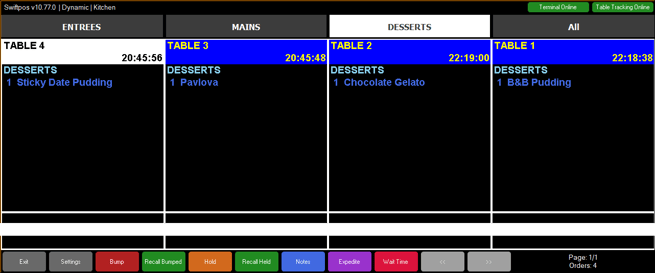
With the DESSERTS tab selected
End of article ▲