
How To? ▲ ▼
- Access The Configuration Tabs?
- Add / Edit KVS In Touch?
- Adjust/Set Available Serving Quantities?
- Configure A Command Line?
- Configure A Wait Time?
- Configure And Use Group Ordering?
- Configure For Available Servings?
- Configure For Courses?
- Configure Passes/Sections Using Dynamic Mode?
- Configure Multiple KVSs On One Screen?
- Declare Allergens?
- Expedite An Order?
- GET STARTED?
- Launch KVS?
- Show The Servings Tab?
- Show The Statistics Tab?
- Understanding Categories And Triggering In KVS?
- View Product Notes?
Expedite An Order? ▲ ▼
To expedite an Order in KVS, do as follows:
- Consider selecting the Show Expedite option to ensure that when an Order is expedited, the text EXPEDITED is displayed in the background of the cell of the expedited Order.
- Select a cell (NOT the first cell, as this Order is already at the front of the queue) that is displaying an Order and then select the Expedite option.
- Once selected the selected cell will be moved to the front of the queue. That is, to the first cell on the KVS.
- This Order will now have precedence over all other Orders.
- If second cell is selected an expedited, it will also be moved to the front of the queue. That is, the first expedited Order will now be moved to 2nd place in the queue. and the second expedited Order will now have precedence over all other Orders.
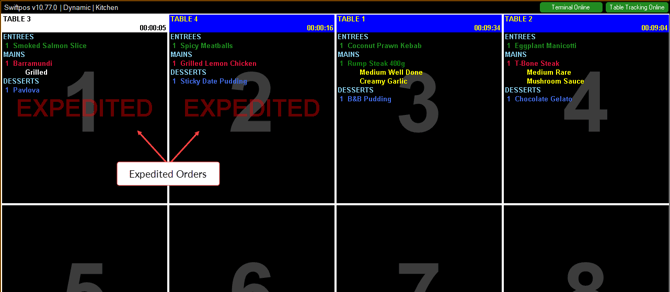 Example of expedited Orders with the the Show Expedite option selected.
Launch KVS? ▲ ▼
How To? ▲ ▼
KVS can be launched using either one of the following:
Do as follows:
- Locate the C:\SwiftPOSKVS\SwiftPOS.Kitchen.Video.exe file.
- Once located, right click it and select Open.
To use Command Line Arguments, do as follows:
- Right click anywhere on the desktop and then select New > Shortcut.
- In the Create Shortcut prompt, select the Browse option.
- Locate the C:\SwiftPOSKVS\SwiftPOS.Kitchen.Video.exe file and select it.
- Now is the time to append the Command Line Arguments that may be required. These can be entered after the file path selected above. For example: C:\SwiftPOSKVS\SwiftPOS.Kitchen.Video.exe /I:2 /M:1.
- Select Next.
- Enter an appropriate name for the Shortcut being created. For example, Kitchen KVS.
What Is Not Supported? ▲ ▼
- Multiple USB bump boxes are NOT supported. A separate computer will be needed for each USB bump box.
What Is Required? ▲ ▼
Prior to proceeding, ensure the following has been reviewed and addressed where appropriate:
- Venues will need to be registered for the appropriate number of KVS Pro Licences.
- Ensure a connection to a Table Tracking has been established in Touch.
What To Consider? ▲ ▼
- If multiple KVSs are connected to the same PC, then a version of Windows (like Windows 10) that supports multi-touch will be required to be installed.
- Command Line Arguments
The following command line arguments are available when launching KVS:
- /I or /ID - Specifies the KVS Number.
Notes ...
The same KVS # MUST NOT be used when launching multiple KVSs. This will cause errors. Ensure the KVS #s is cleared in the Table Tracking database before continuing.
- /M or /SCREEN - Specifies the monitor number on which the KVS will be displayed.
- /L:(Left),(Top):(Width),(Height) - Where the Left and Top values determine the position and the Width and height values determine the size of the screen. For example, /L:100,100:800,600
Examples With KVS Launched On Different Screens
- SwiftPOS.Kitchen.Video.exe /I:1 /M:2
- SwiftPOS.Kitchen.Video.exe /I:4 /M:1
Examples With Multiple KVSs Launched On A Single Screen
- C:\SwiftPOSKVS\SwiftPOS.Kitchen.Video.exe /ID:2 /SCREEN:1 /L:1120,1:800,300
- C:\SwiftPOSKVS\SwiftPOS.Kitchen.Video.exe /ID:3 /SCREEN:1 /L:1120,350:800,300
- C:\SwiftPOSKVS\SwiftPOS.Kitchen.Video.exe /ID:4 /SCREEN:1 /L:1120,700:800,300
Notes...
If any of the /L:(Left),(Top):(Width),(Height) settings fail to match screen size, then the KVS will adjust to fill the entire screen.
View Product Notes? ▲ ▼
- In KVS
- Select an Item/Product in one of the Orders/Sales displayed.
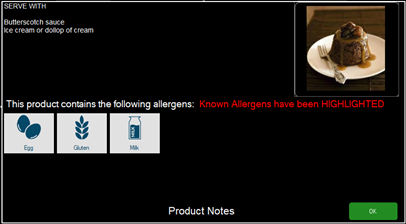
- Select the Notes option in the footer section of the KVS screen. This will display the information relating to the Item/Product selected.
End of article ▲