
This outlines the How To Configure A Command Line for KVS.
Subjects? ▲ ▼
About ▲ ▼
When Is It Used? ▲ ▼
Most commonly used when a Venue requires multiple KVS screens to be displayed on one screen.
How To Configure A Command Line? ▲ ▼
Command lines for KVS can include one or more of the arguments outlined HERE. An example of this, are the following command lines, that support the displaying of 4 KVSs to be displayed on a single monitor. The 4 screens will be separated with a border of 10 pixels in thickness. Refer HERE for more information.
- Entrees KVS - /ID:1 /SCREEN:1 /L:1,1:955,535
- Mains KVS - /ID:2 /SCREEN:1 /L:965,1:955,535
- Desserts KVS - /ID:3 /SCREEN:1 /L:1,545:955,535
- Pass KVS - /ID:4 /SCREEN:1 /L:965,545:955,535
Once the arguments to be used in a command line have been established, these can then be appended to the start command of a Windows application. For example, the above command lines can now be appended to the value held in the Target field of a Shortcut tab in the properties of each of the KVS shortcuts displayed on the desktop. For example, the value of the Target field of the shortcut for the KVSs, with the command line included, would be for:
- Entrees - C:\SwiftPOSKVS\SwiftPOS.Kitchen.Video.exe /ID:1 /SCREEN:1 /L:1,1:955,535
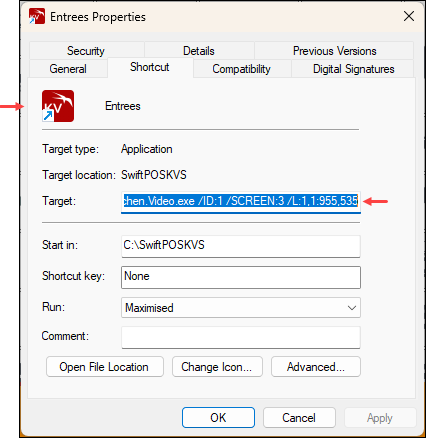
- Mains - C:\SwiftPOSKVS\SwiftPOS.Kitchen.Video.exe /ID:2 /SCREEN:1 /L:965,1:955,535
- Desserts - C:\SwiftPOSKVS\SwiftPOS.Kitchen.Video.exe /ID:3 /SCREEN:1 /L:1,545:955,535
- Pass - C:\SwiftPOSKVS\SwiftPOS.Kitchen.Video.exe /ID:4 /SCREEN:1 /L:965,545:955,535
Notes ...
If any one of the command lines have been configured incorrectly, the KVS in question will default to filling the entire screen. For example, if the following command line is used for the Entrees KVS:
C:\SwiftPOSKVS\SwiftPOS.Kitchen.Video.exe /ID:1 /SCREEN:1 /L:0,0:955,535
Then when started the Entrees KVS will appear maximised to fill the whole screen of the monitor.
End of article ▲