
This outlines the How To Configure Multiple KVSs On One Screen in KVS.
How To? ▲ ▼
There may be a situation that a Venue requires multiple KVS screens to be displayed on one screen. In order to achieve this, the following example is provided as a guide.
Notes ...
Even though there is no limitation to the number of KVSs that can be displayed on one screen, at some point too many will become an issue and not necessarily be workable for the Venue. It all depends on the size of the screen being used to display them, and how many it can reasonably cater to.
The Venue requires 3 KVS screens to be displayed on a single Touchscreen monitor (screen # 2) in the kitchen and one screen to be displayed on another Touchscreen monitor (screen # 3) in the pass/serving area. The 3 screens will be separated with a border of 10 pixels in thickness. This is purely to visually delineate the screens from each other. S
Screen # 2 will be used to display the Orders for:
- ORDERS - for all orders with one row of 8 cells.
- FOOD - For all food orders with 2 rows of 4 cells.
- DRINKS - For all drinks orders with 2 rows of 4 cells.
And screen # 3 will be used to display the Orders for:
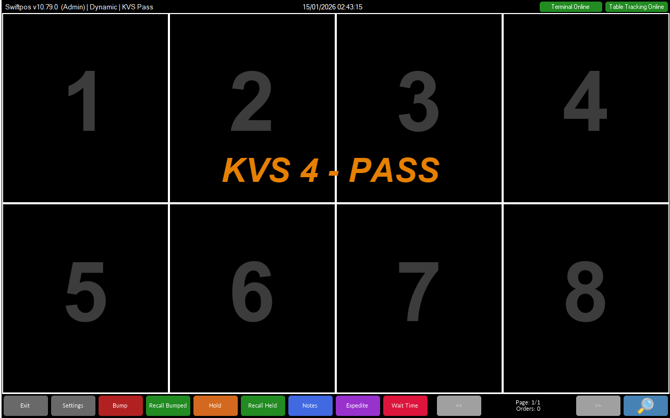
- PASS - For all ready to serve items/orders with 2 rows of 4 cells.
Configuration
- Determine the IDs that are to be attributed to each of the KVS screens. In this example, the following will IDs will be applied:
- 1 for the KVS ORDERS screen
- 2 for the KVS FOOD screen
- 3 for the KVS DRINKS screen
- 4 for the KVS PASS screen
- Determine the screen position of each of the 4 swiftpos KVS screens.
- The 1st screen (for KVS ORDERS) will display in the top left corner of Touchscreen 2. Hence, it will have a screen position of 1,1.
- The 2nd screen (for KVS FOOD ) will display in the top right corner of Touchscreen 2. Hence, it's screen position is determined as follows:
- Width of 1st screen + thickness of border. 955 + 10 = 965. Hence, it will have a screen position of 965,1.
- The 3rd screen (for KVS DRINKS) will display in the bottom left corner of Touchscreen 2. Hence, it's screen position is determined as follows:
- Height of 1st screen + thickness of border. 535 + 10 = 545. Hence, it will have a screen position of 1,545.
- The 4th screen (for the KVS PASS) will display in the top left corner of Touchscreen 3. Hence, it will have a screen position of 1,1.
- Determine the screen resolution/size of the monitor on which the 3 KVSs are going to be displayed on. In this example, the screen resolution/size of the monitor is 1920 w x 1080 h pixels.
- Determine the screen resolution/size of each of the 3 swiftpos KVS screens.
- Determine the width of those screens that will be displayed side by side. To do this:
- Divide the width of the monitor by 2.
For example, 1920 / 2 = 960 - Subtract 5 (for half the thickness of the border) from the above result.
For example, 960 - 5 = 955. This is the width of those screens that are to be displayed side by side.
- Divide the width of the monitor by 2.
- Determine the height of each of the 3 screens. To do this:
- Divide the height of the monitor by 2.
For example, 1080 / 2 = 540 - Subtract 5 (for half the thickness of the border) from the above result.
For example, 540- 5 = 535. This is the height of each individual screen.
- Divide the height of the monitor by 2.
- In conclusion, the screen resolution/size for each of the screens are:
- ID # 1 KVS ORDERS - 1920w x 535 h pixels (full width and half the height of the Touchscreen monitor).
- ID # 2 KVS FOOD - 955 w x 535 h pixels (half the width and half the height of the Touchscreen monitor).
- ID # 3 KVS DRINKS - 955 w x 535 h pixels (half the width and half the height of the Touchscreen monitor).
- Determine the width of those screens that will be displayed side by side. To do this:
- Determine the screen resolution/size of each of the 3 swiftpos KVS screens.
- Create and configure shortcuts for each of the 4 KVSs.
- Create a shortcut on the Windows Desktop for each of the 4 KVSs.
- This can be done by right clicking on the SwiftPOS.Kitchen.Video.exe file in the C:\SwiftPOSKVS folder and selecting the Send To > Desktop (create shortcut) option.
- Configure the shortcuts as follows:
- Rename each to represent each of the 4 KVSs required. For example, give them the names KVS 1 - ORDERS, KVS 2 - FOOD, KVS 3 - DRINKS and KVS 4 - PASS respectively.
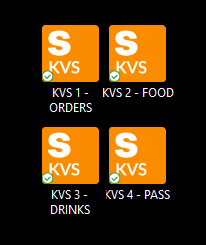
- Configure a command line for each. This will ensure that each is positioned and sized correctly. The command line for each is determined as follows:
- /ID:n /SCREEN:n1 /L:x,y:w,h where:
- /ID - Represents the ID (n) designated to each of the KVSs as determined HERE.
- /SCREEN - Represents the number (n1) of the monitor the KVSs are going to be displayed on.
- /L - Represents the position (x,y) and resolution/size (w,h) of each of the KVSs as determined HERE.
- In the example, the command lines for the 4 KVSs will appear as follows for the:
- KVS ORDERS - /ID:1 /SCREEN:2 /L:1,1:1920,535
- KVS FOOD - /ID:2 /SCREEN:2 /L:1,545:955,535
- KVS DRINKS - /ID:3 /SCREEN:2 /L:965,545:955,535
- KVS PASS- /ID:4 /SCREEN:3
- Refer HERE for information.
- /ID:n /SCREEN:n1 /L:x,y:w,h where:
- Rename each to represent each of the 4 KVSs required. For example, give them the names KVS 1 - ORDERS, KVS 2 - FOOD, KVS 3 - DRINKS and KVS 4 - PASS respectively.
- Create a shortcut on the Windows Desktop for each of the 4 KVSs.
- Configure each of the 4 KVS as is required to meet the Venue's requirements. This can be done by selecting the Settings option at the bottom of each of the KVS screens.
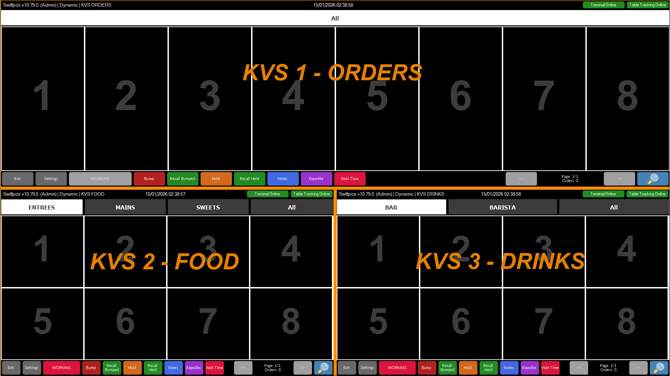
- Once all 4 KVSs are started, they should appear as follows on the designated monitor:
SCREEN #2
SCREEN #3
-
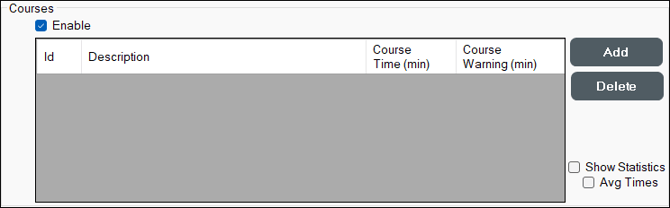
In the above example screenshots, KVSs 1,2 and 3 have each been configured to enable the Courses tab. For KVS 2 and 3, Print Groups have also been added as courses to ensure they display as is appropriate to their use. Below are examples of the Course tab configurations for KVSs 1,2 ad 3. Refer HERE for more information.
| 1- KVS ORDERS |
|
| 2 - KVS FOOD |
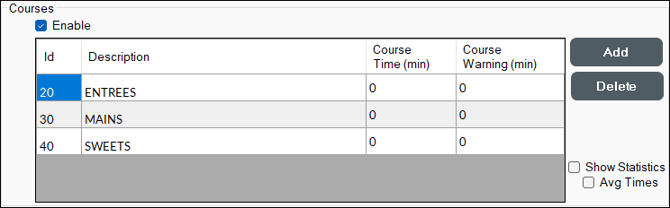
|
| 3 - KVS DRINKS |
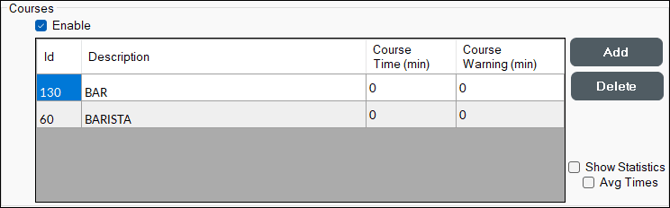
|
-
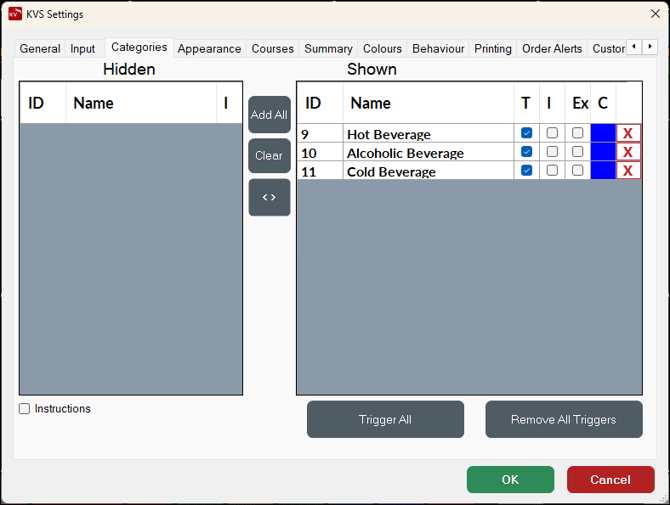
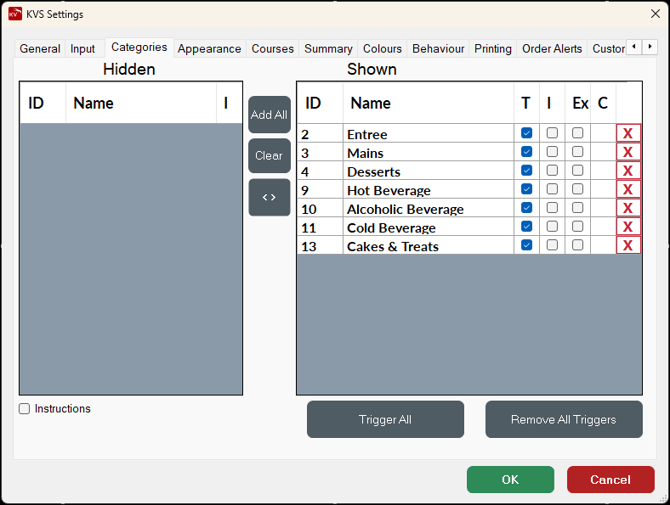
Lastly the Categories tab will need to be configured for each KVS to ensure the ordered items/products are displayedon the appropriate KVS. Below are examples of the Categories tab configurations for KVSs 1,2 ad 3. Refer HERE for more information.
| 1- KVS ORDERS |
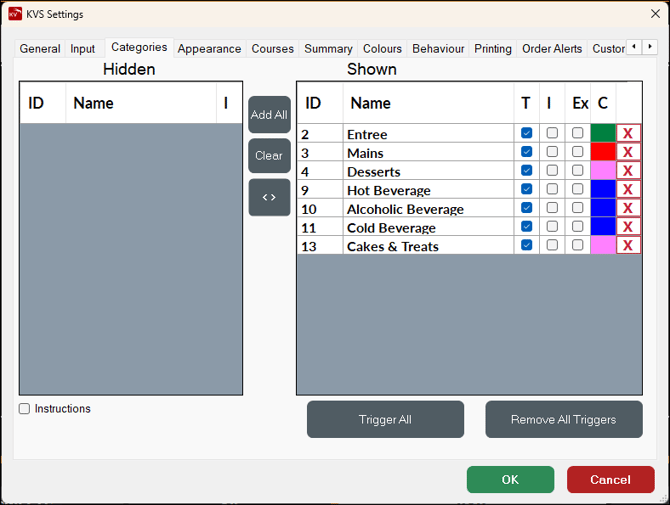
|
| 2 - KVS FOOD |
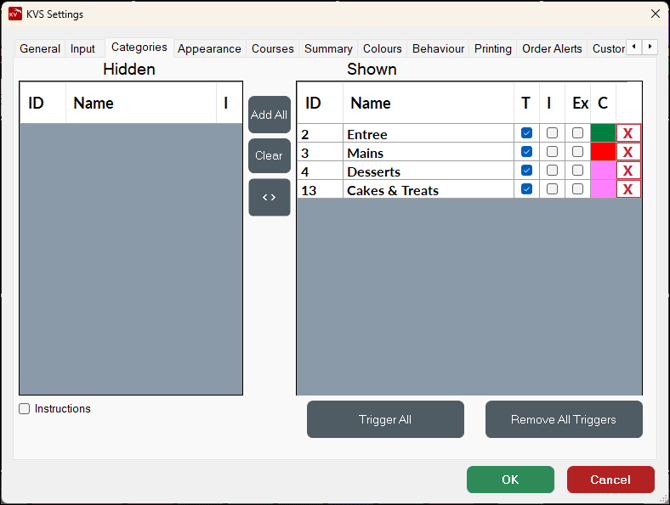
|
| 3 - KVS DRINKS |
|
| 4 - PASS |
 |
End of article ▲